
User guide
VetMapping, step by step
Every screen of the app, with pictures taken from the app itself. Tap a picture to see it larger.
Download the guide as PDFPDF · 3.7 MB- 1Getting started
- 2The home screen
- 3Sections and kinds of site
- 4Adding a site
- 5The map
- 6All sites on one map
- 7A site's record
- 8Visit notes and critical notes
- 9Radius around a case
- 10Pinpoint: add or move a site from the map
- 11Send a location from Google Maps
- 12Recent changes, starred and recently opened
- 13Import from Excel
- 14Duplicate finder
- 15Export to Excel
- 16Activity reports in Excel or PDF
- 17Statistics
- 18Read numbers with the camera
- 19Settings
- 20Backup and working as a team
- 21Dark mode
- 22Free trial and purchase
Getting started
The first time you open VetMapping it asks two things, once.
-
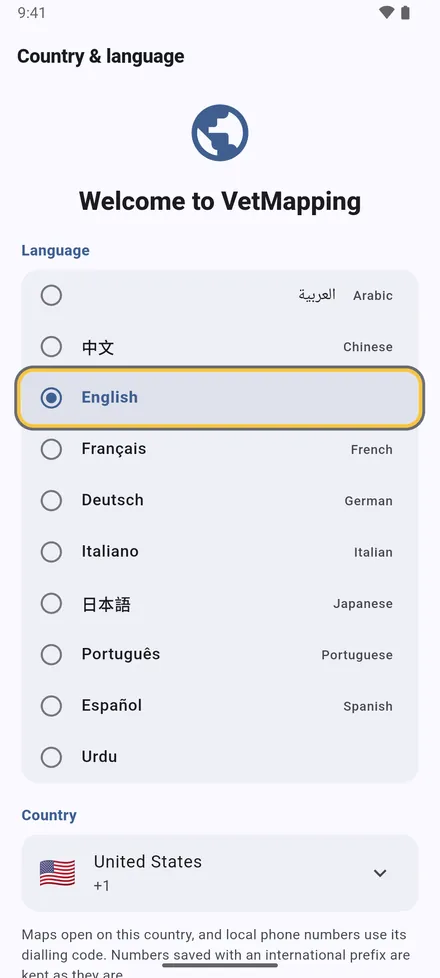
1Choose your language and your country, then tap Continue. Maps open on your country, and phone numbers use its dialling code.
-
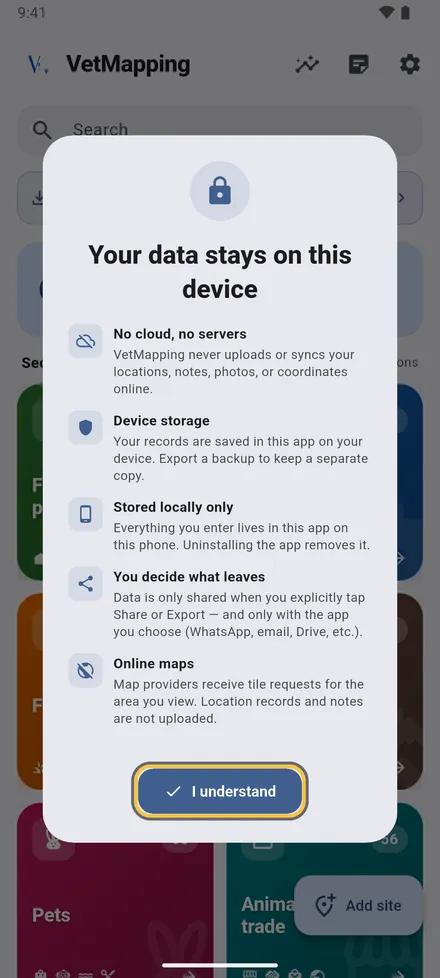
2There is no account and no server: your sites, notes and photos stay on this phone. Tap I understand.
Then allow location access. The map uses it to show where you are, and records show how far away each site is. Both choices can be changed later in Settings.
The home screen
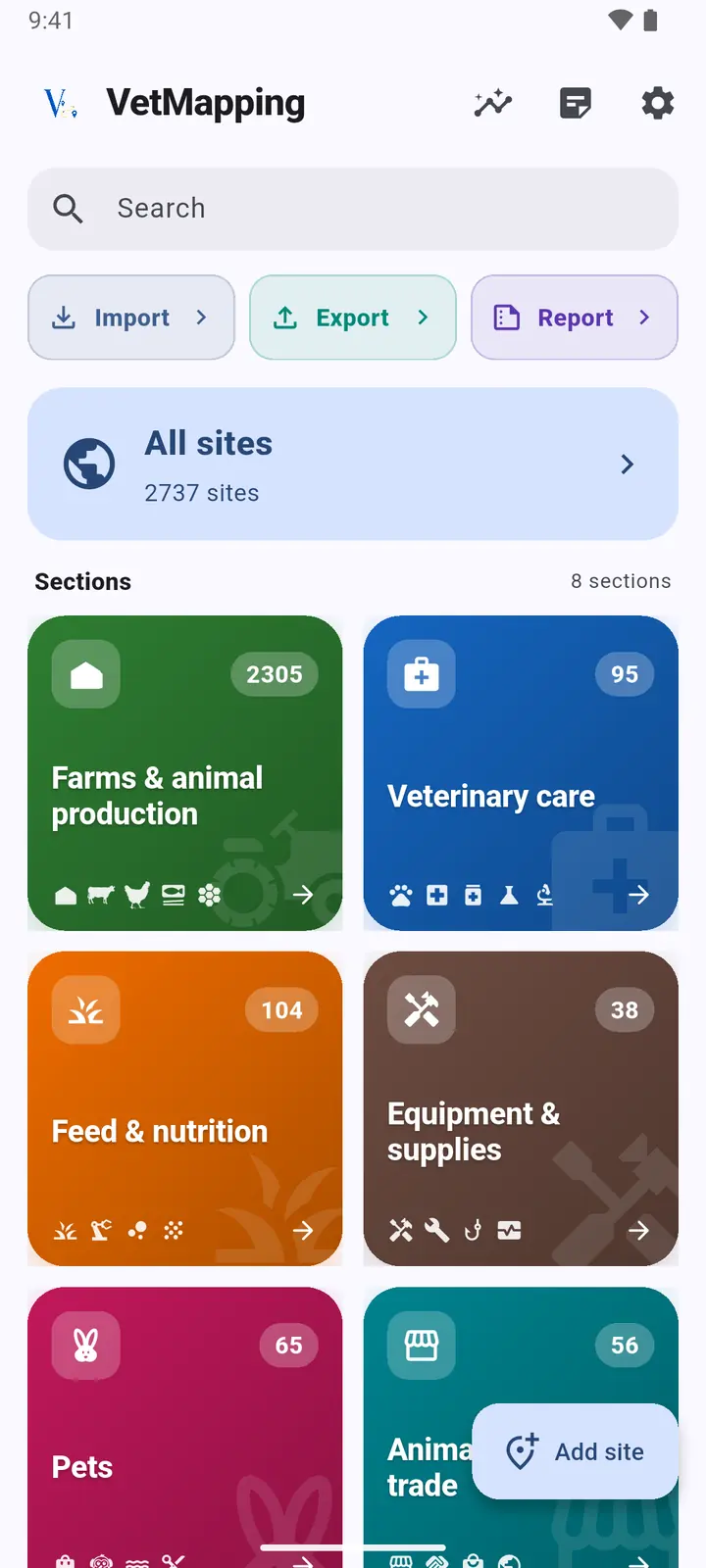
Everything starts here. Scroll down to see the rest.
-
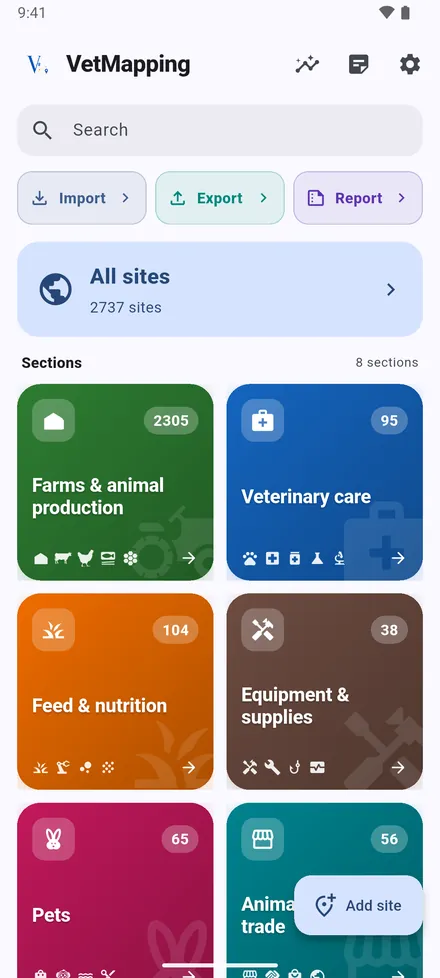
1At the top: Statistics, Recent notes and Settings. Import, Export and Report move data in and out. All sites opens one map with everything, and the eight Sections open their own sites.
-
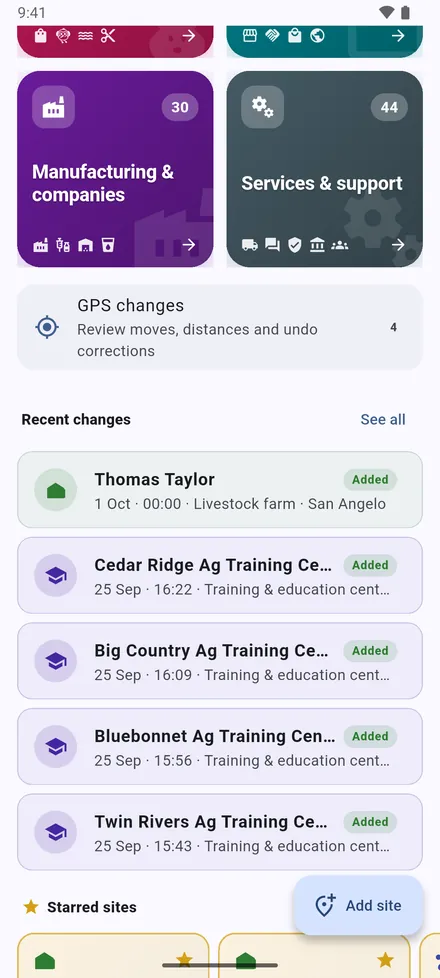
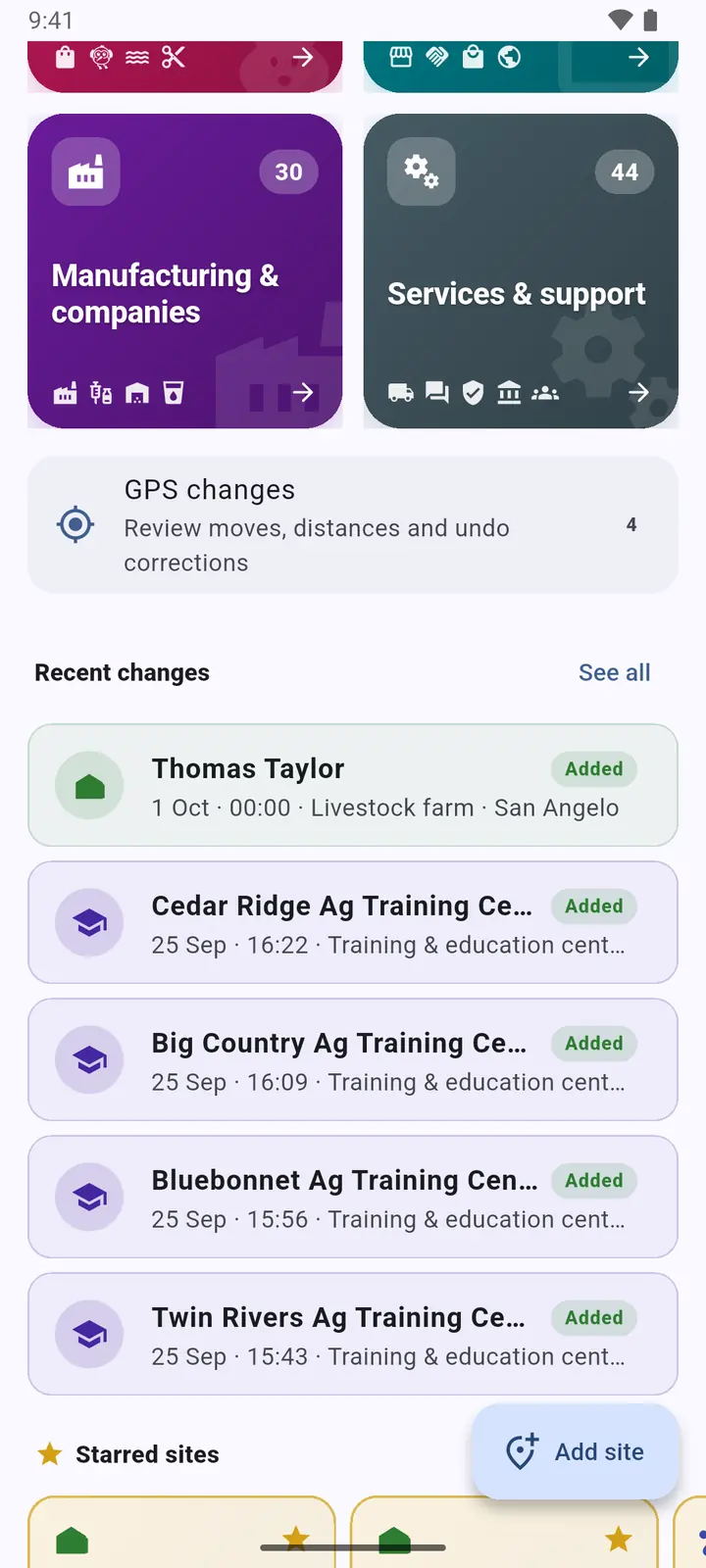
2Below the sections: GPS changes, then Recent changes: the sites added, moved or edited last.
-
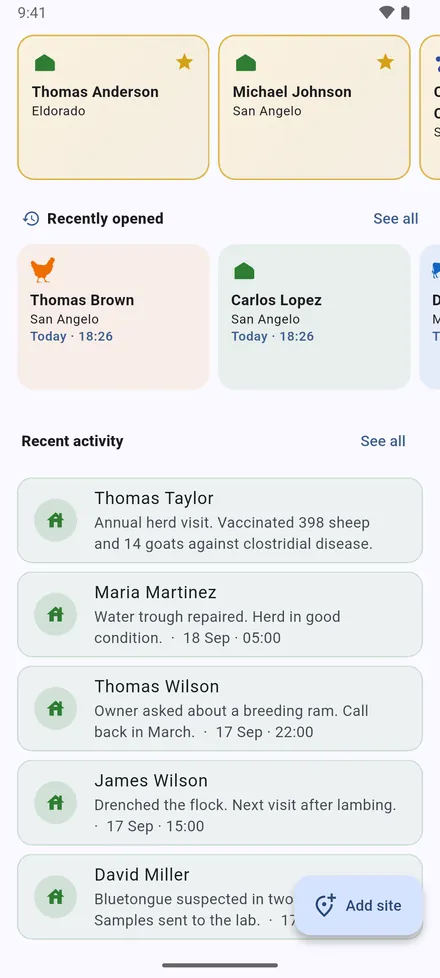
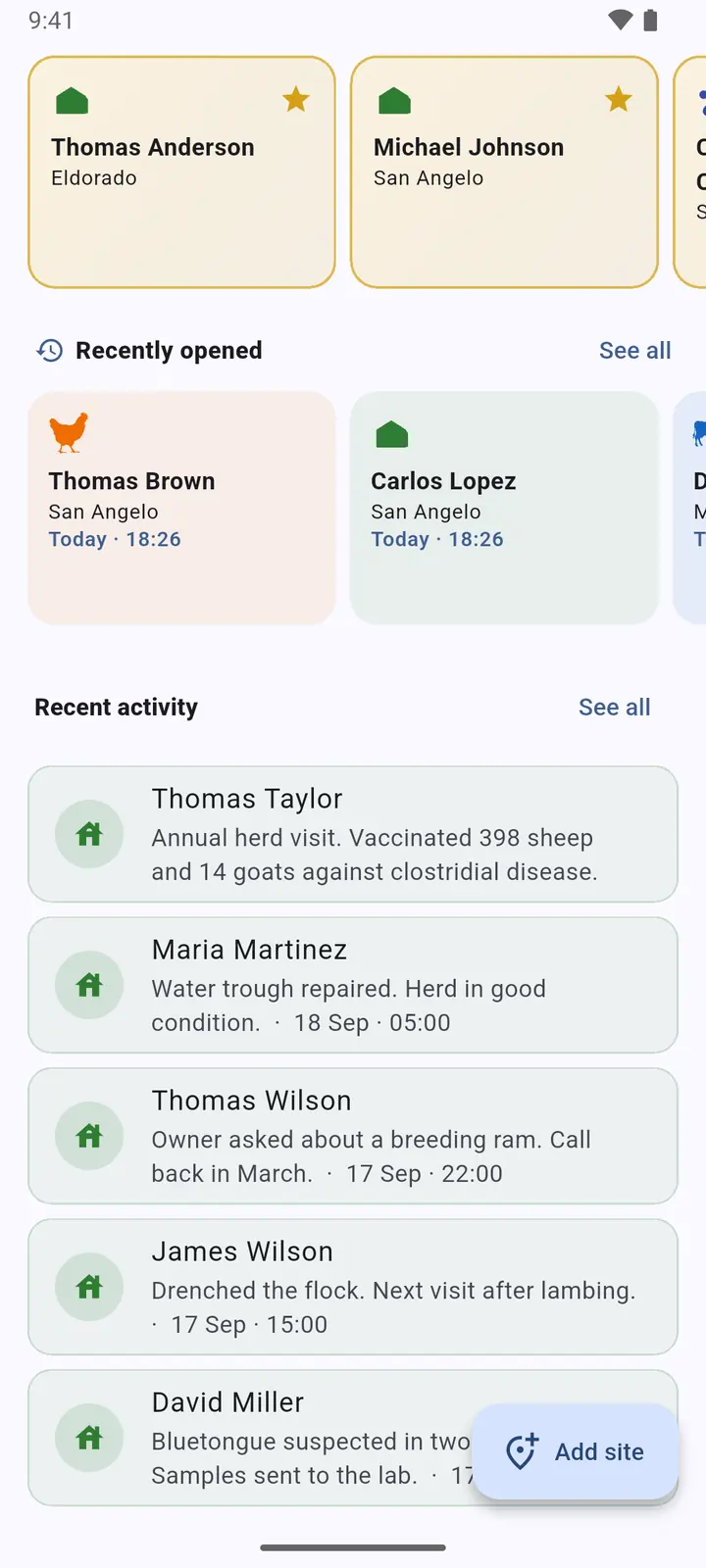
3Your Starred sites, the sites Recently opened, and Recent activity: the latest visit notes.
-
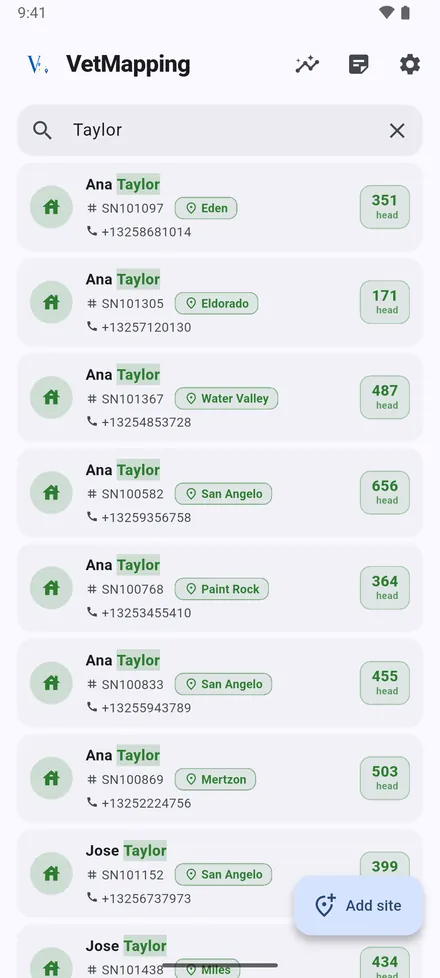
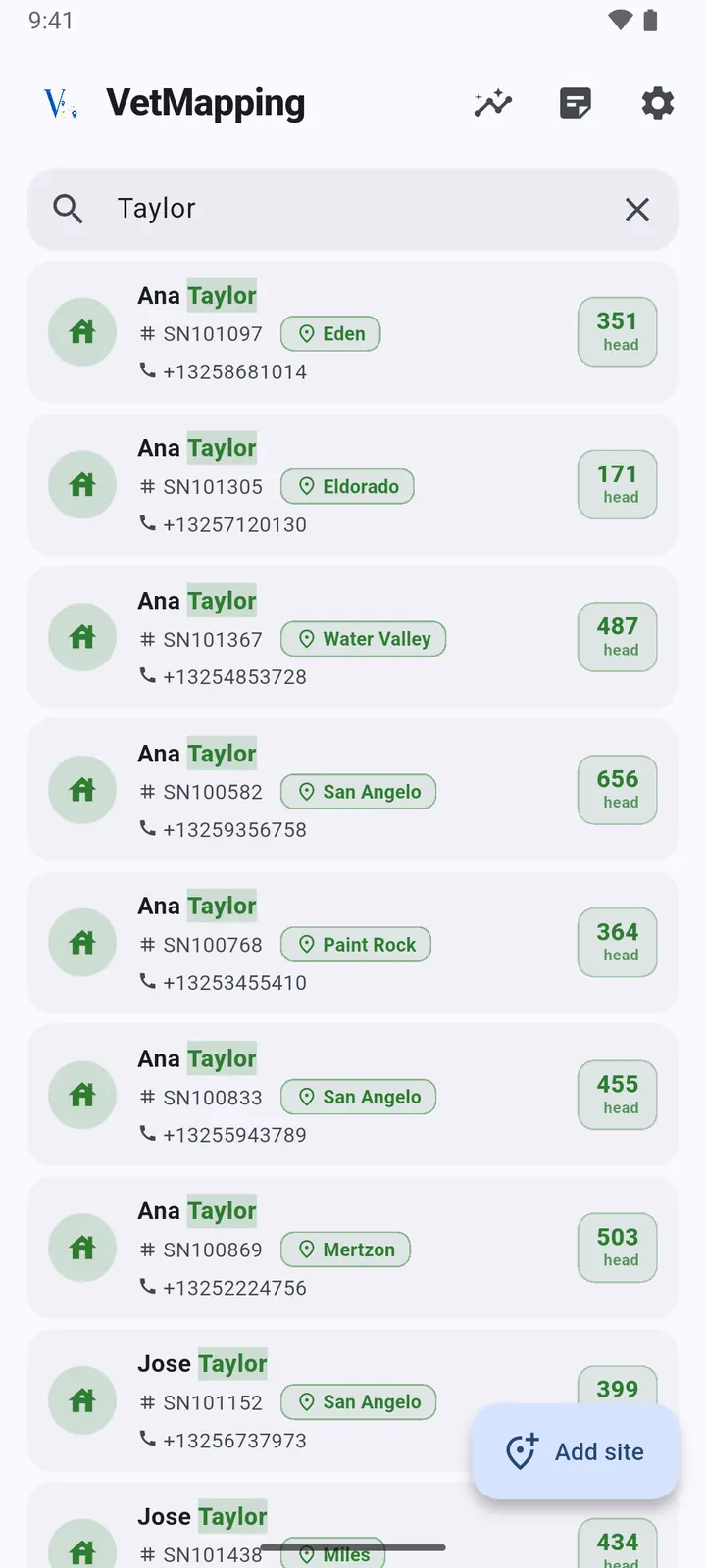
4Search finds any site by owner, serial number, phone, area or note. Tap a result to open it on its map.
Sections and kinds of site
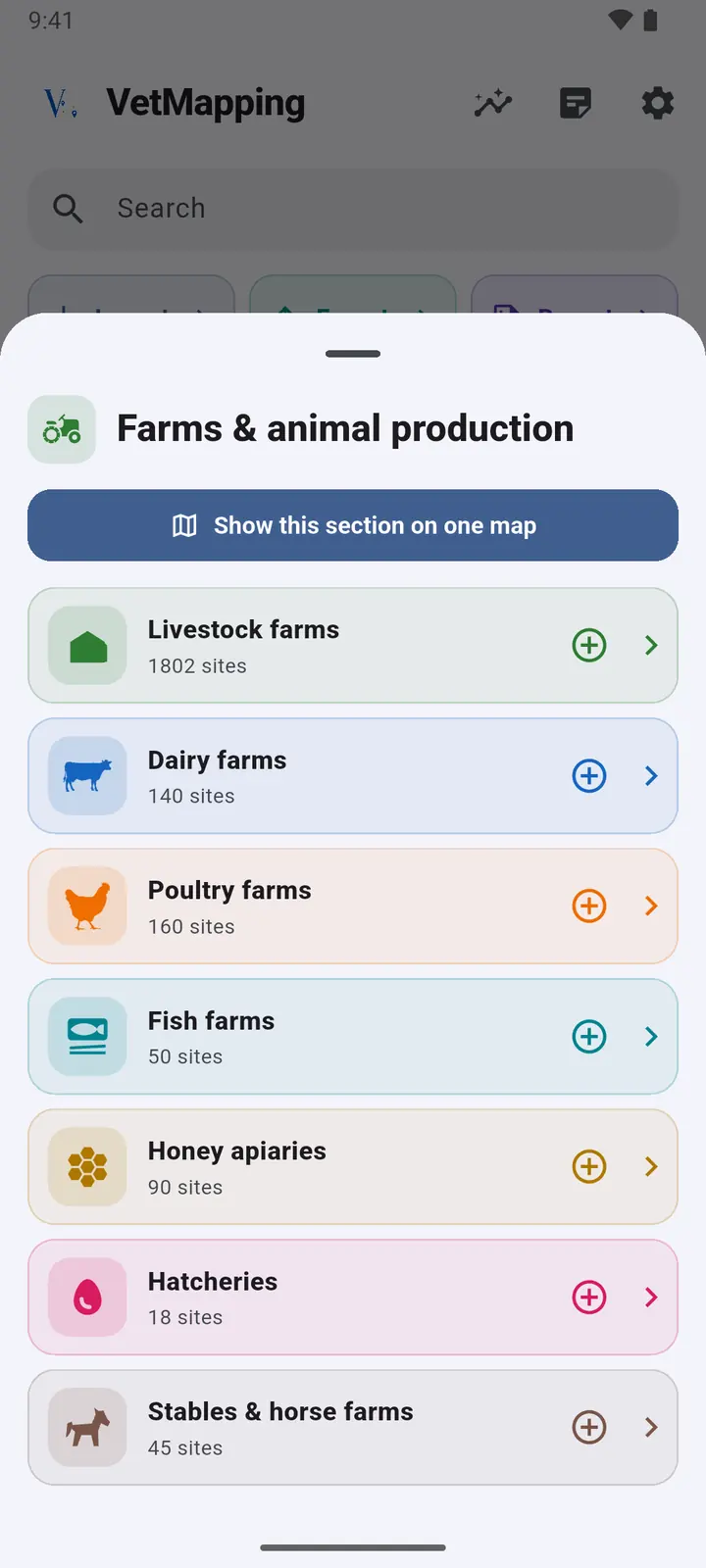
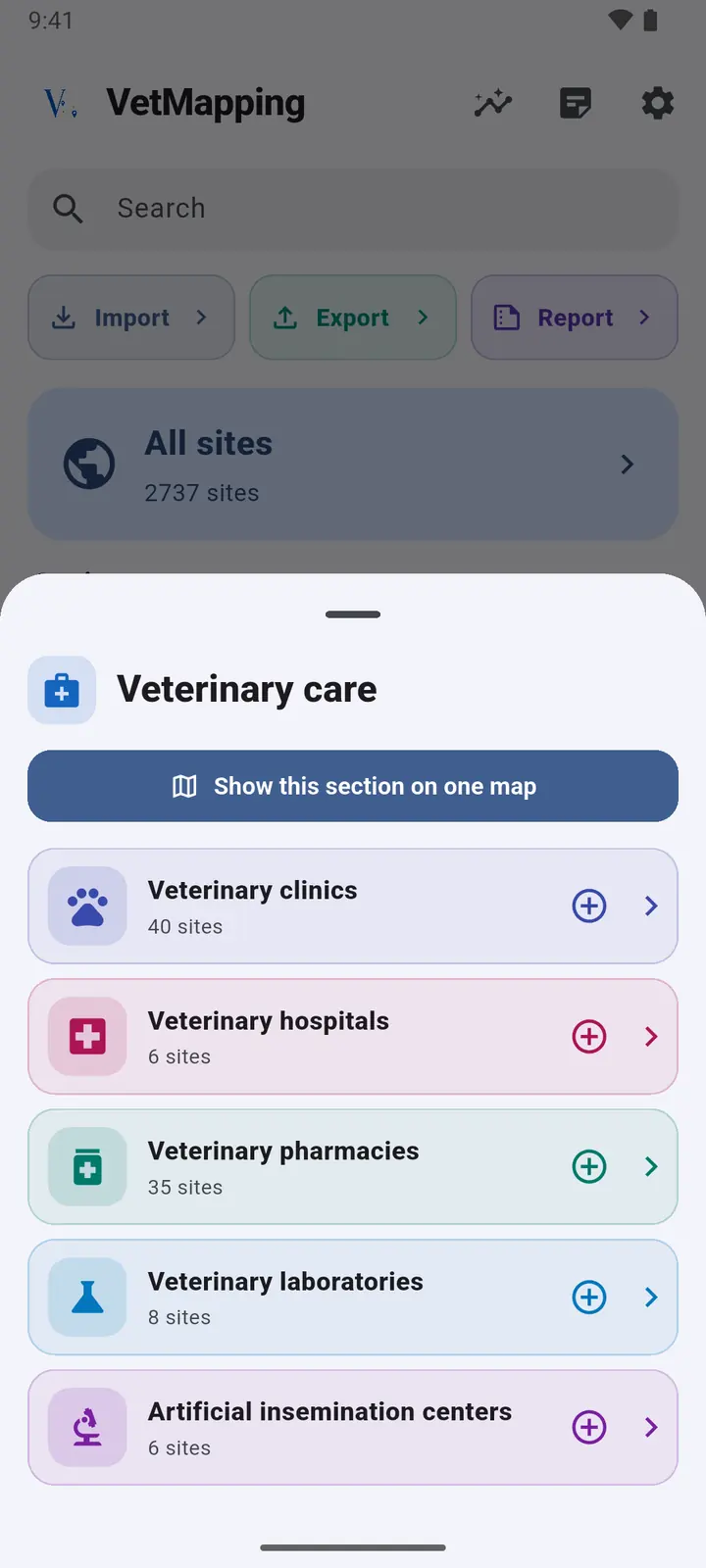
VetMapping keeps 38 kinds of site in 8 sections: farms, veterinary care, feed, equipment, pets, markets and trade, manufacturing, and services. Each kind has its own colour and icon, everywhere in the app.
-
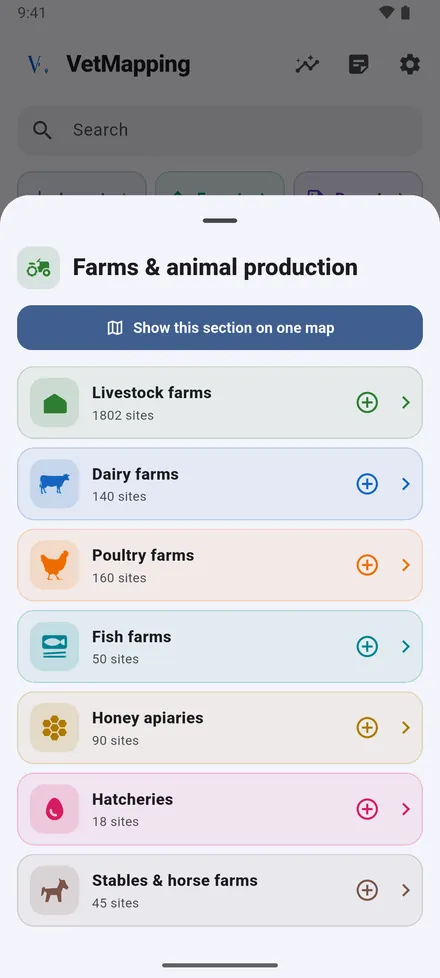
1Tap a section to see its kinds of site and how many of each you have. Tap one to open its map, or the plus to add a site of that kind.
-
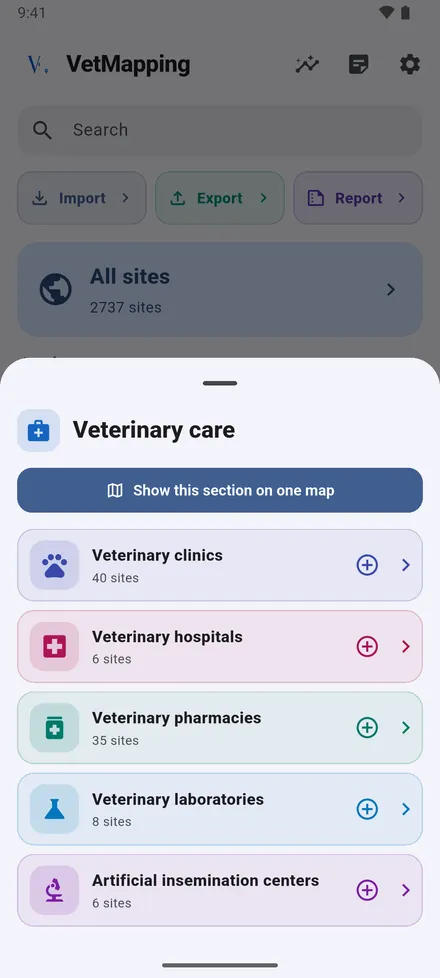
2Show this section on one map puts every kind of the section on a single map.
Adding a site
A site can be added from the home screen, from the map, or from a location someone sent you (see “Send a location from Google Maps”).
-
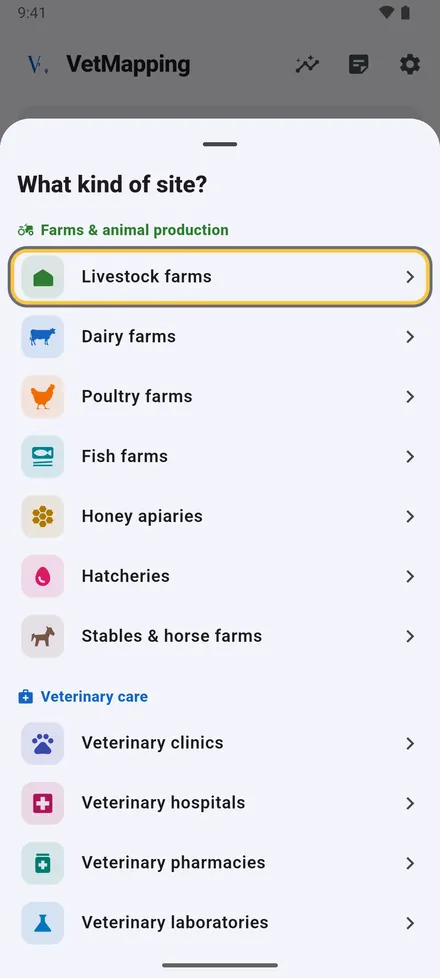
1Tap Add site at the bottom of the home screen and choose what kind of site it is.
-
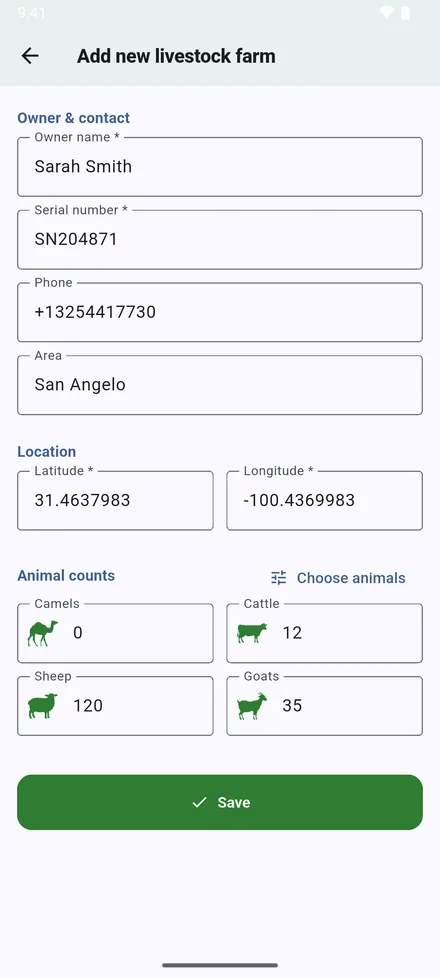
2Fill in the owner, serial number, phone and area. The coordinates start at your current position; type others if you are not at the site. Below them are the fields of that kind of site: head counts for a livestock farm, the herd for a dairy, houses for a poultry farm, tanks for a fish farm, hives for an apiary. Tap Save.
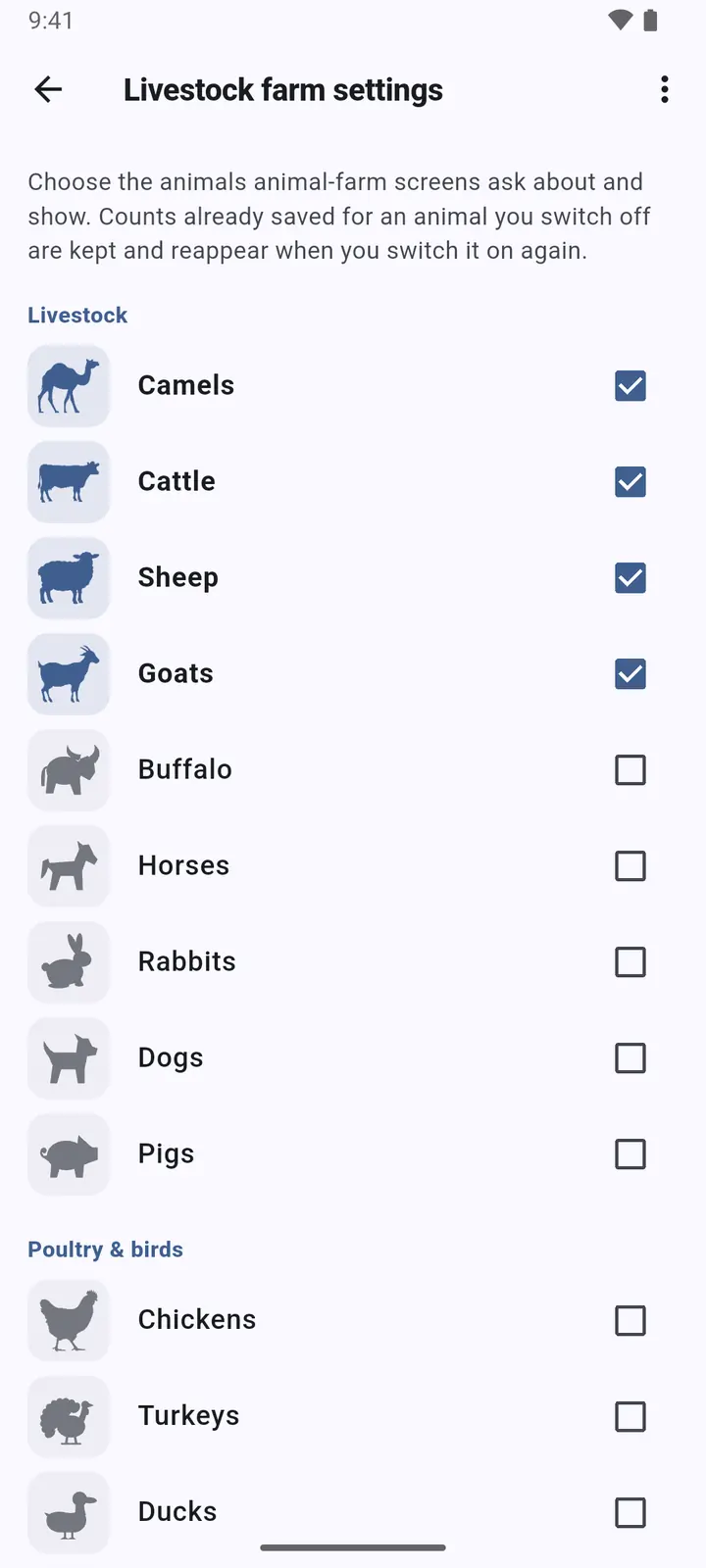
Only the animals switched on in Settings › Livestock farm settings appear in the form.
The map
Every site of the kind you opened, on satellite imagery. Pinch to zoom; sites close together gather into numbered circles until you zoom in.
-
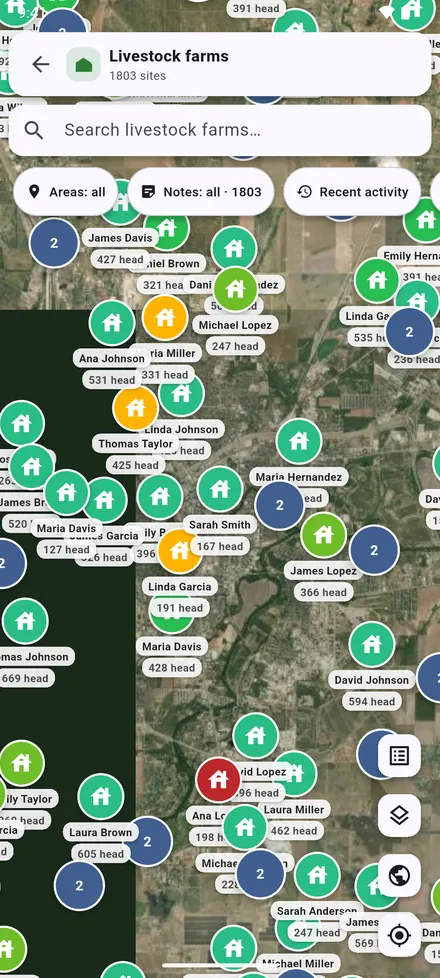
1Each pin shows the owner and the head count. Farms with notes are tinted, and a critical note turns a farm red.
-
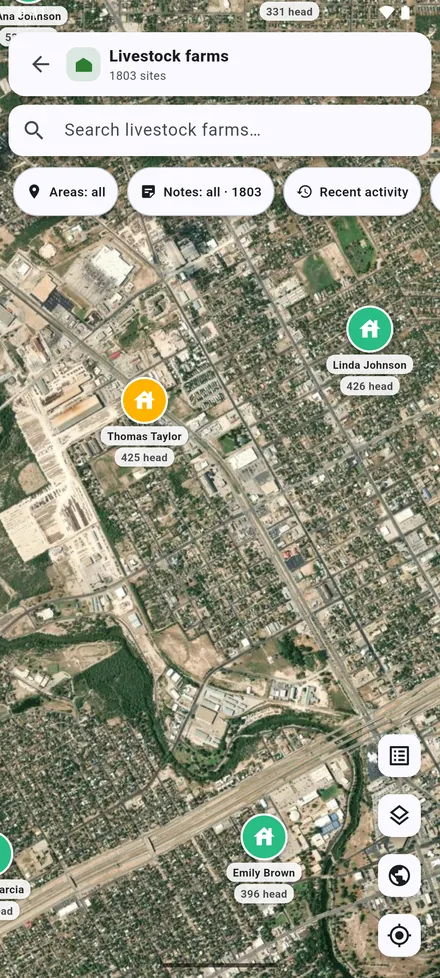
2Zoom in to see every farm on its own. Tap a pin to open the site.
-
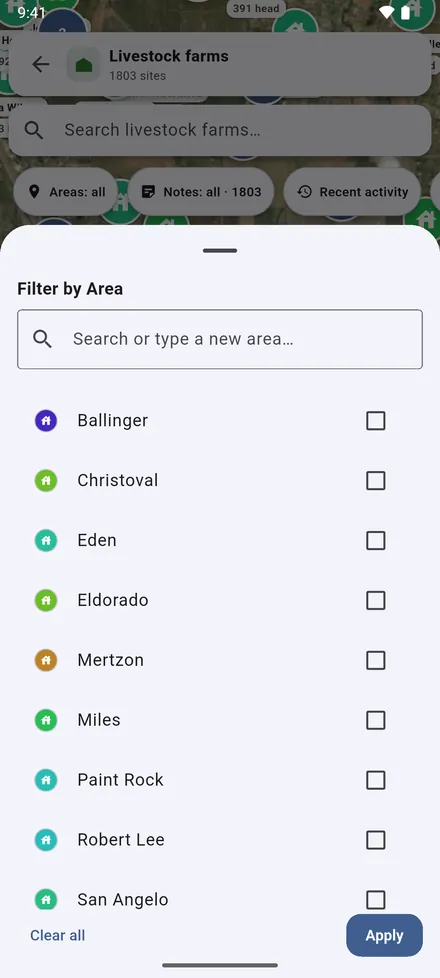
3Filter by Area shows only the areas you choose. The choice is kept on every map until you clear it.
-
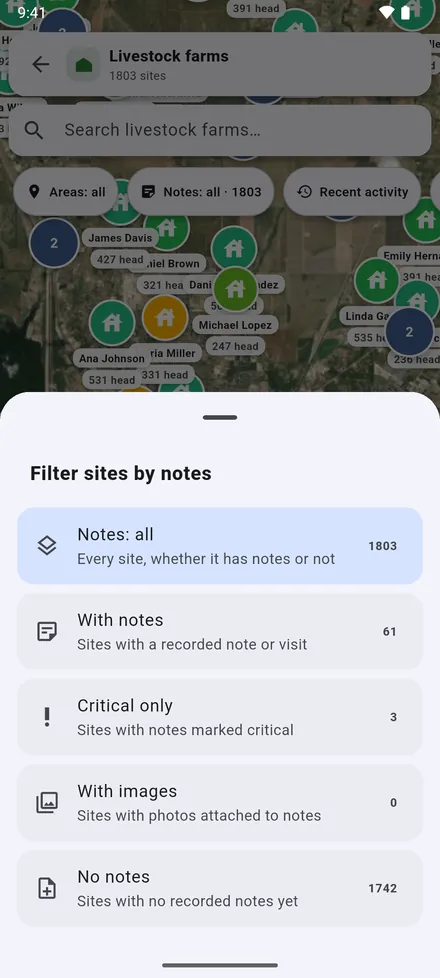
4The notes filter: sites with notes, critical ones, with photos, or none yet.
-
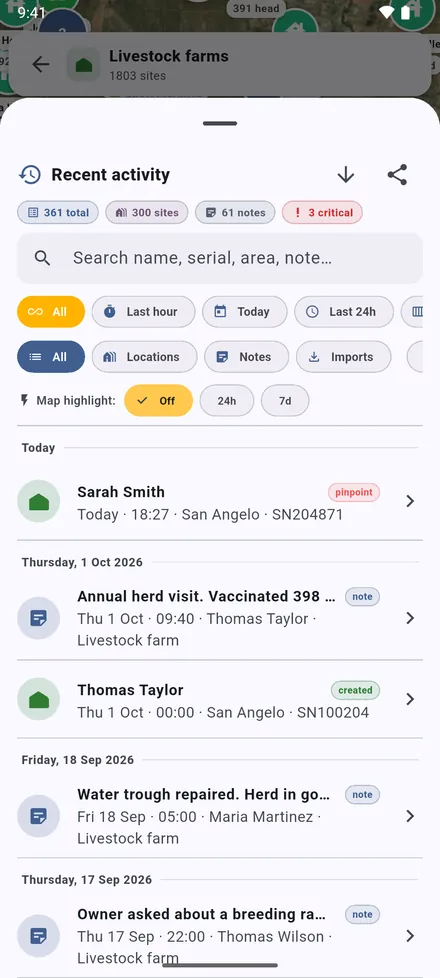
5Recent activity: what was added, edited and noted, day by day. Tap an entry to go to it.
-
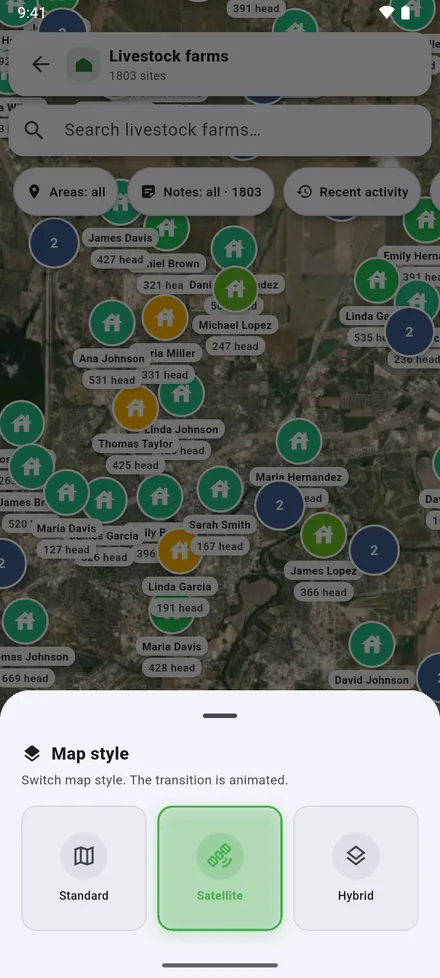
6Map style: satellite, street map, or both together.
-
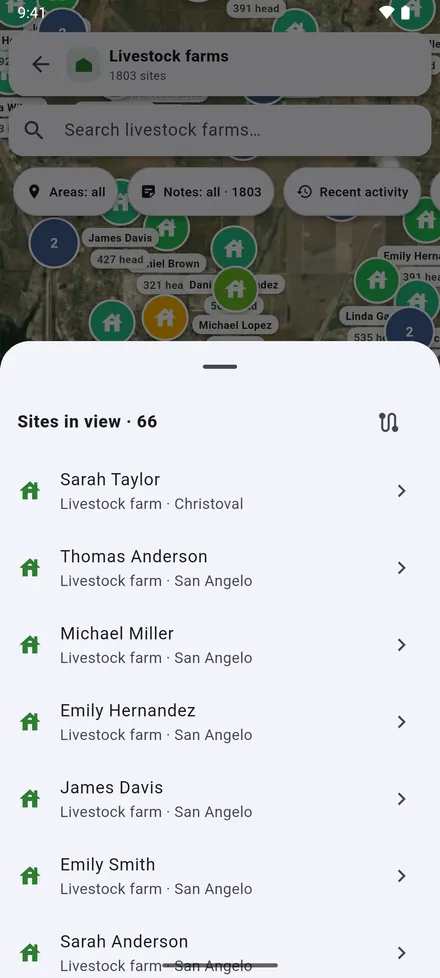
7Sites in view: the sites on the screen as a list, and Plan route to visit them one after another.
-
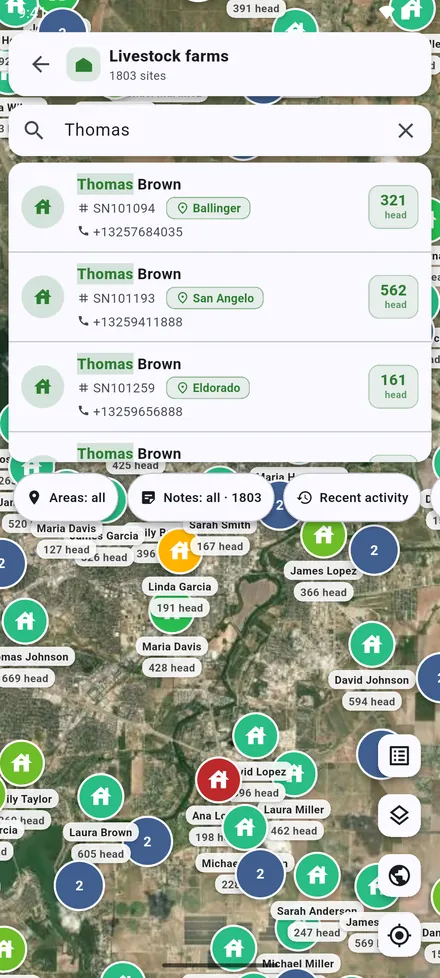
8The search bar of the map finds sites of this map, within its filters.
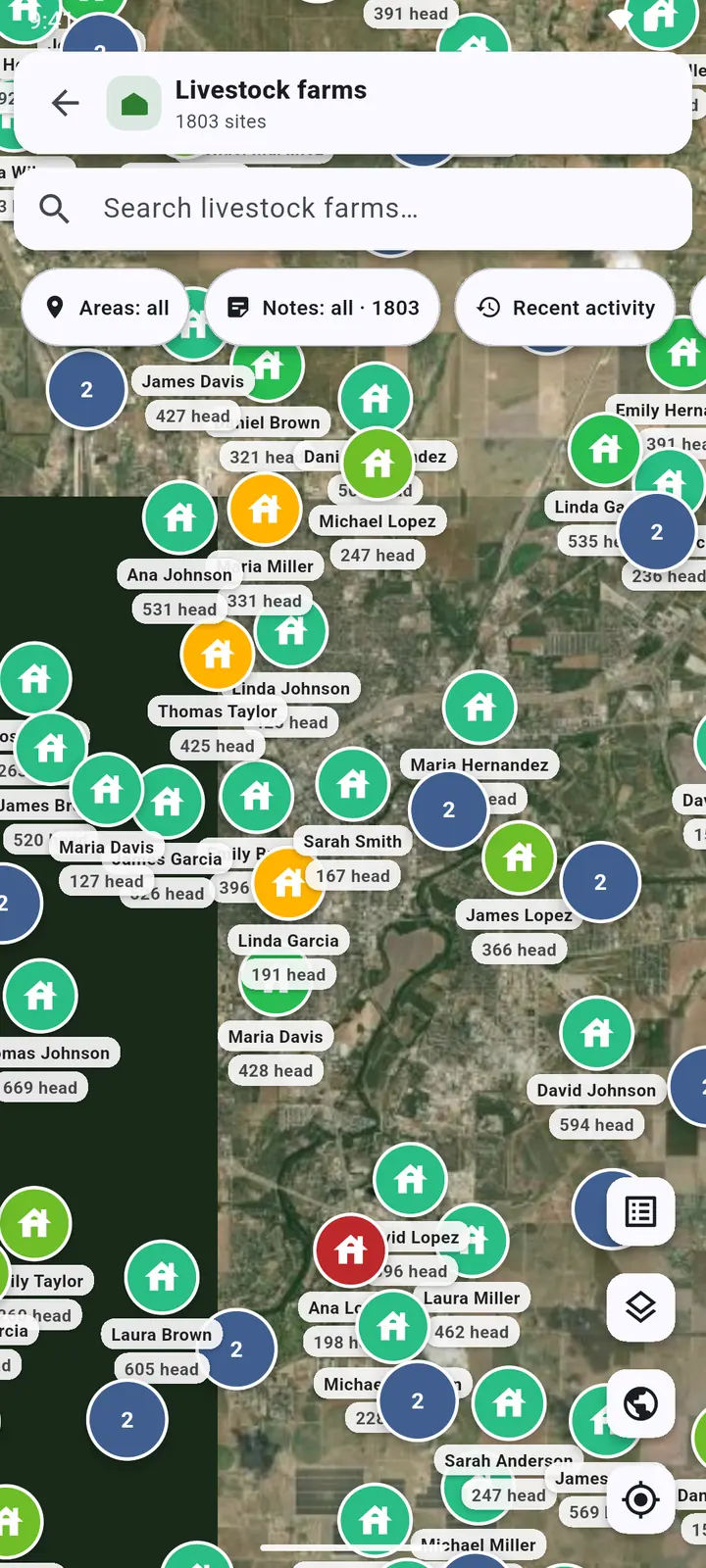
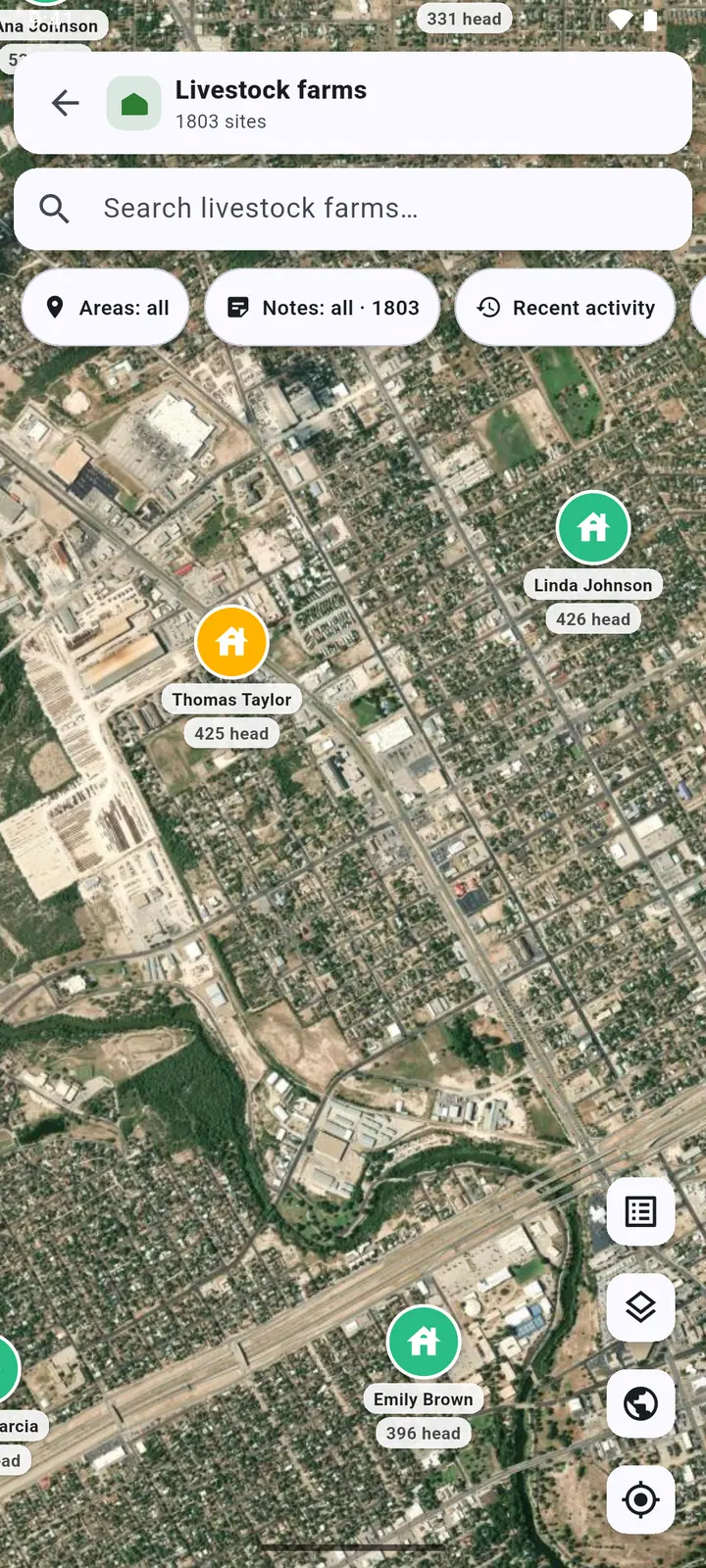
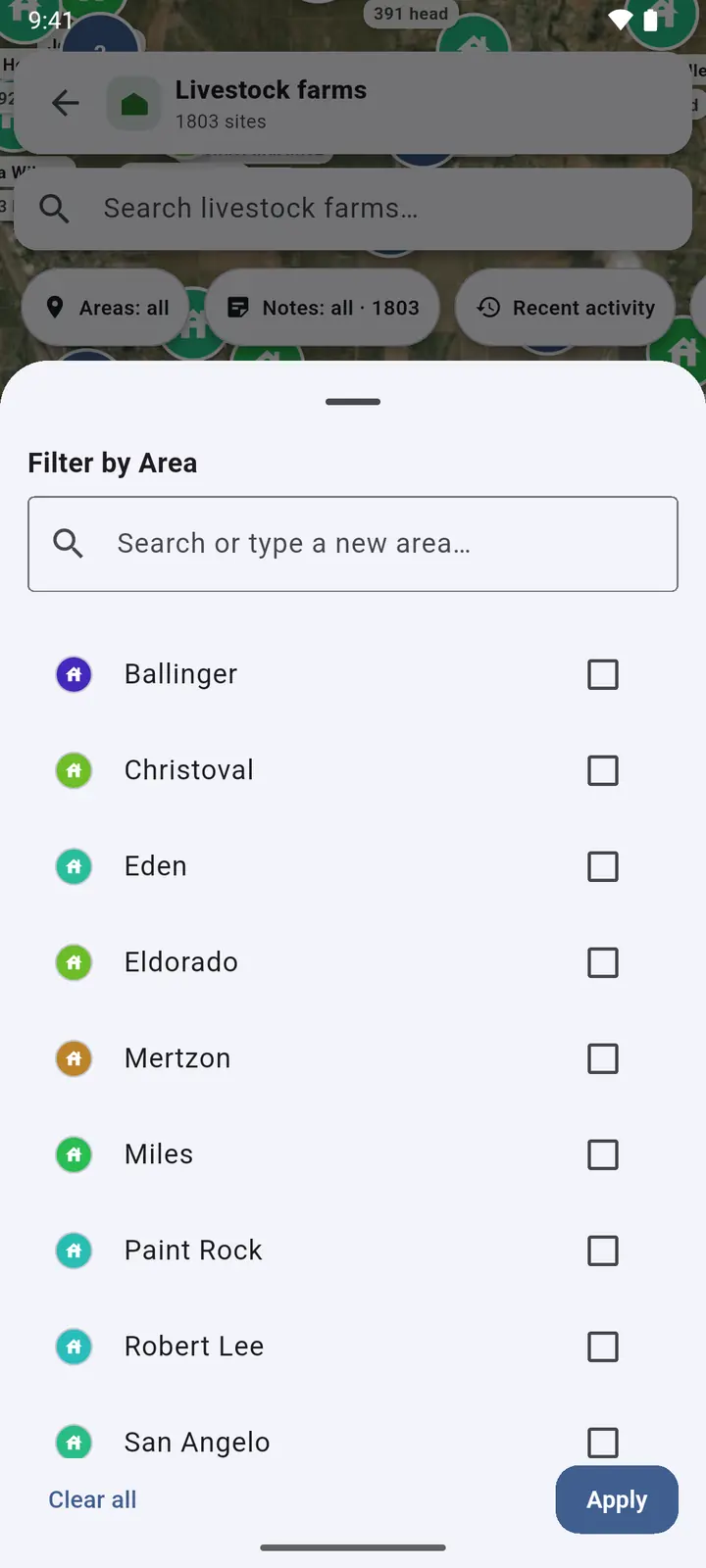
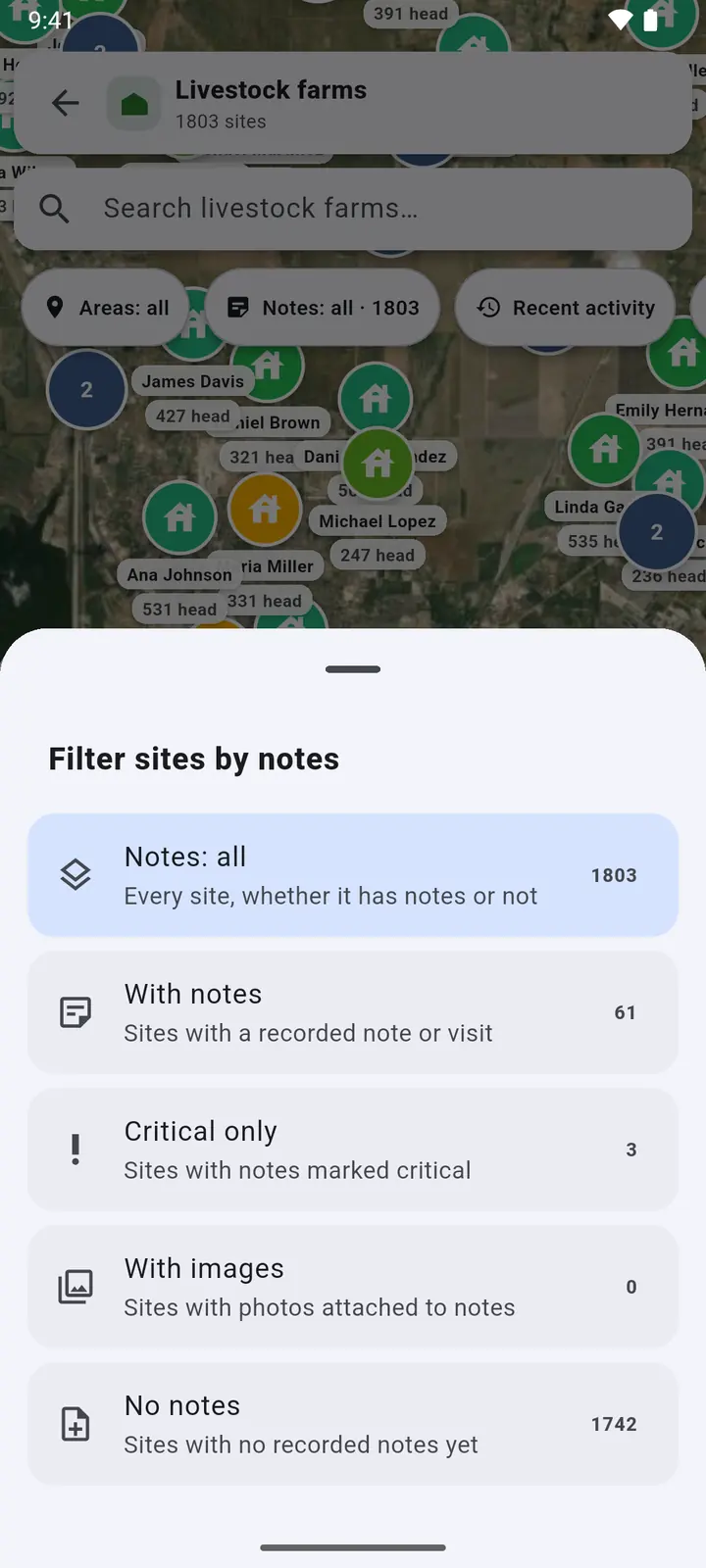
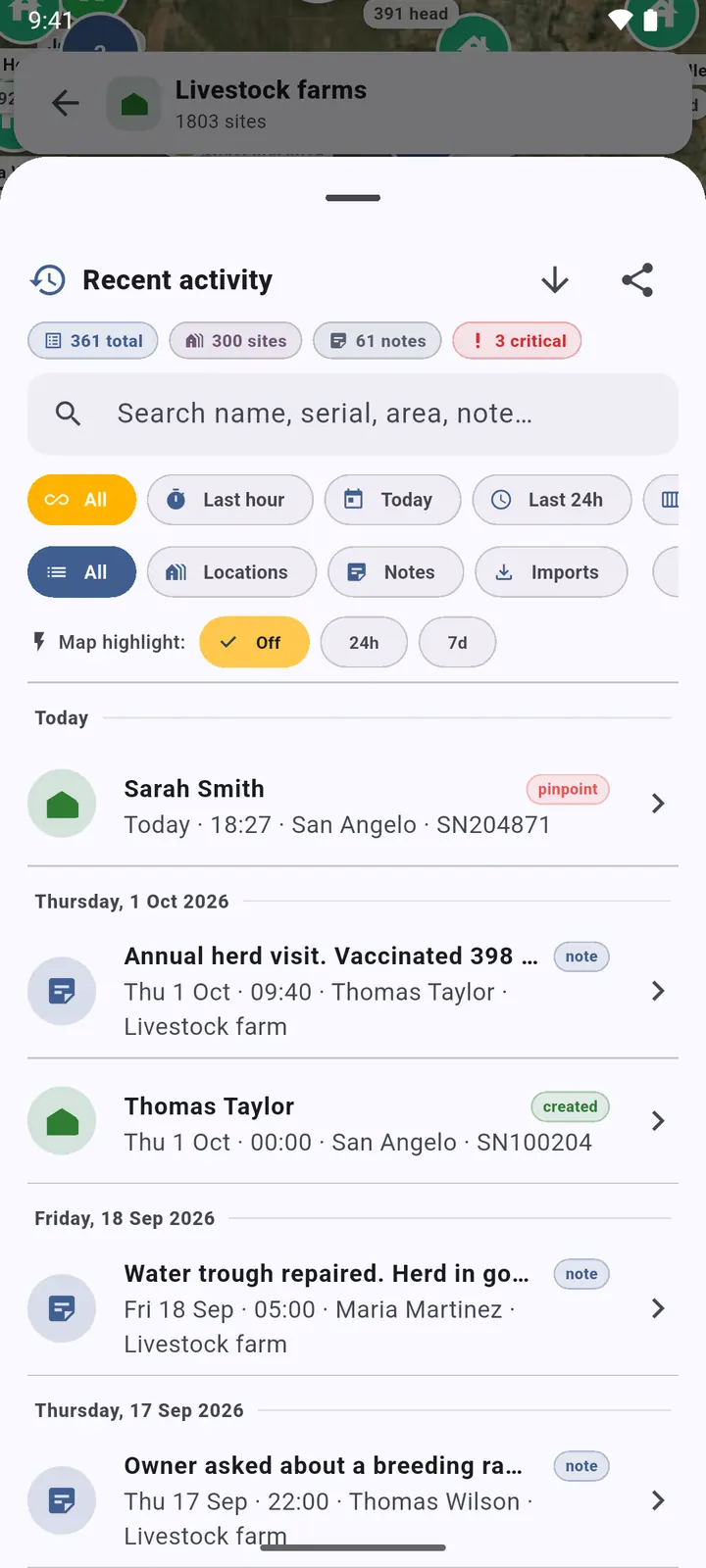
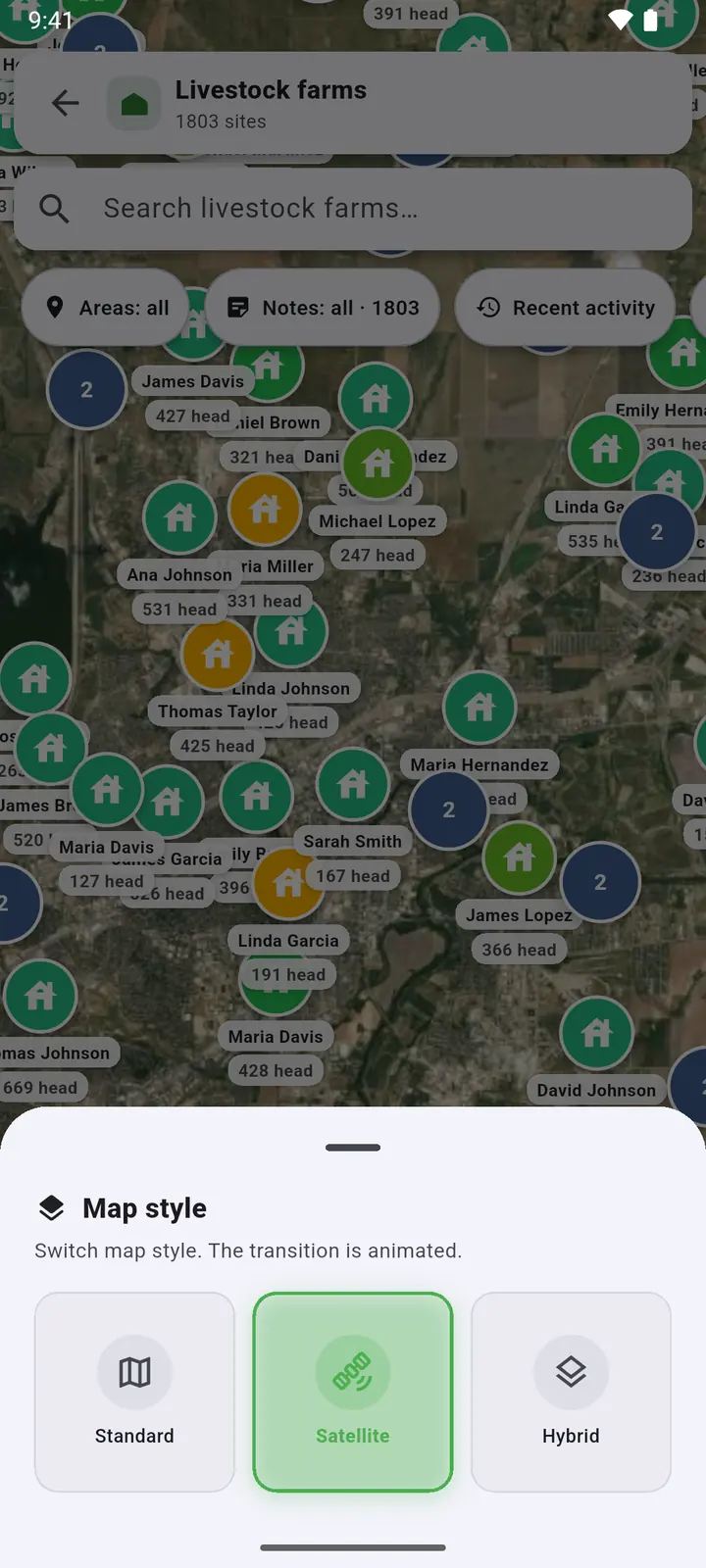
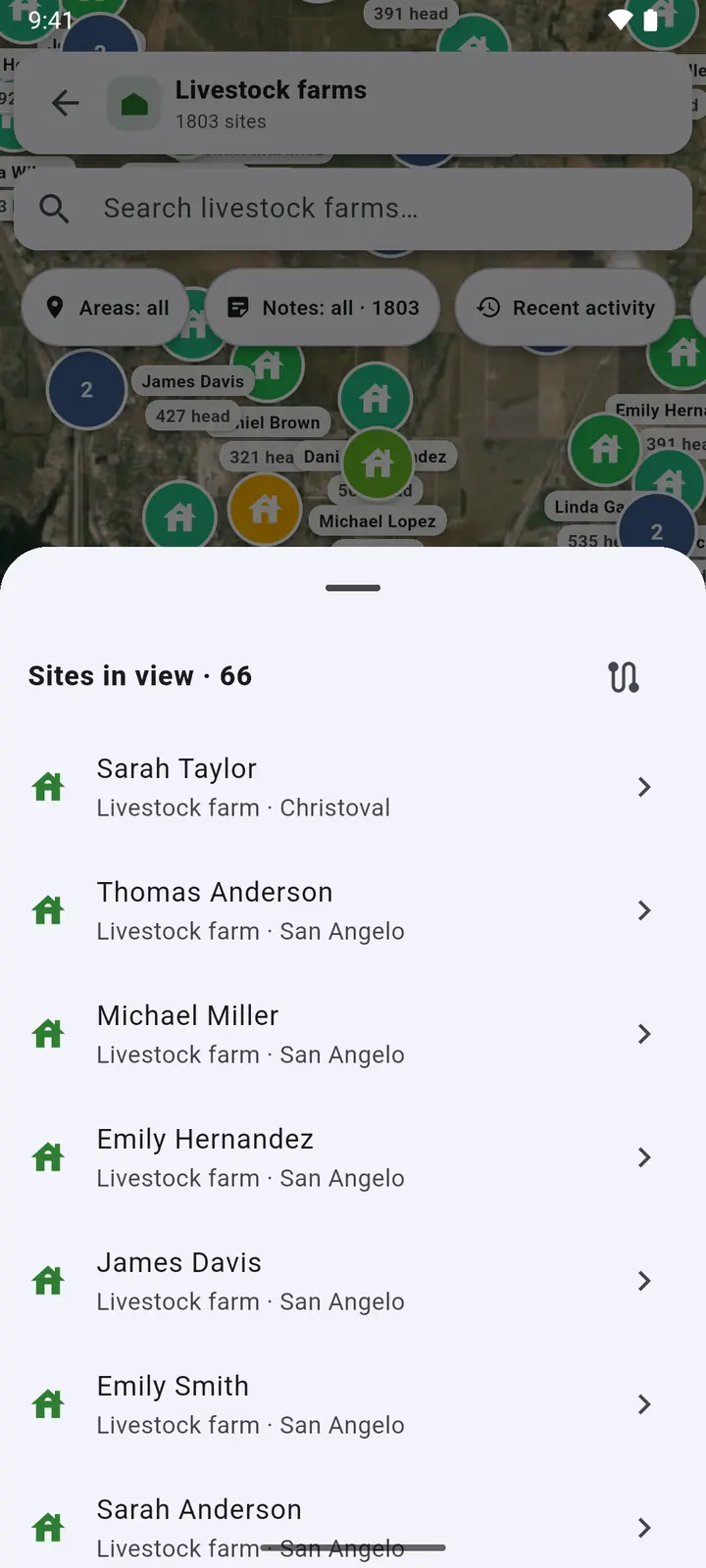
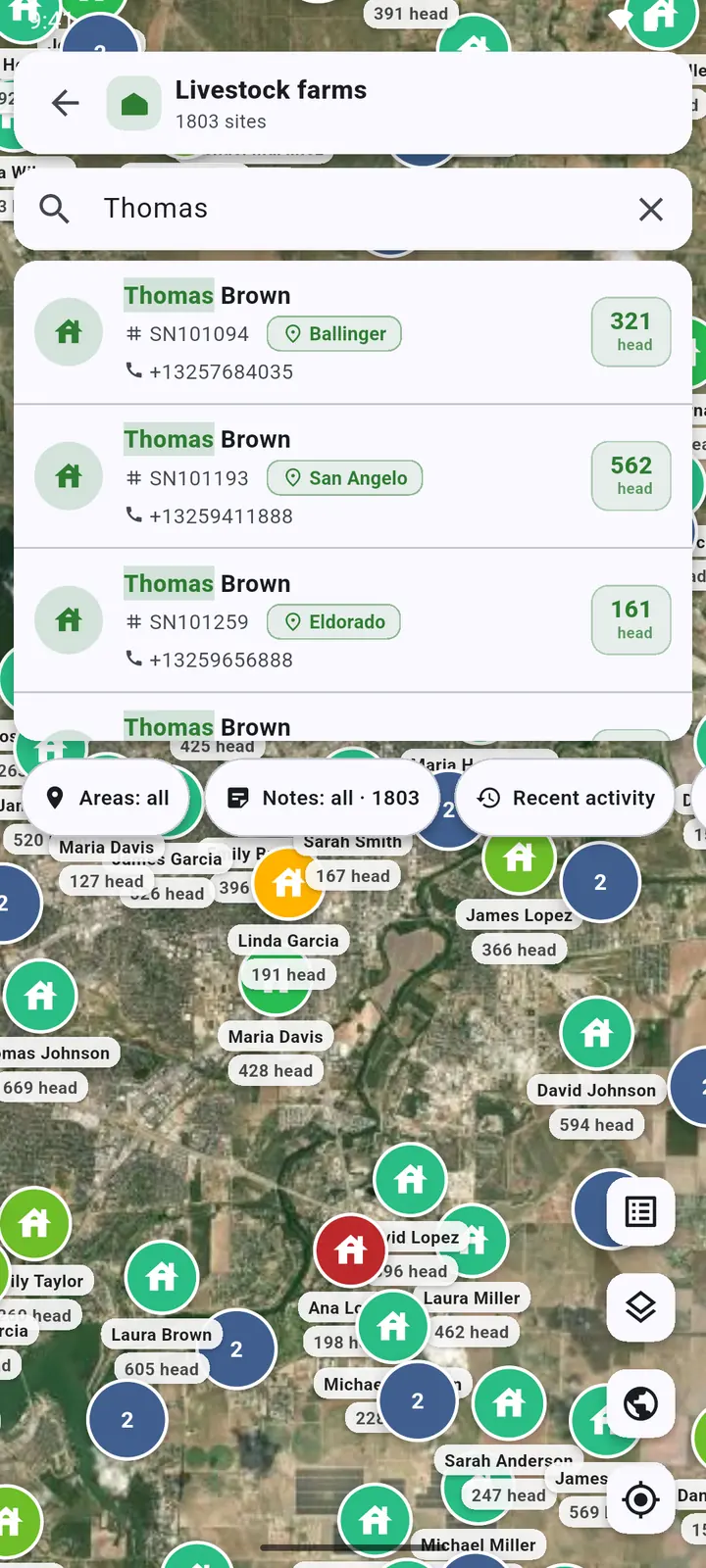
The round buttons on the side: Sites in view, Map style, Show the whole country and My location.
All sites on one map
-
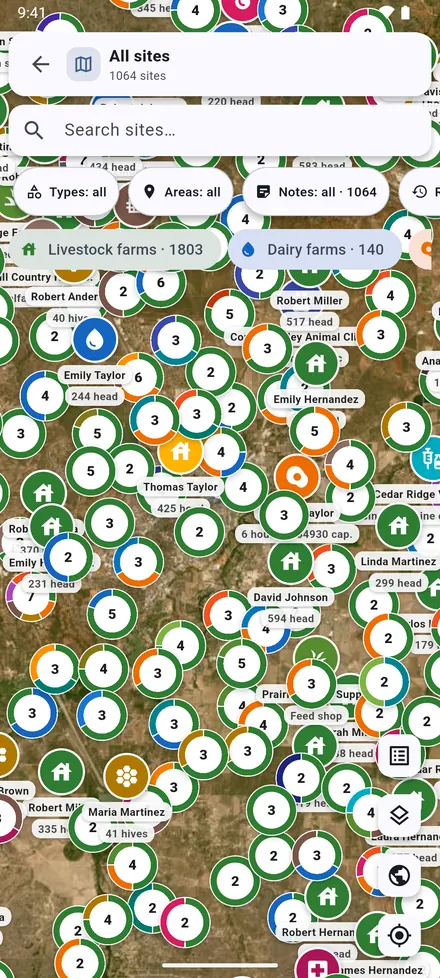
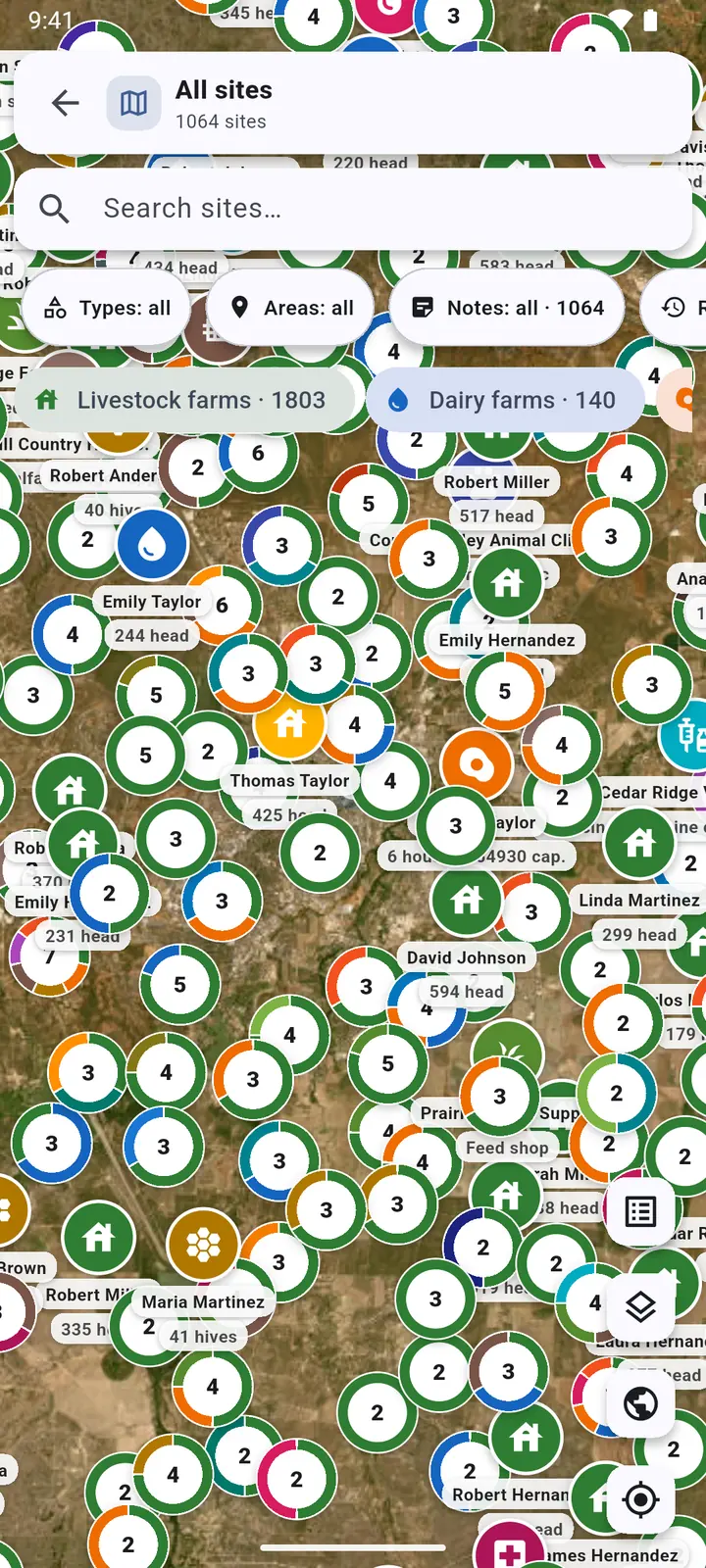
1All sites on the home screen shows every kind of site together, each in its own colour.
-
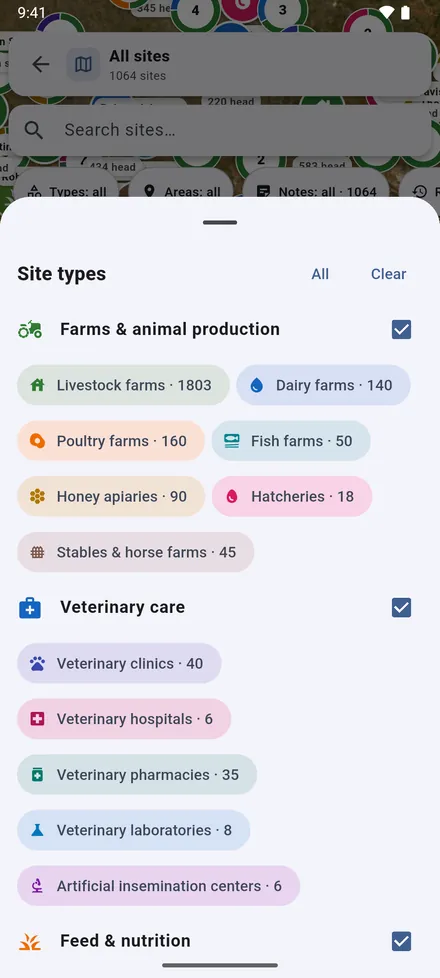
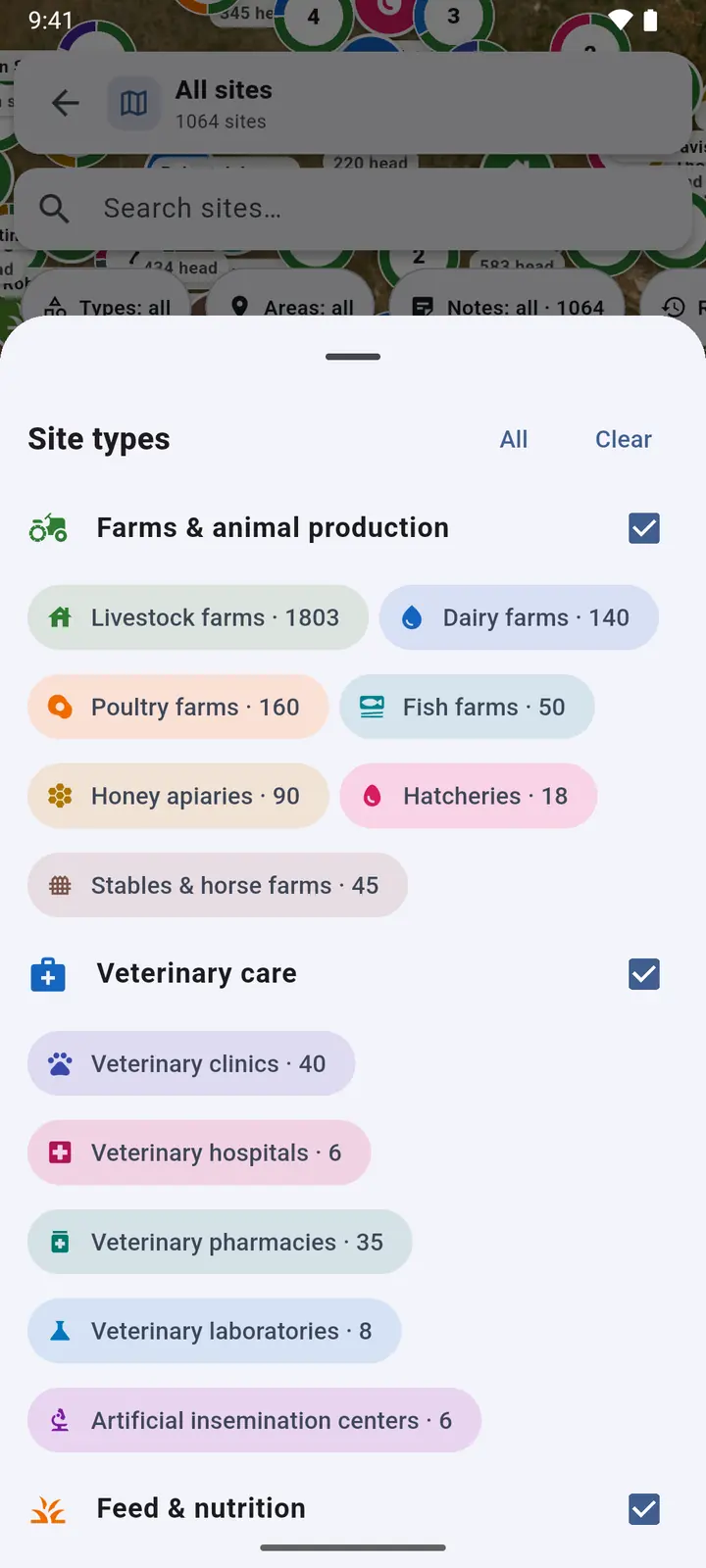
2The types filter chooses which kinds are shown.
A site's record
Tap a site on the map, in a list or in search results to open its record.
-
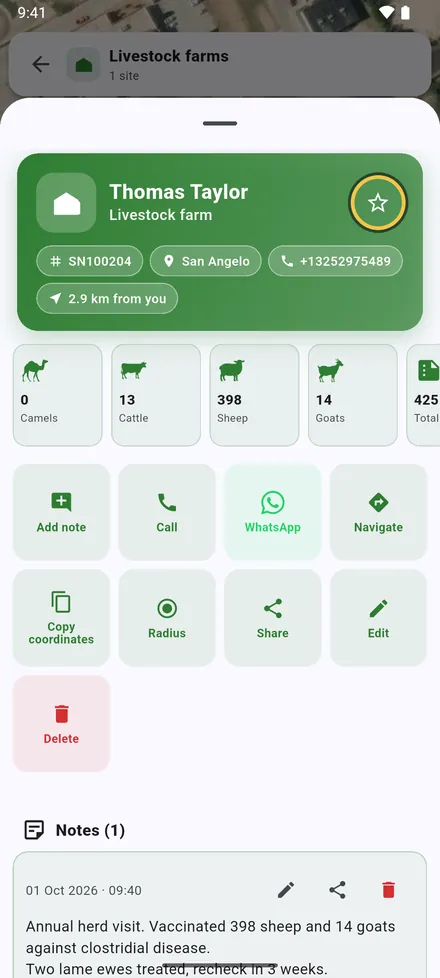
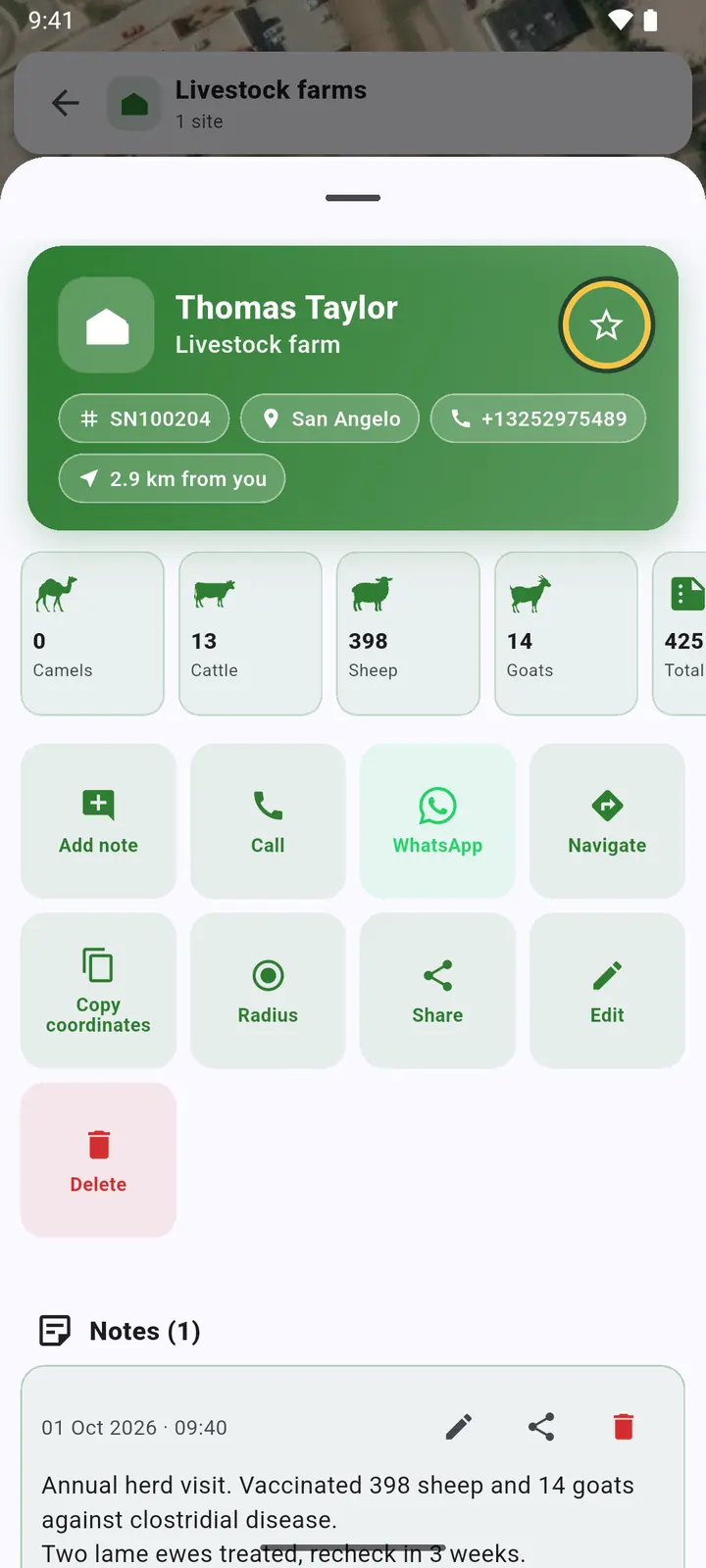
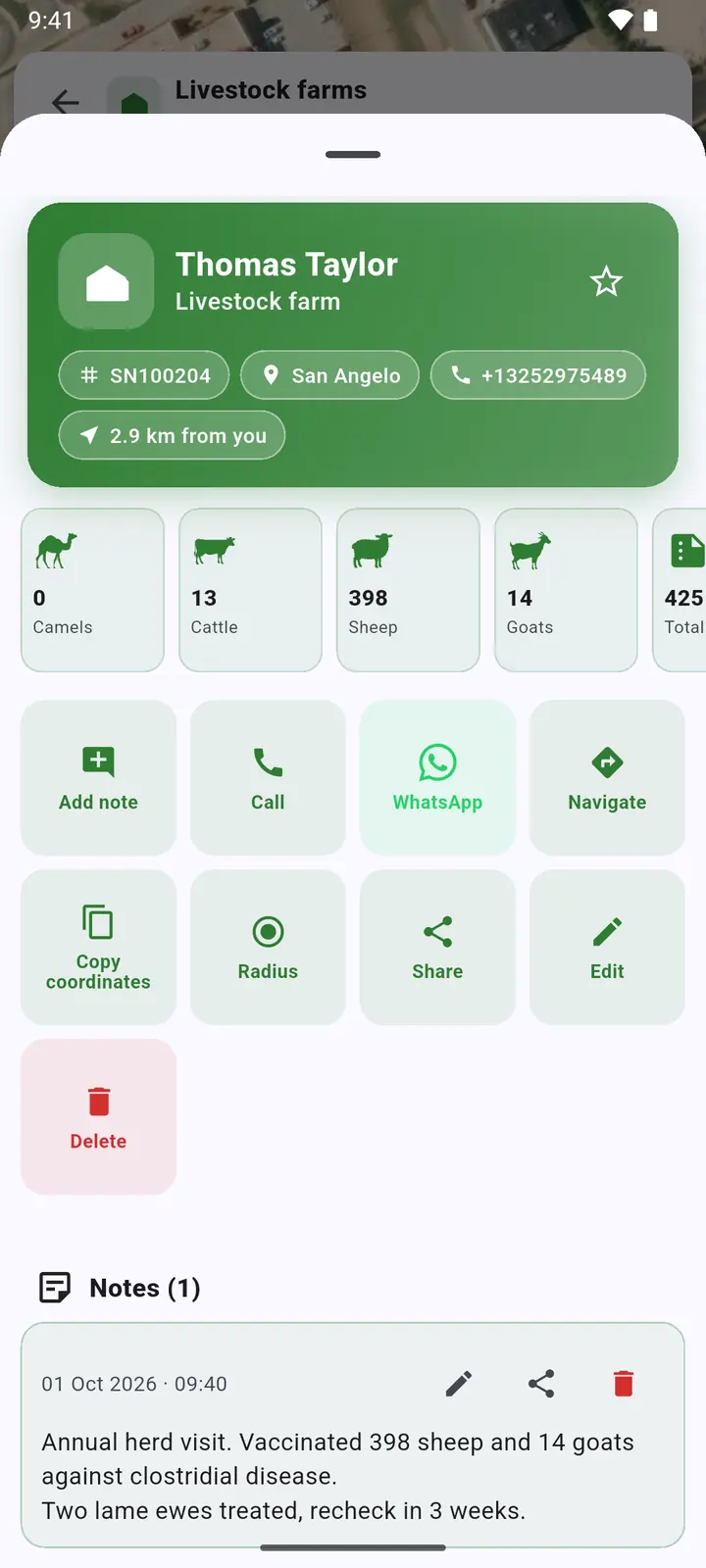
1The owner, serial number, area, phone and distance from you, then the head counts. The star at the top adds the site to Starred sites.
-
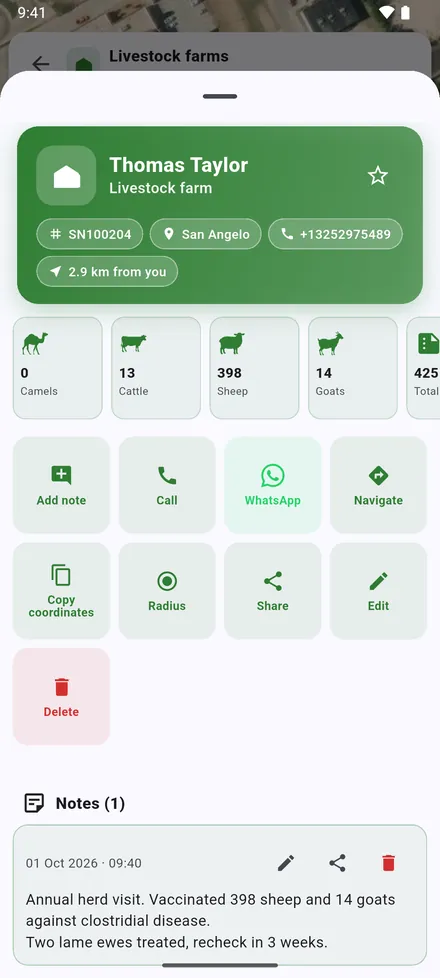
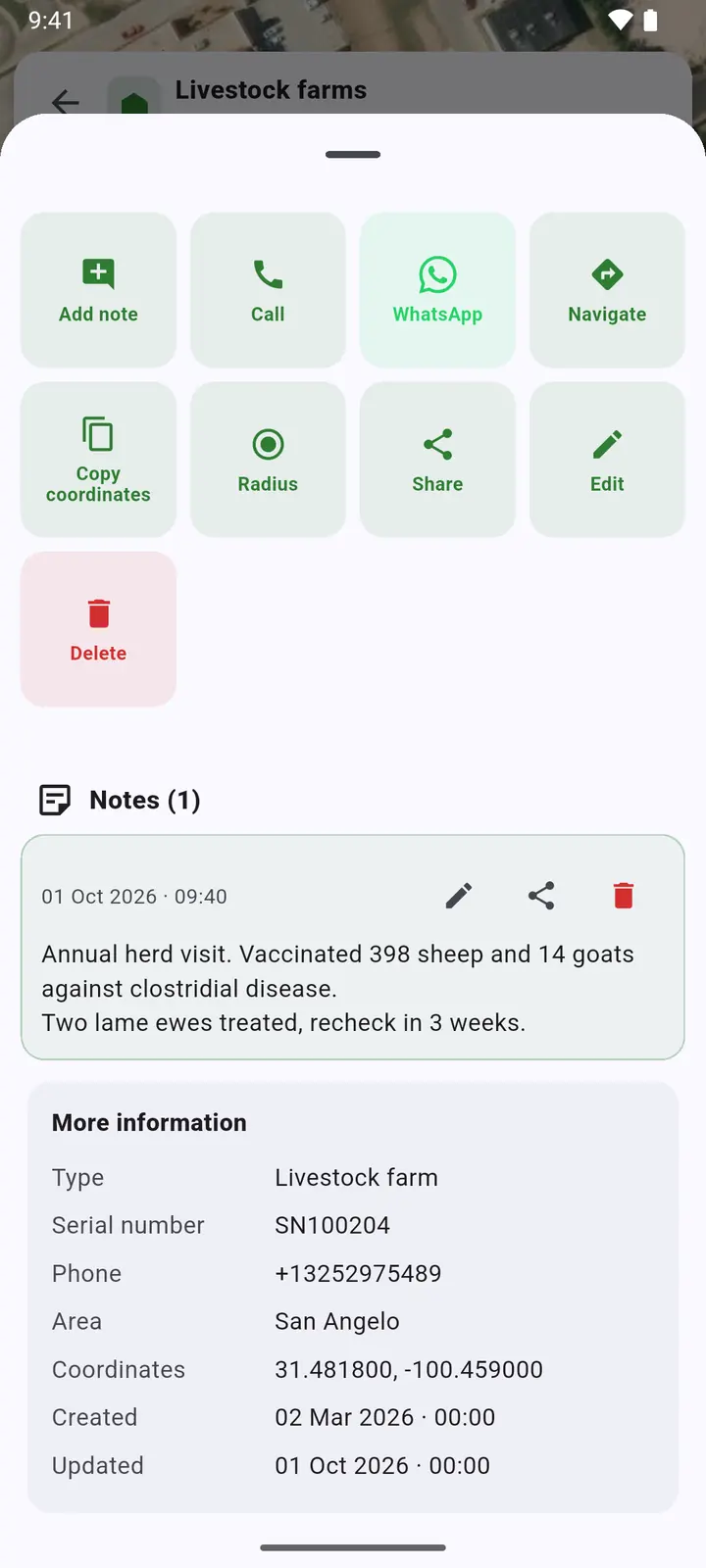
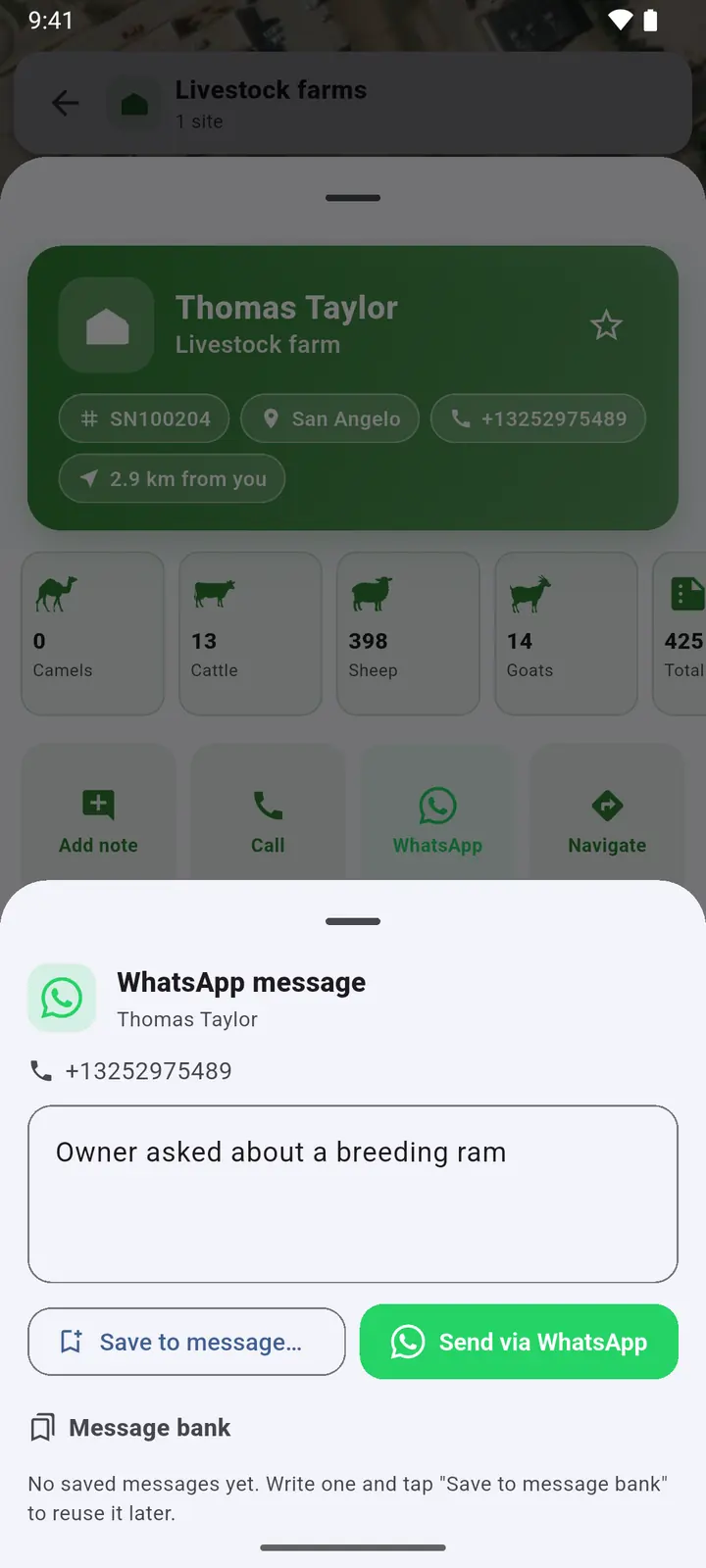
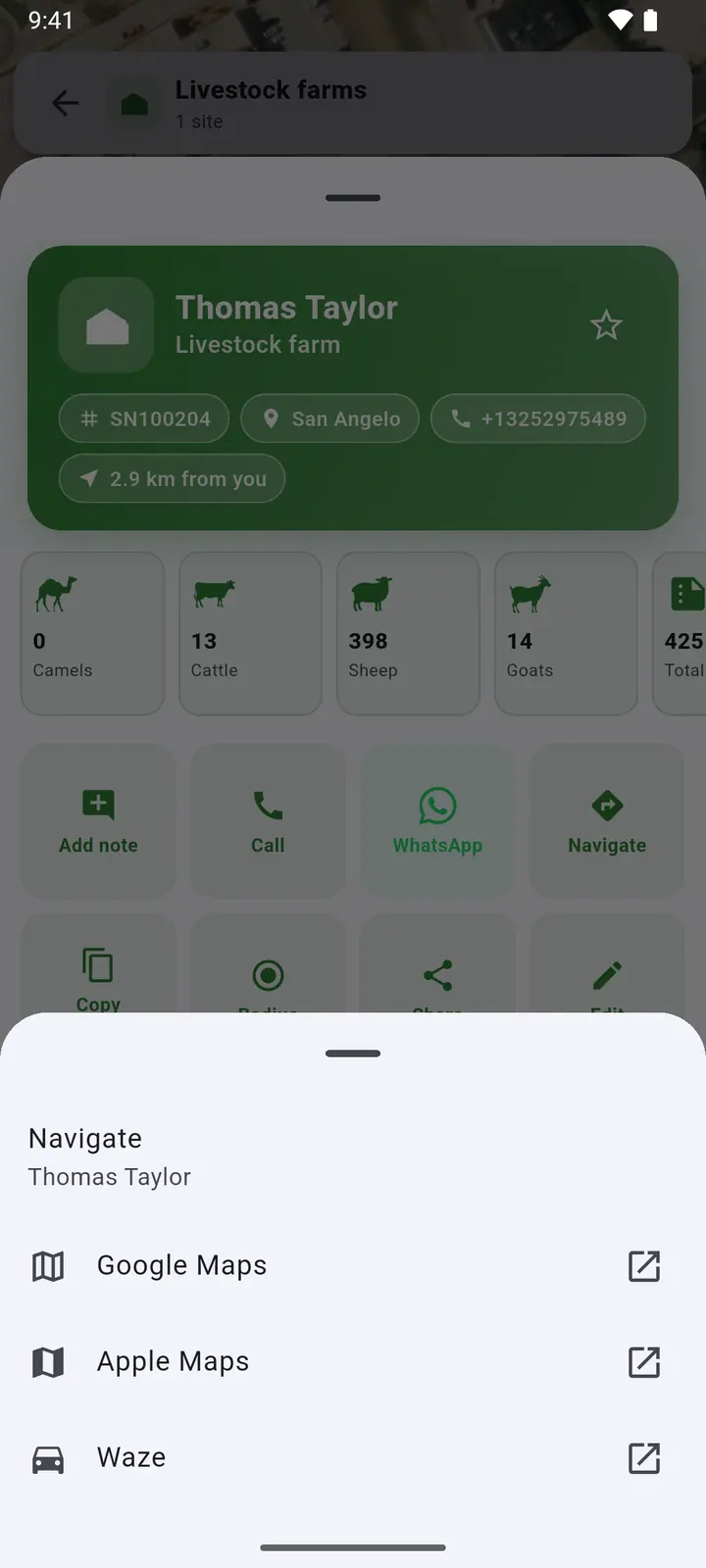
2The buttons: Add note, Call, WhatsApp, Navigate, Copy coordinates, Radius, Share, Edit and Delete. Below them, the visit notes.
-
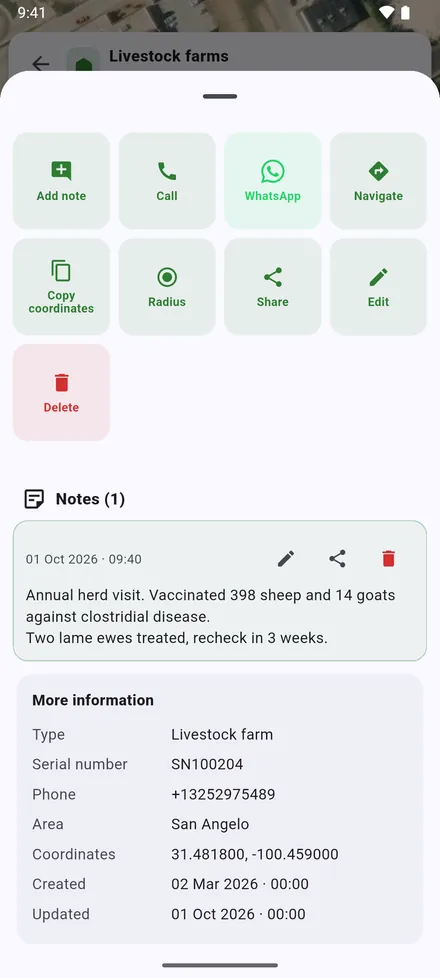
3More information: coordinates, when the site was created and updated, and any extra columns imported from Excel.
-
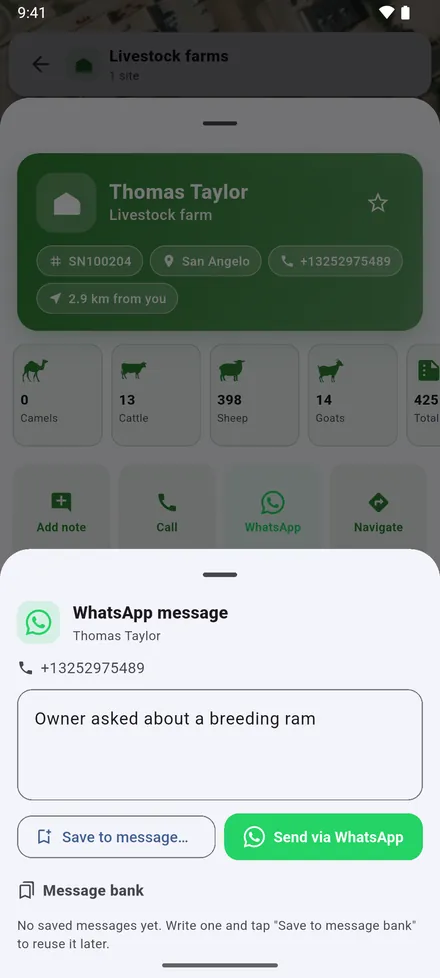
4WhatsApp writes to the owner. Messages you send often can be kept in the Message bank.
-
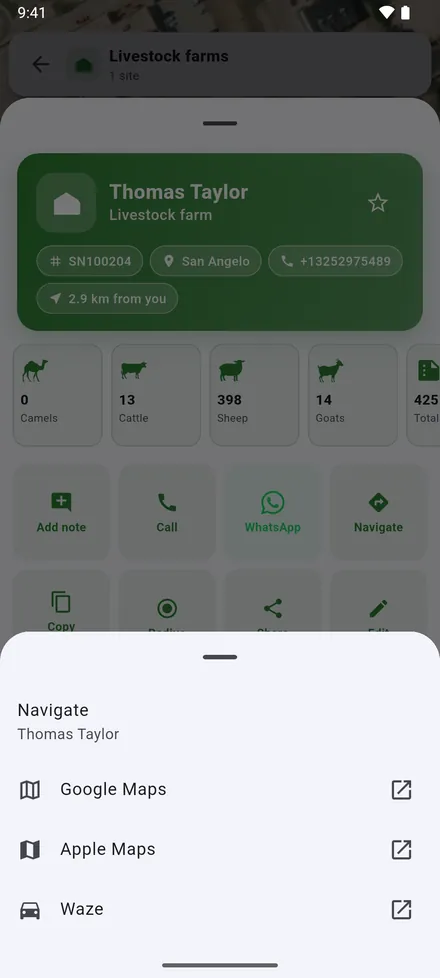
5Navigate opens the way there in the maps app you choose.
Share sends the site's details with a map link, to WhatsApp or any other app. Whoever receives it can open the link in their maps app, or send it to their own VetMapping.
Visit notes and critical notes
-
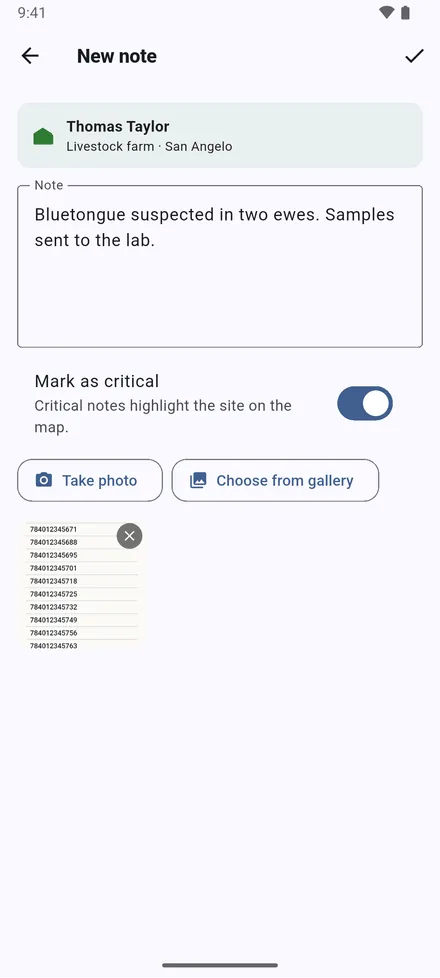
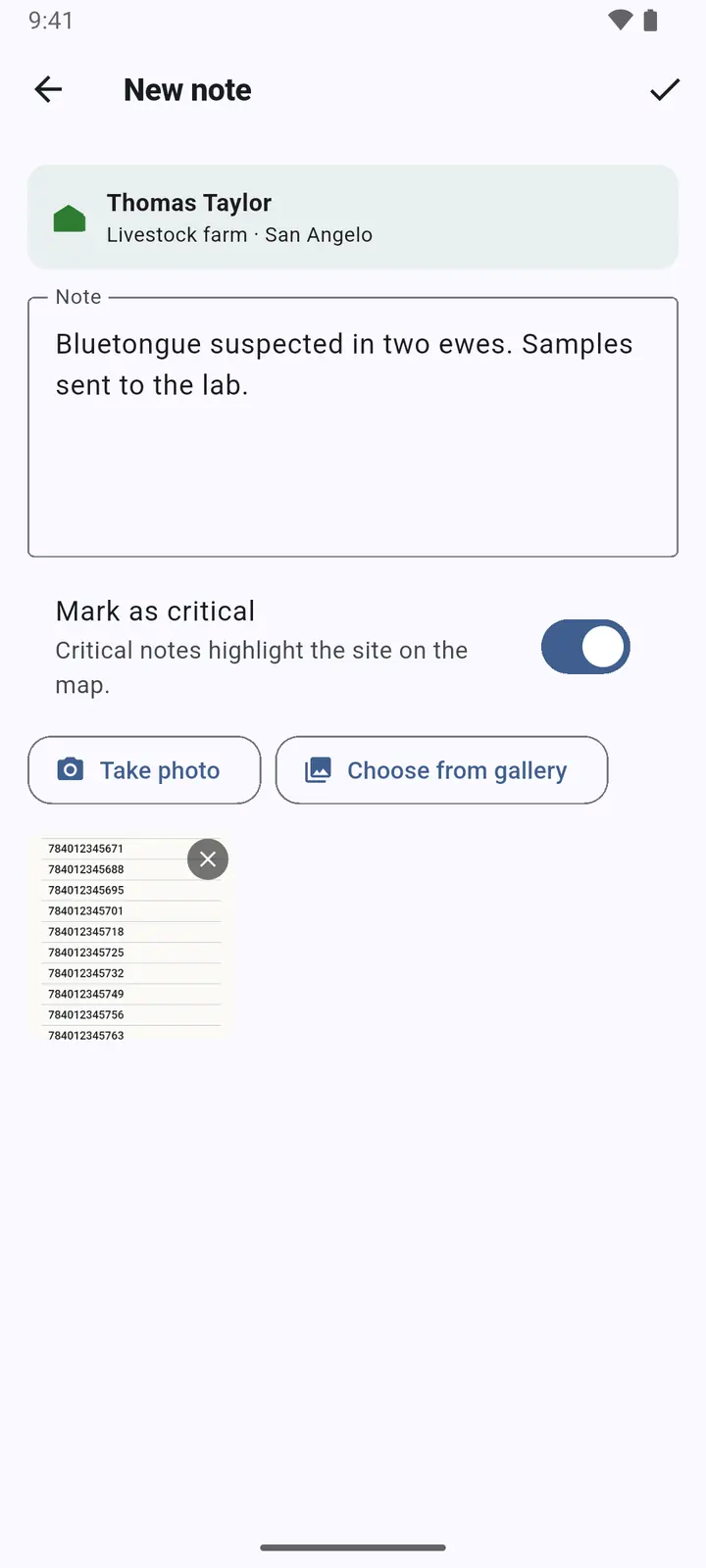
1Add note: write what you did and saw, and attach photos with Take photo or Choose from gallery. Mark as critical turns the site red on the map.
-
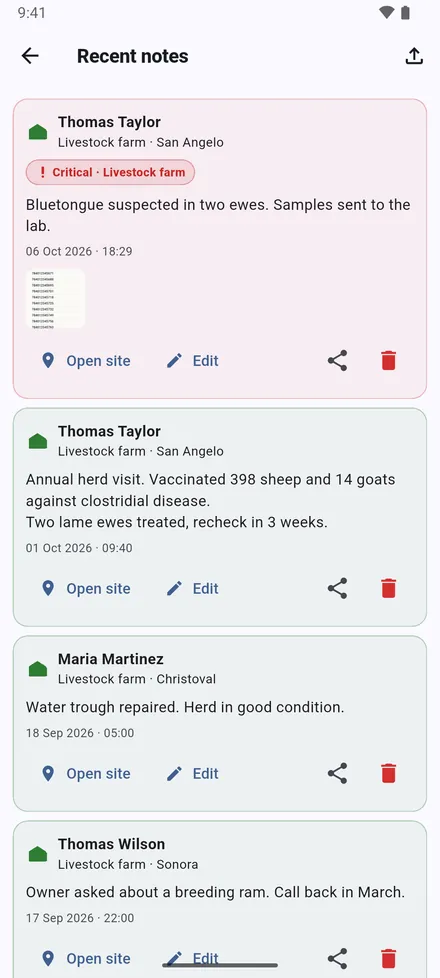
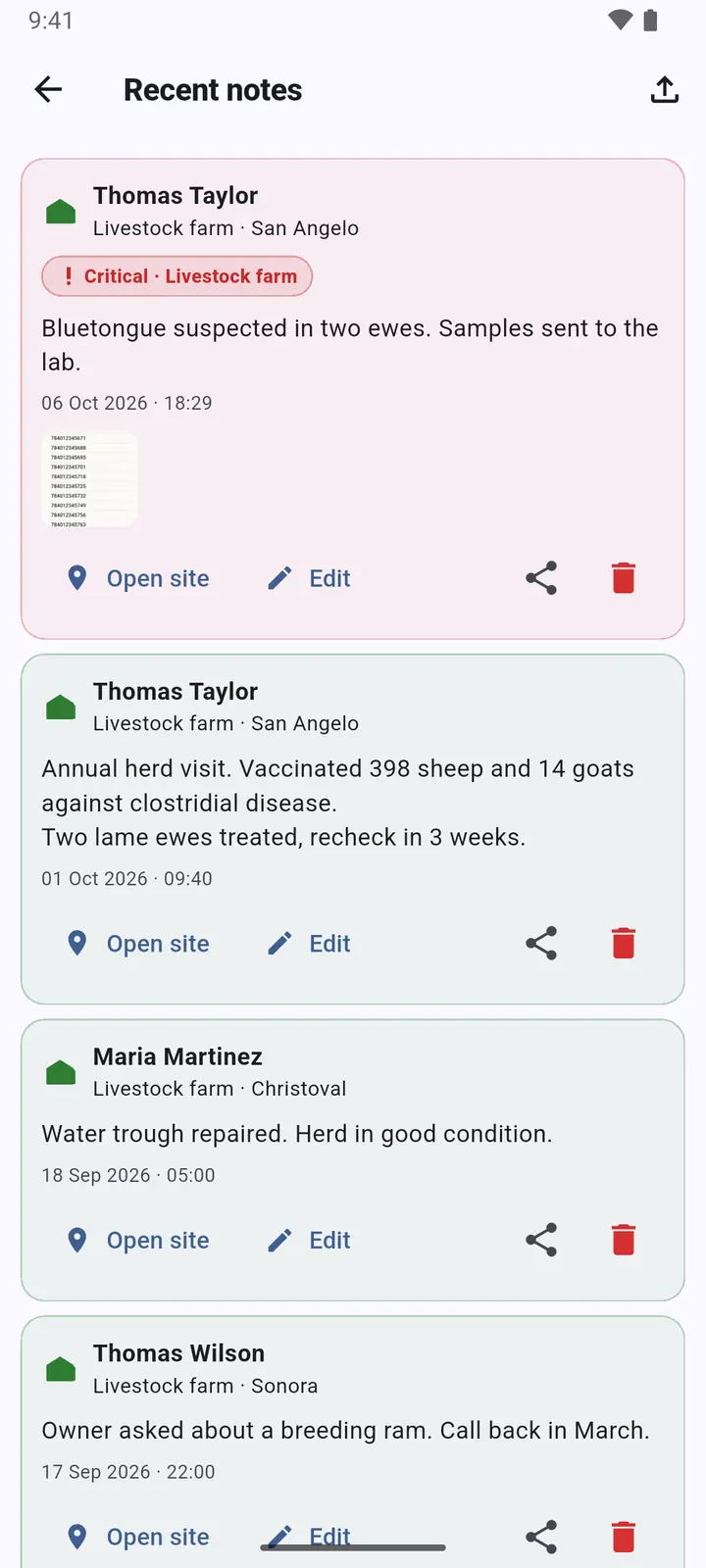
2Recent notes, the note button at the top of the home screen, lists every note, newest first.
Radius around a case
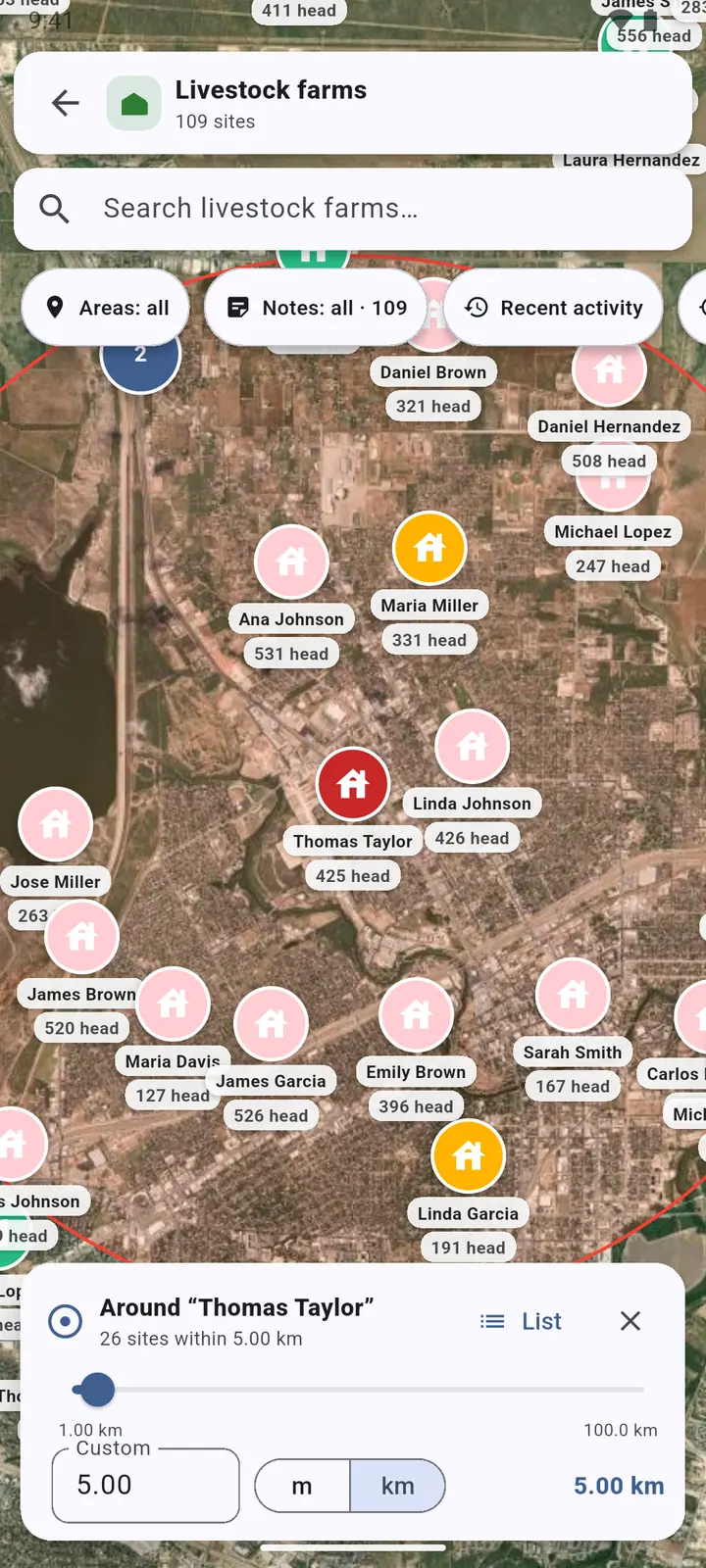
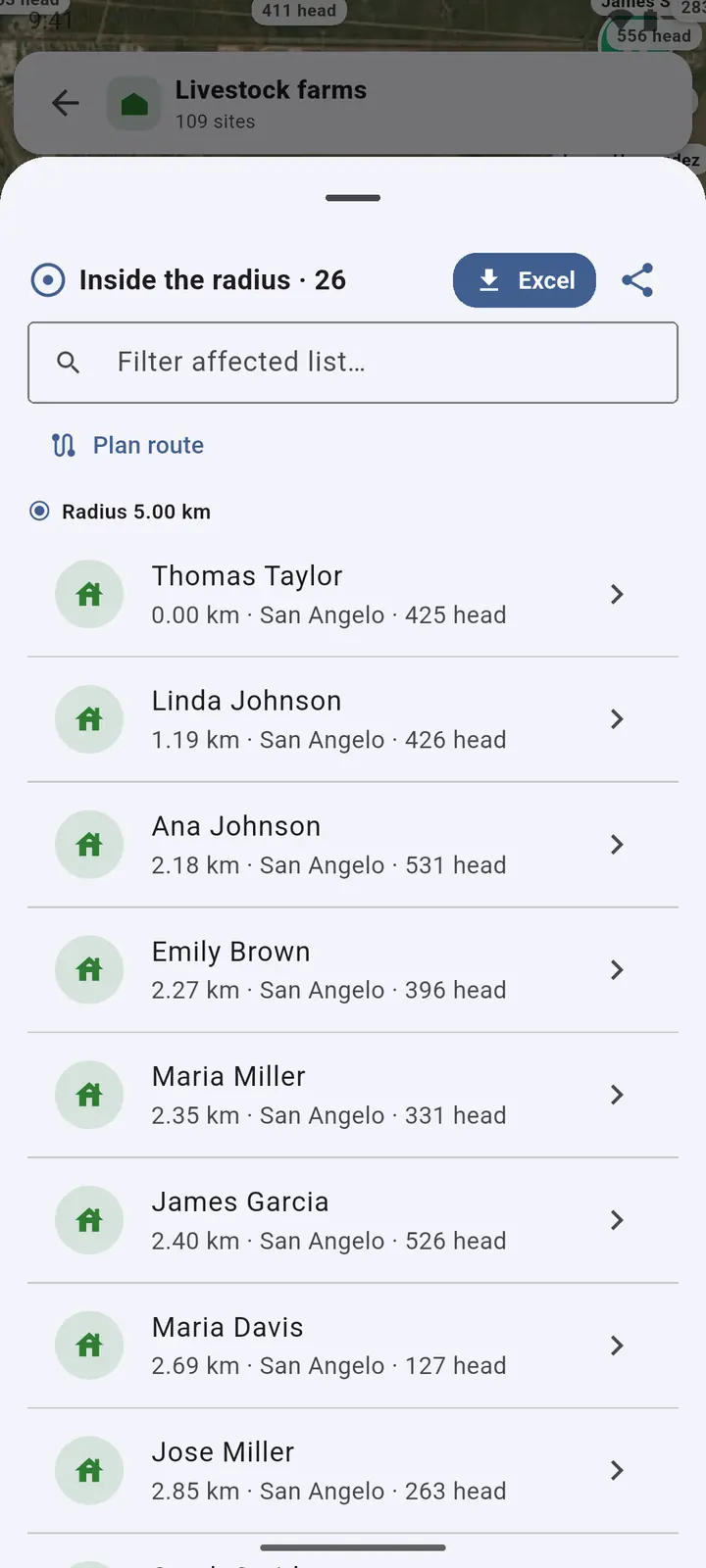
For an outbreak: every site within a distance of a farm, with its herd and its phone.
-
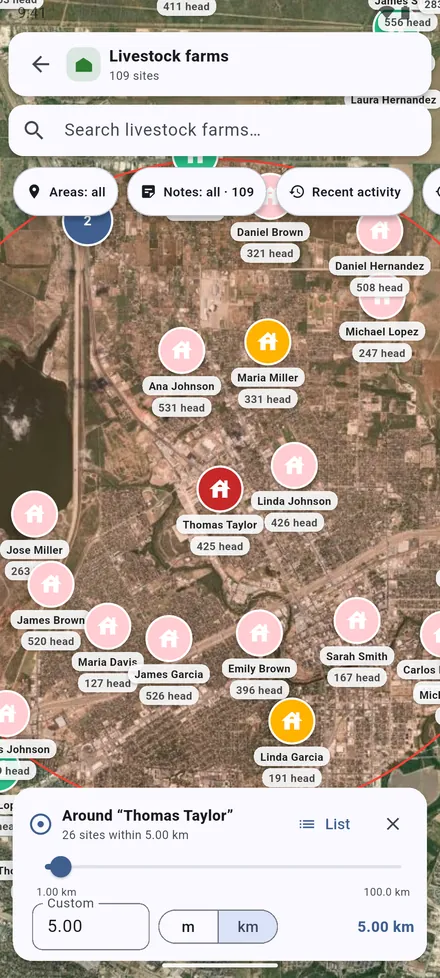
1Open the farm and tap Radius. Drag the slider or type a distance, from 100 m to 100 km. The sites inside are counted.
-
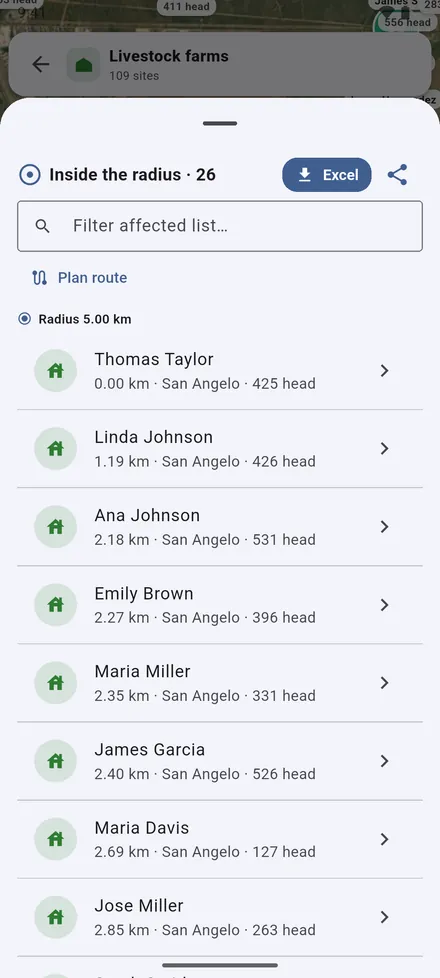
2List: the sites inside, nearest first, with their head counts. Export them to Excel, share the list, or plan a route.
Pinpoint: add or move a site from the map
-
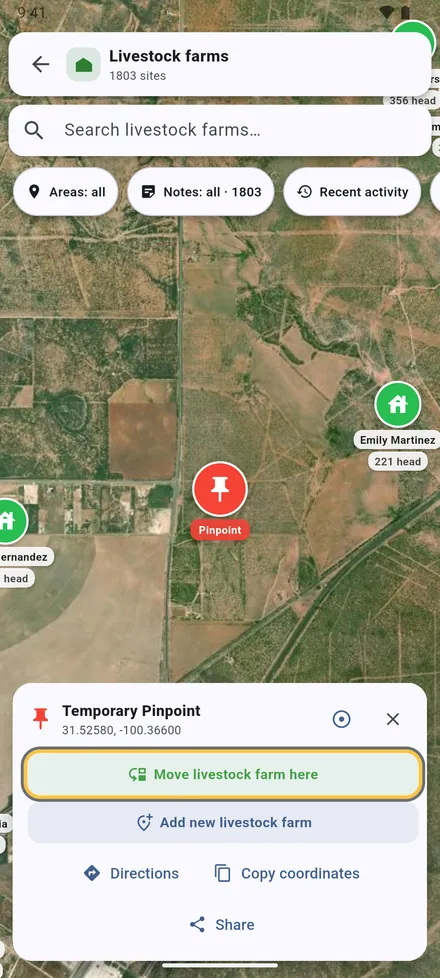
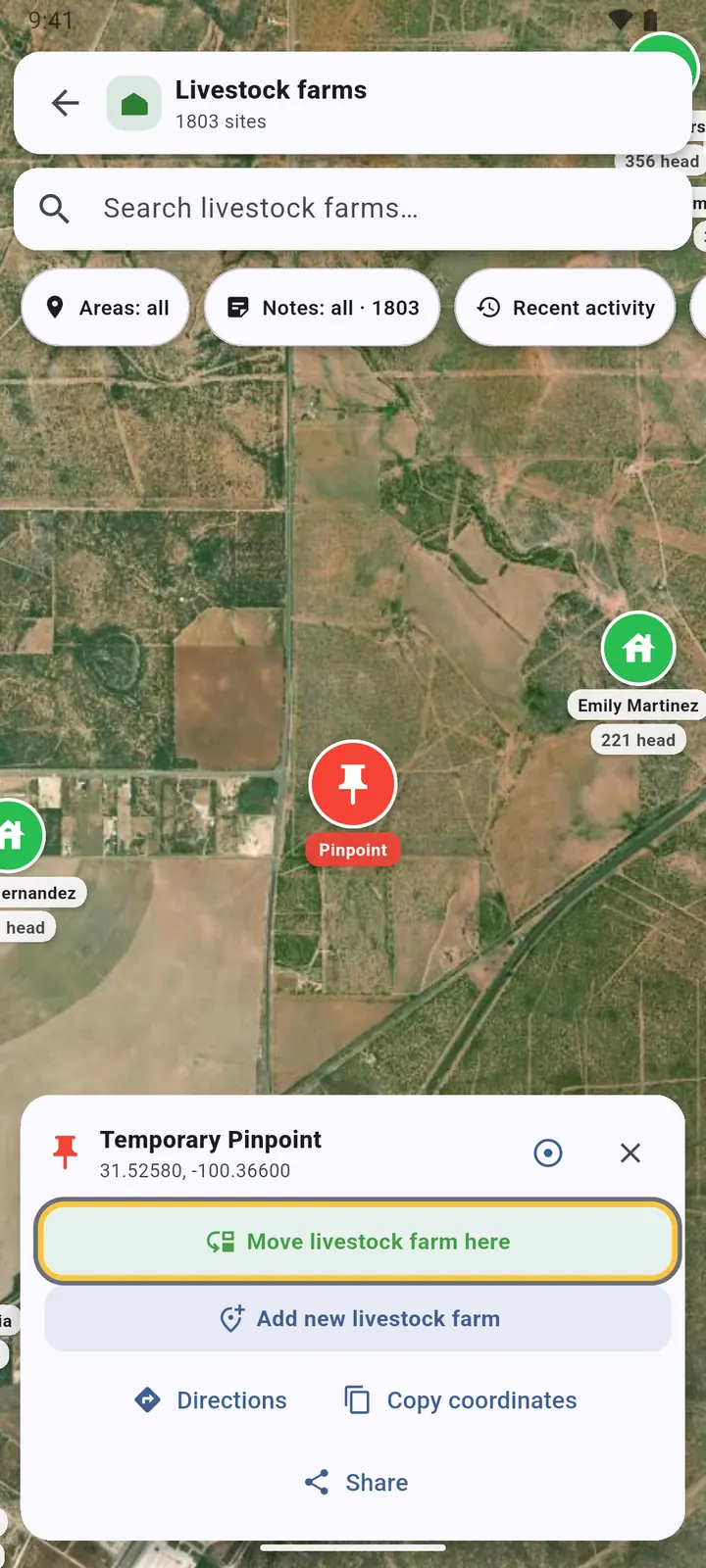
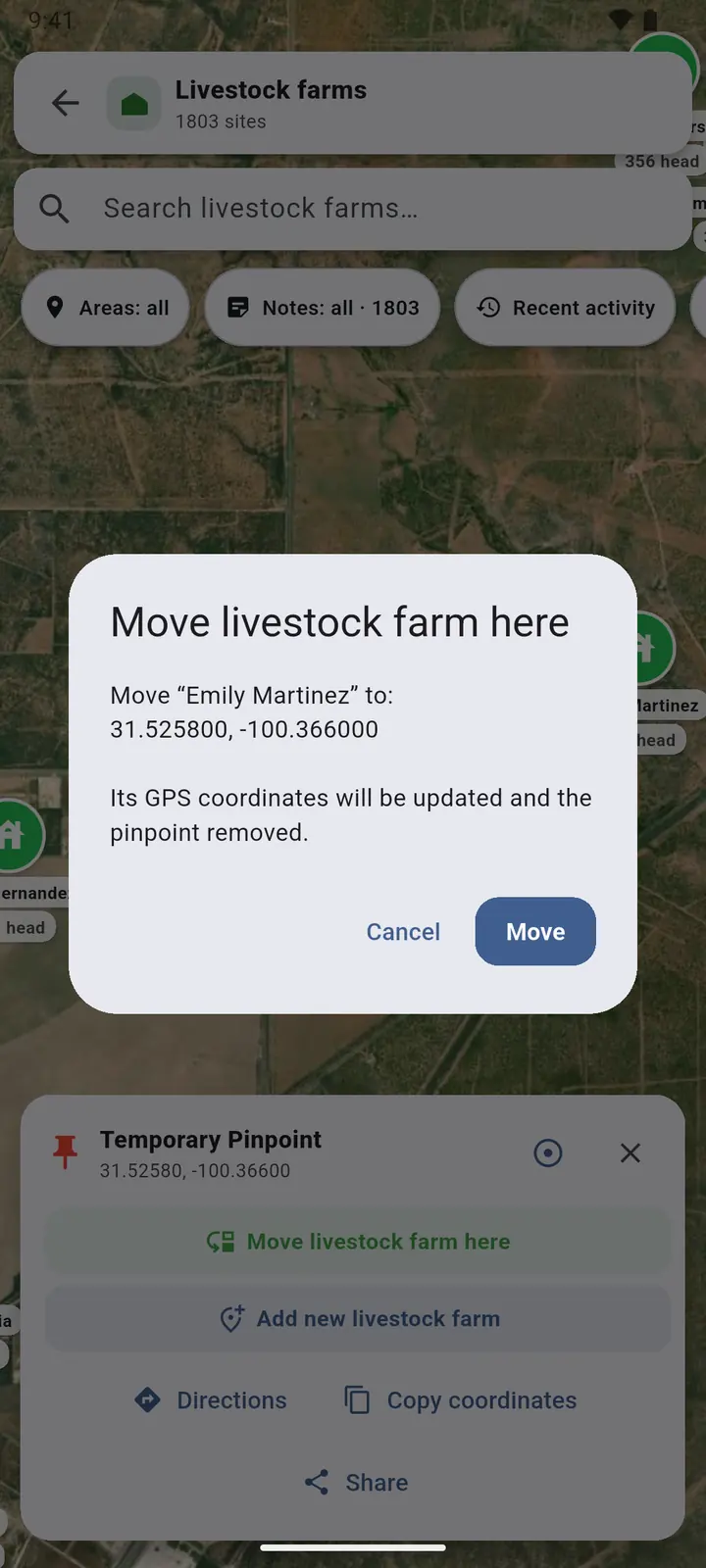
1Touch and hold the map to drop a pinpoint. From it: move a site here, Add a new site here, Directions, Copy coordinates or Share. The circle button draws a radius around it.
-
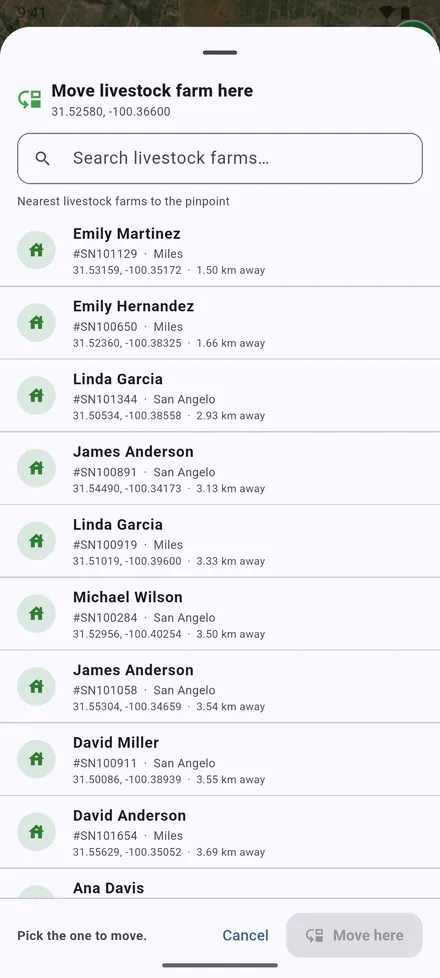
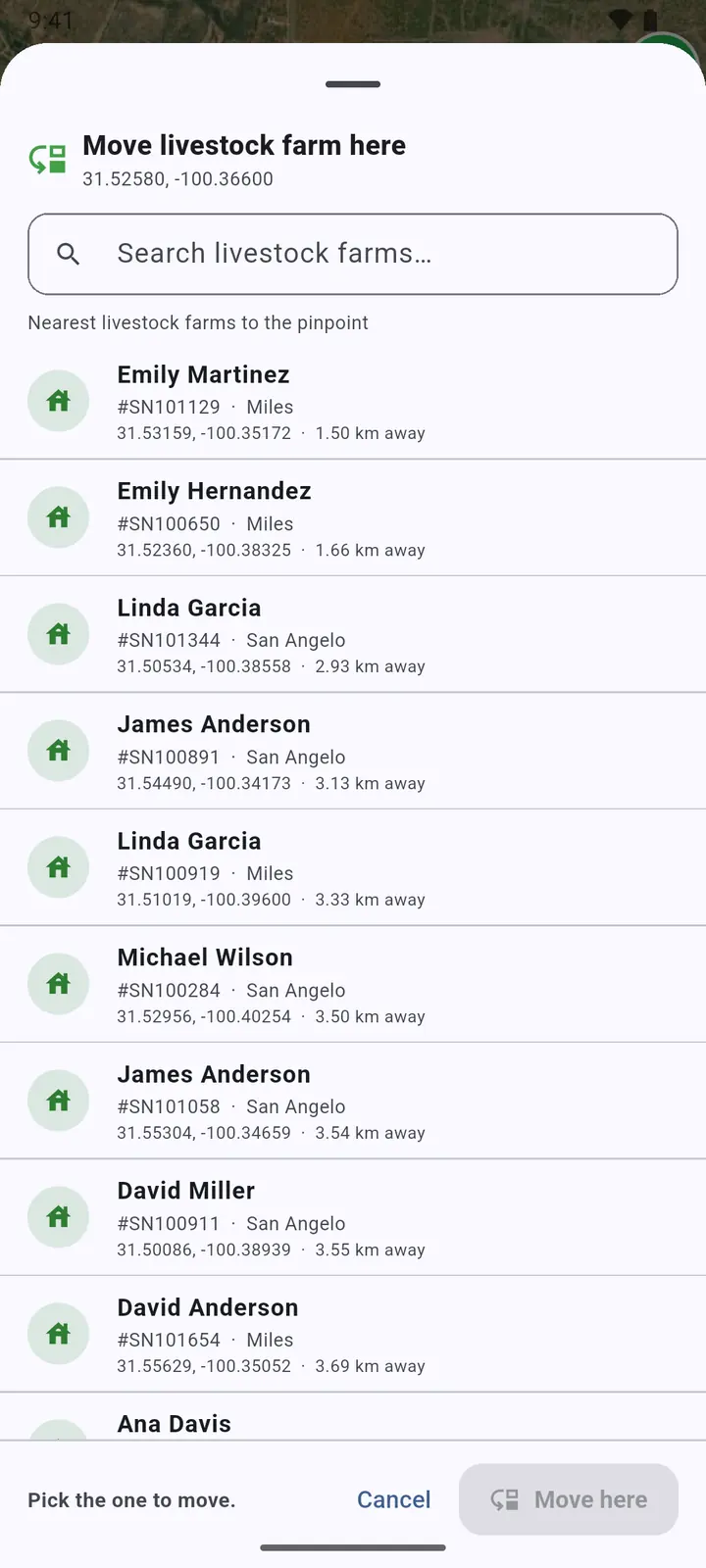
2To correct a site's position, the sites nearest the pinpoint are listed first. Pick the one to move, then Move here.
-
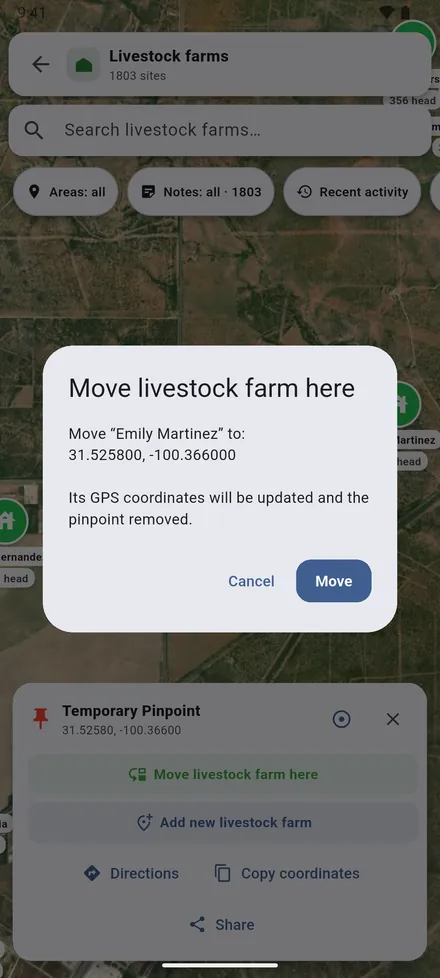
3Confirm with Move. The site gets its new coordinates.
-
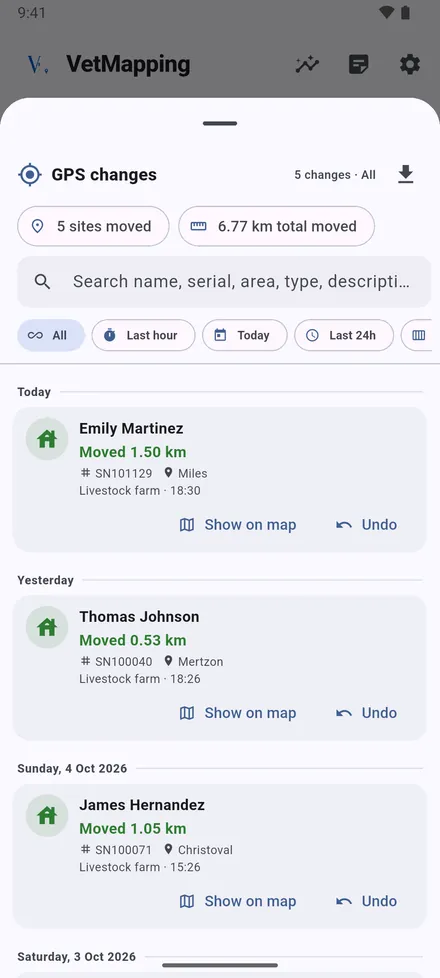
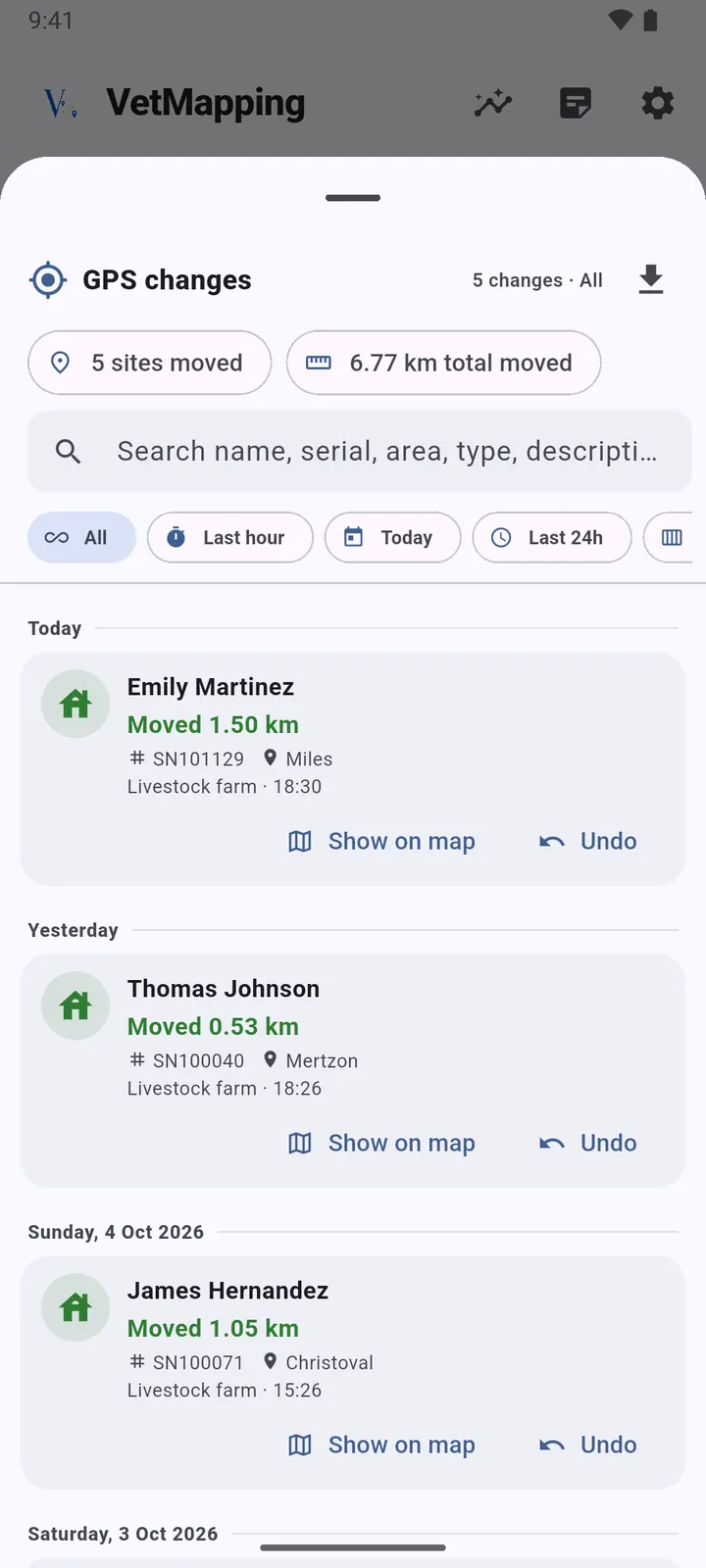
4GPS changes keeps every move, with the old and new position and the distance. Open one to see both on a map, or to undo it.
Send a location from Google Maps
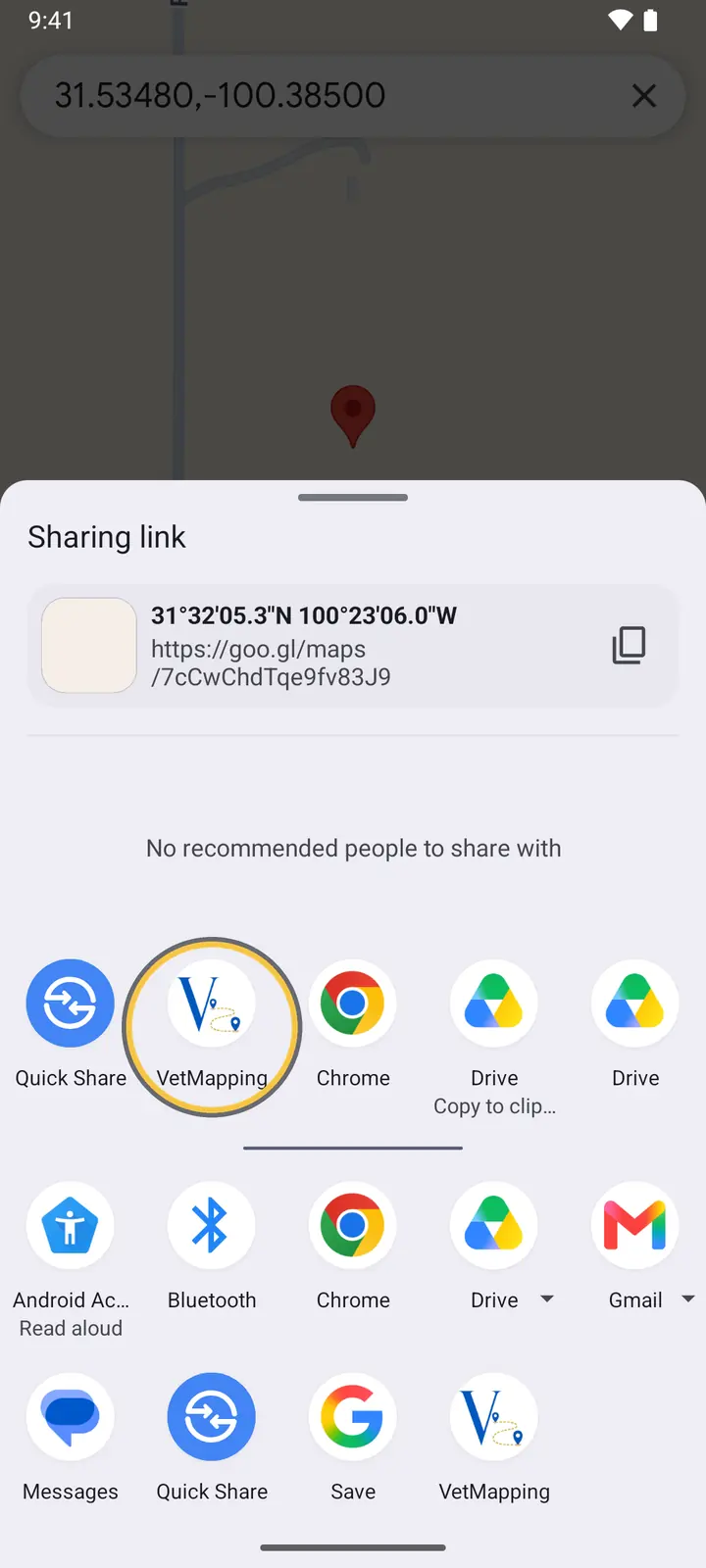
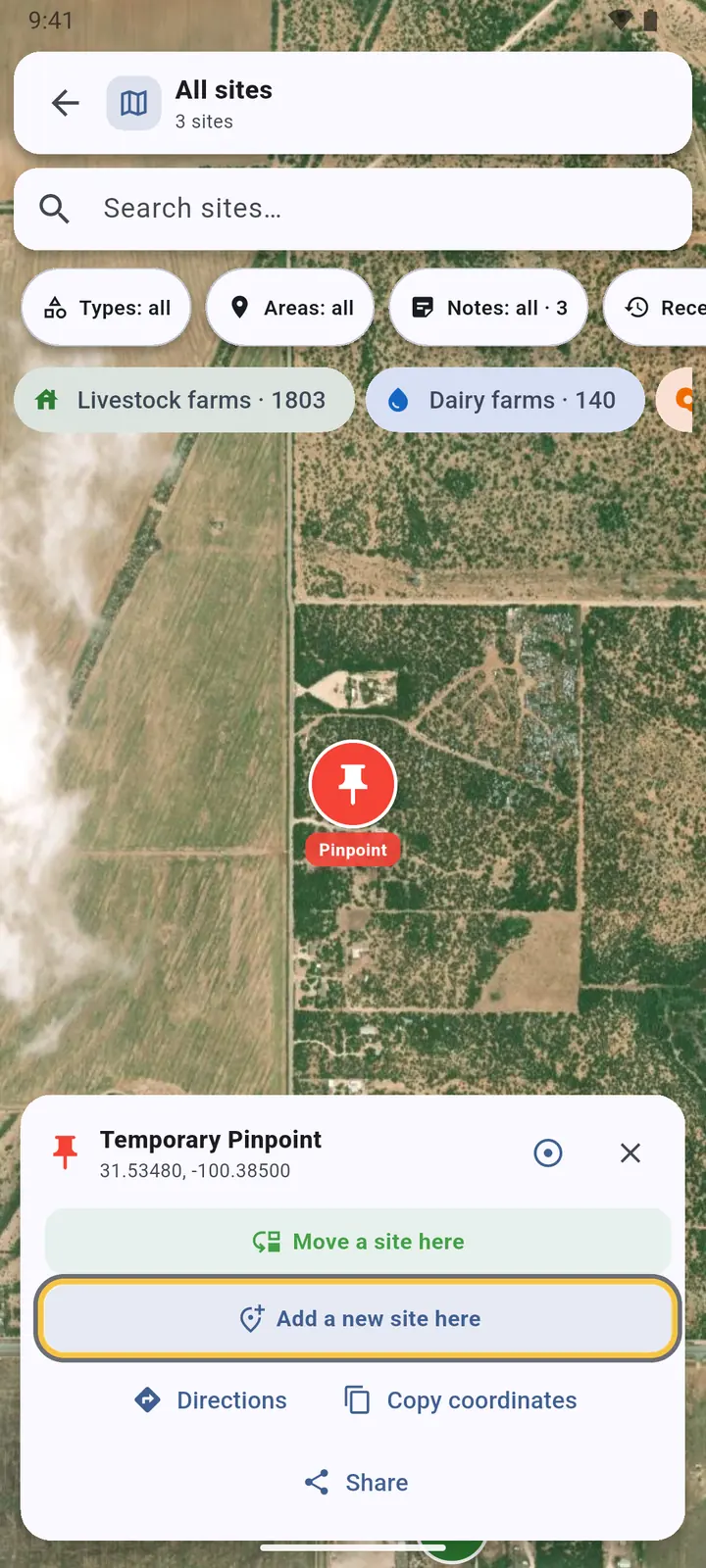
A farmer sends you their location on WhatsApp, or you find the place in Google Maps. Send it to VetMapping: the app opens on that point, among the sites already around it.
-
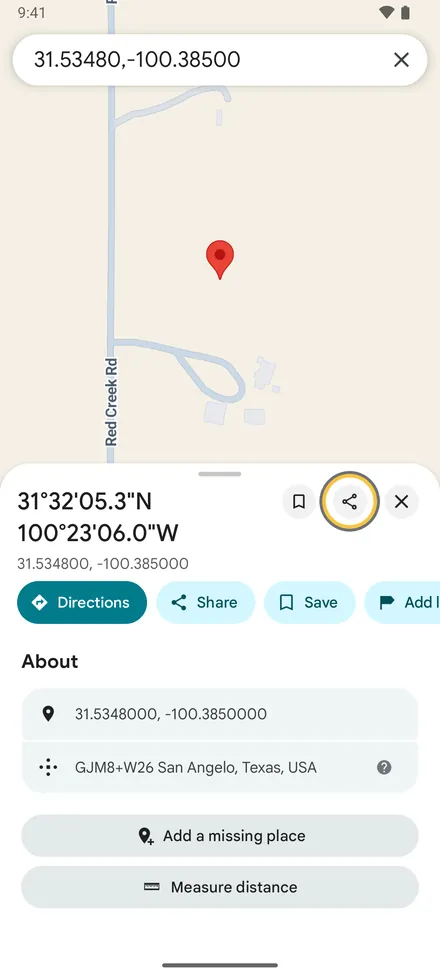
1In Google Maps, open the place, or touch and hold to drop a pin. Tap Share.
-
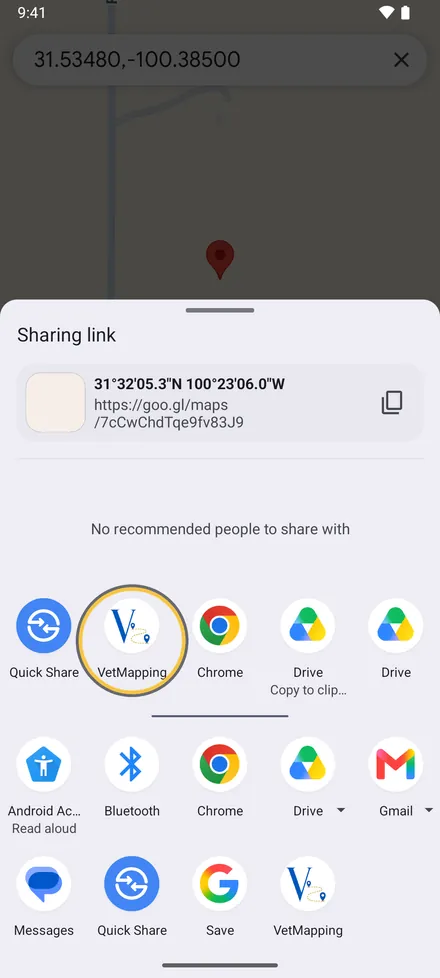
2In the share sheet, tap VetMapping.
-
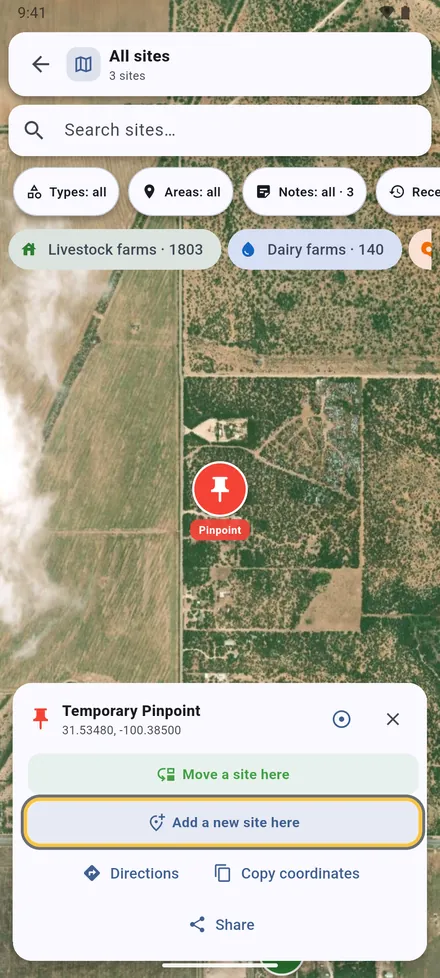
3VetMapping opens on the shared point with the sites around it. Choose Add a new site here, or Move a site here if the site is already in VetMapping at the wrong place.
-
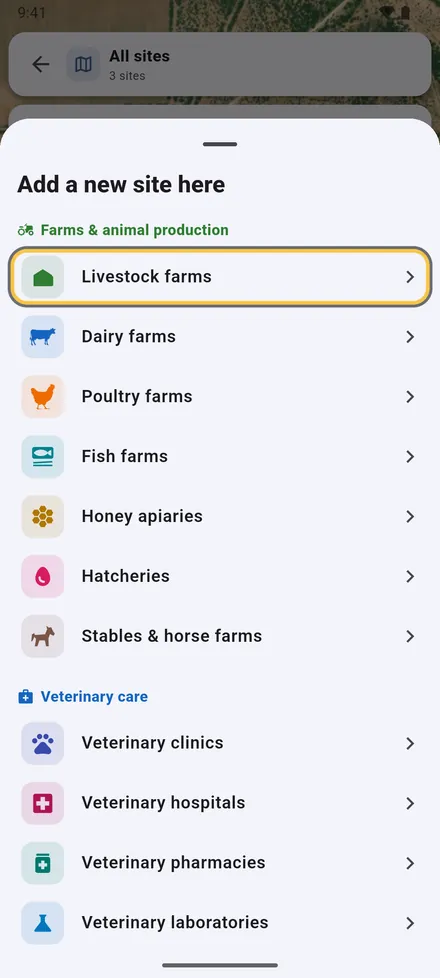
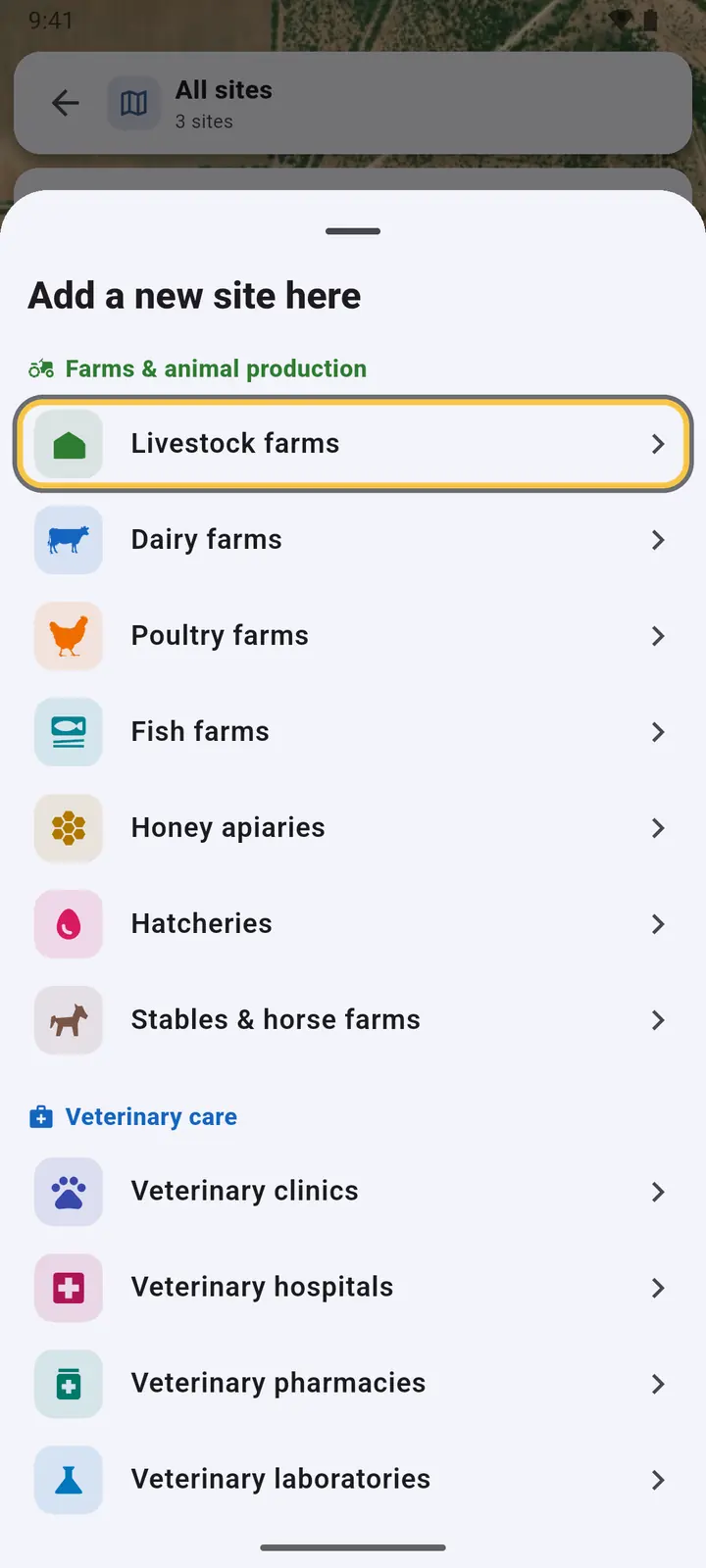
4To add it, choose the kind of site.
-
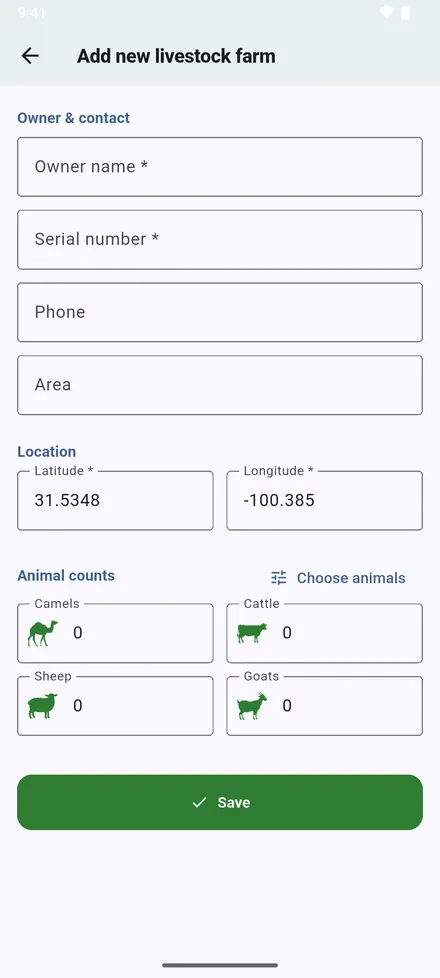
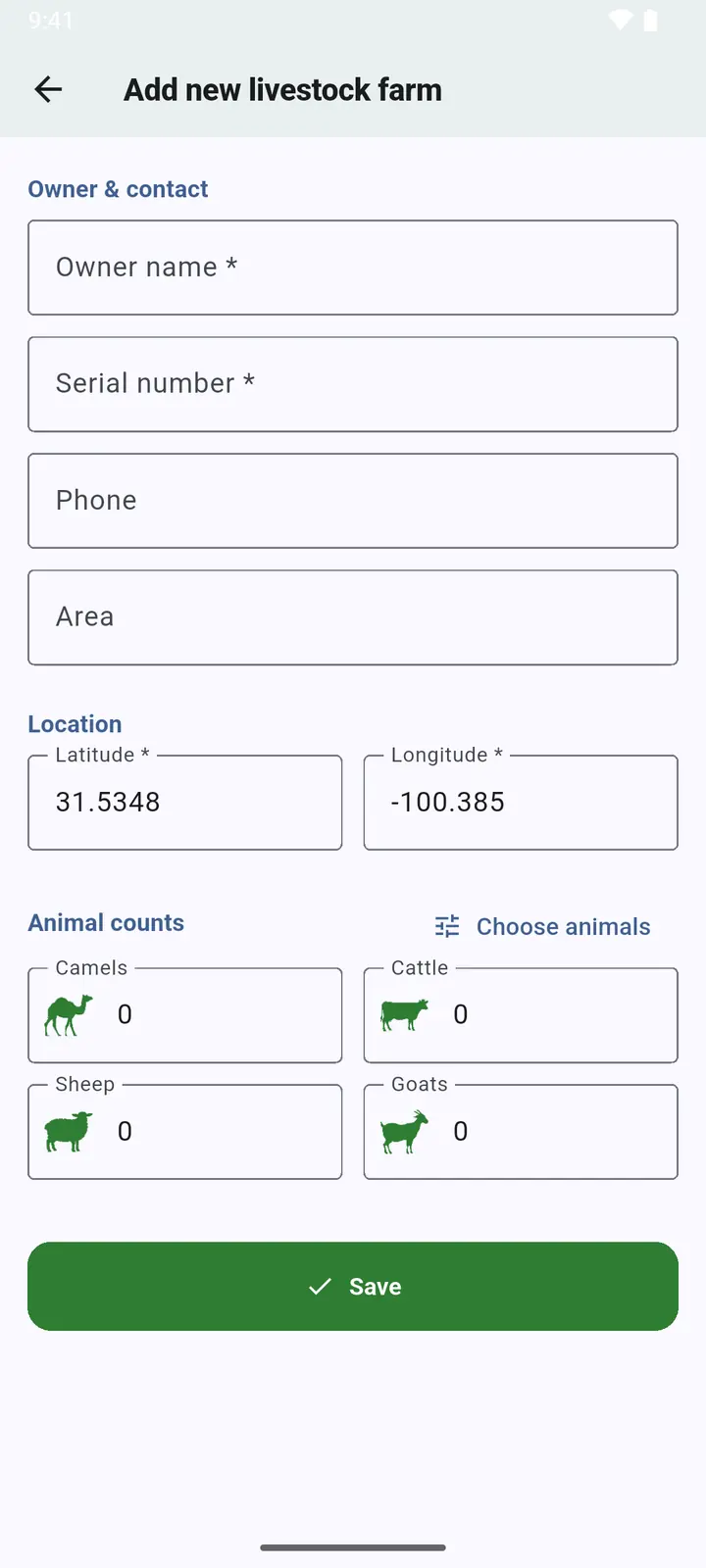
5The form opens with the coordinates filled in. Complete it and tap Save.
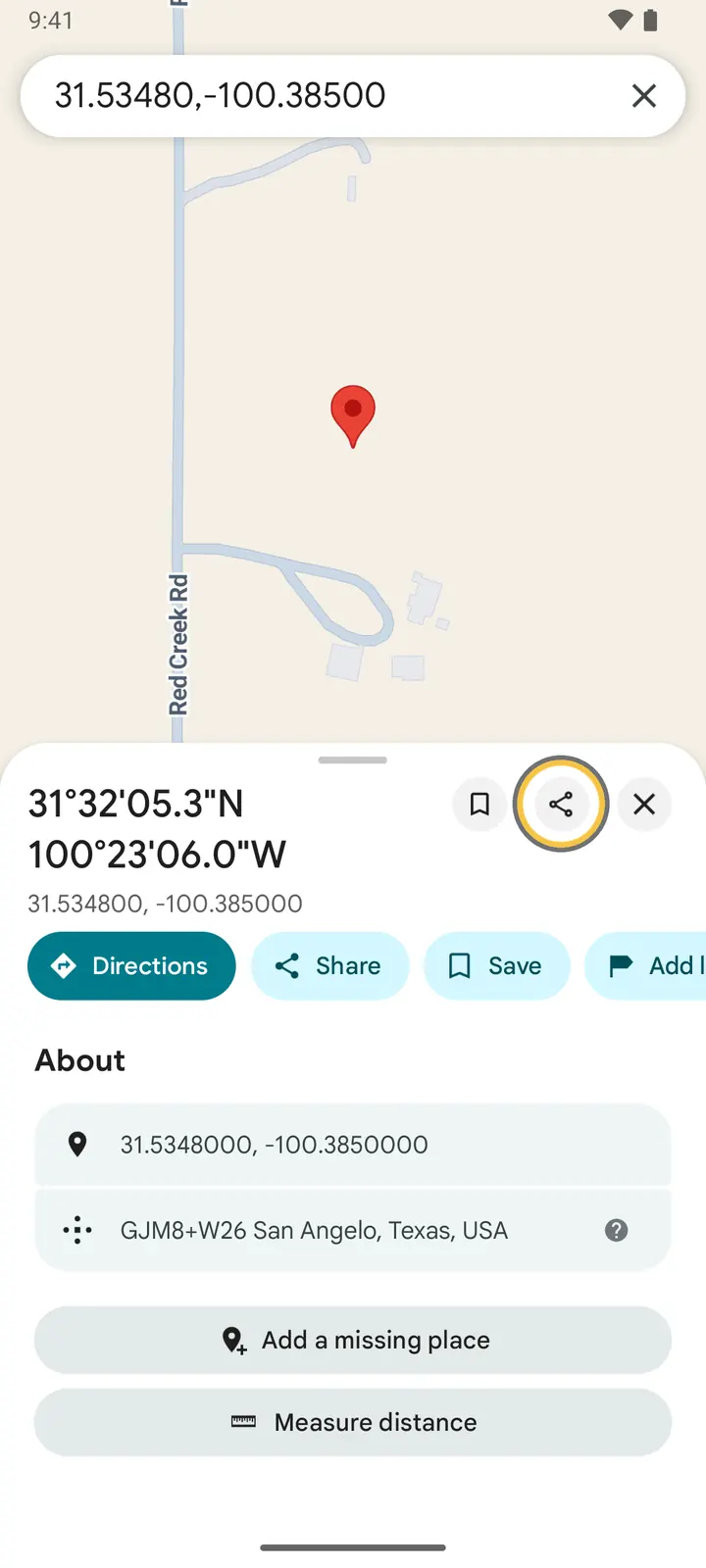
A location someone sent you on WhatsApp opens in Google Maps or Apple Maps when you tap it; share it from there the same way. Links from most map apps, and plain coordinates, work too.
On iPhone, if VetMapping is not in the row of apps, swipe to the end of the row and tap More to find it. If iOS does not switch to the app, the location is waiting on the map the next time you open VetMapping.
On Android, Done after saving takes you back to the app the location came from.
Recent changes, starred and recently opened
-
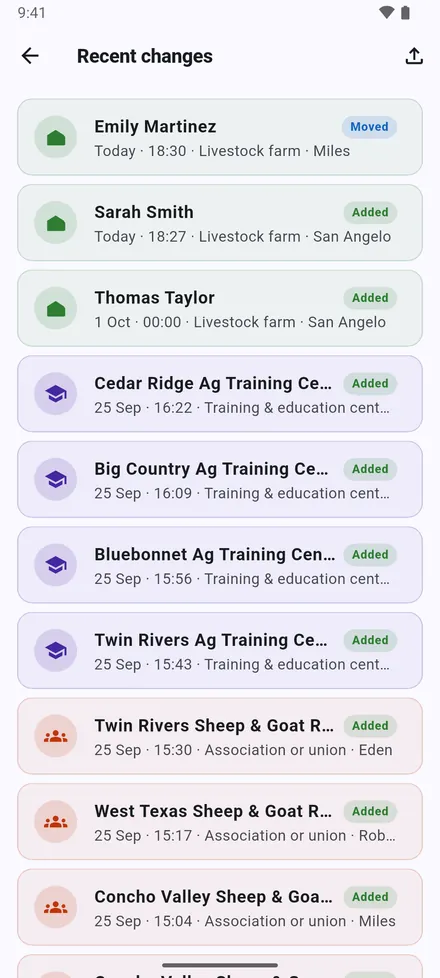
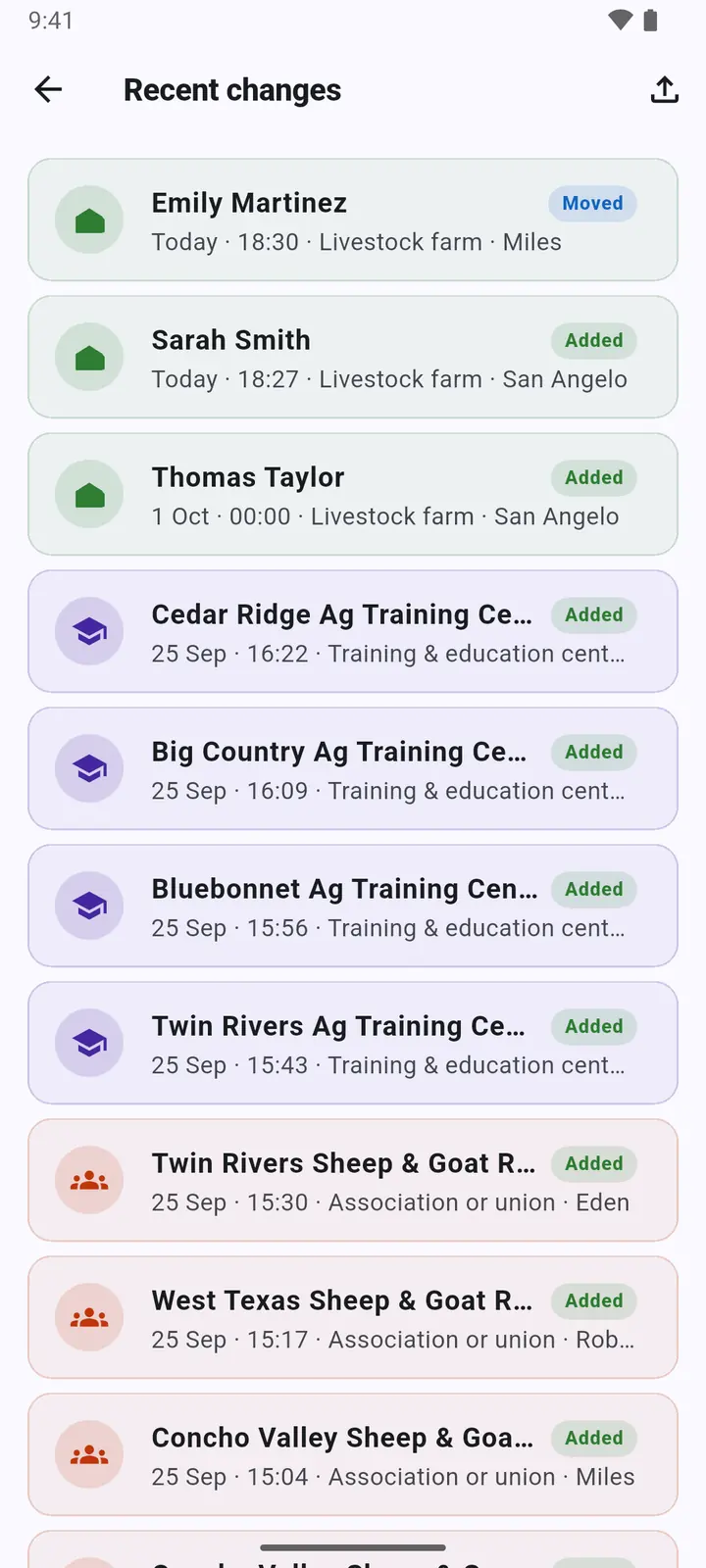
1Recent changes: the sites added, moved or edited most recently, wherever that happened.
-
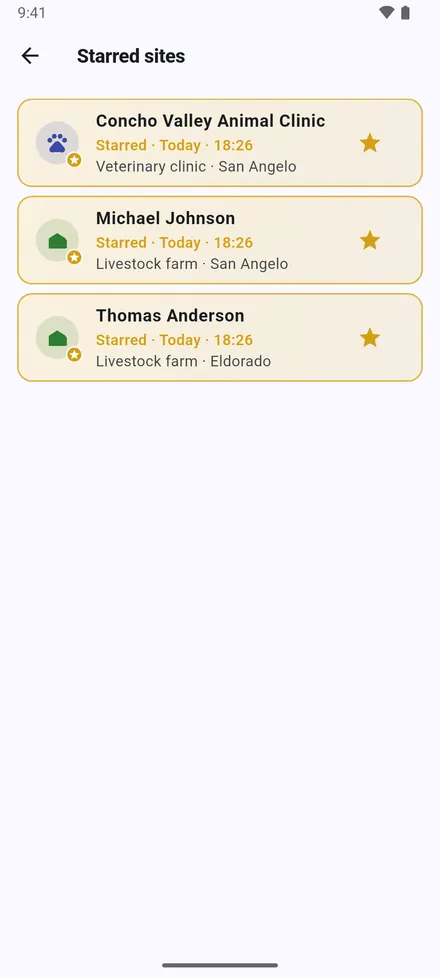
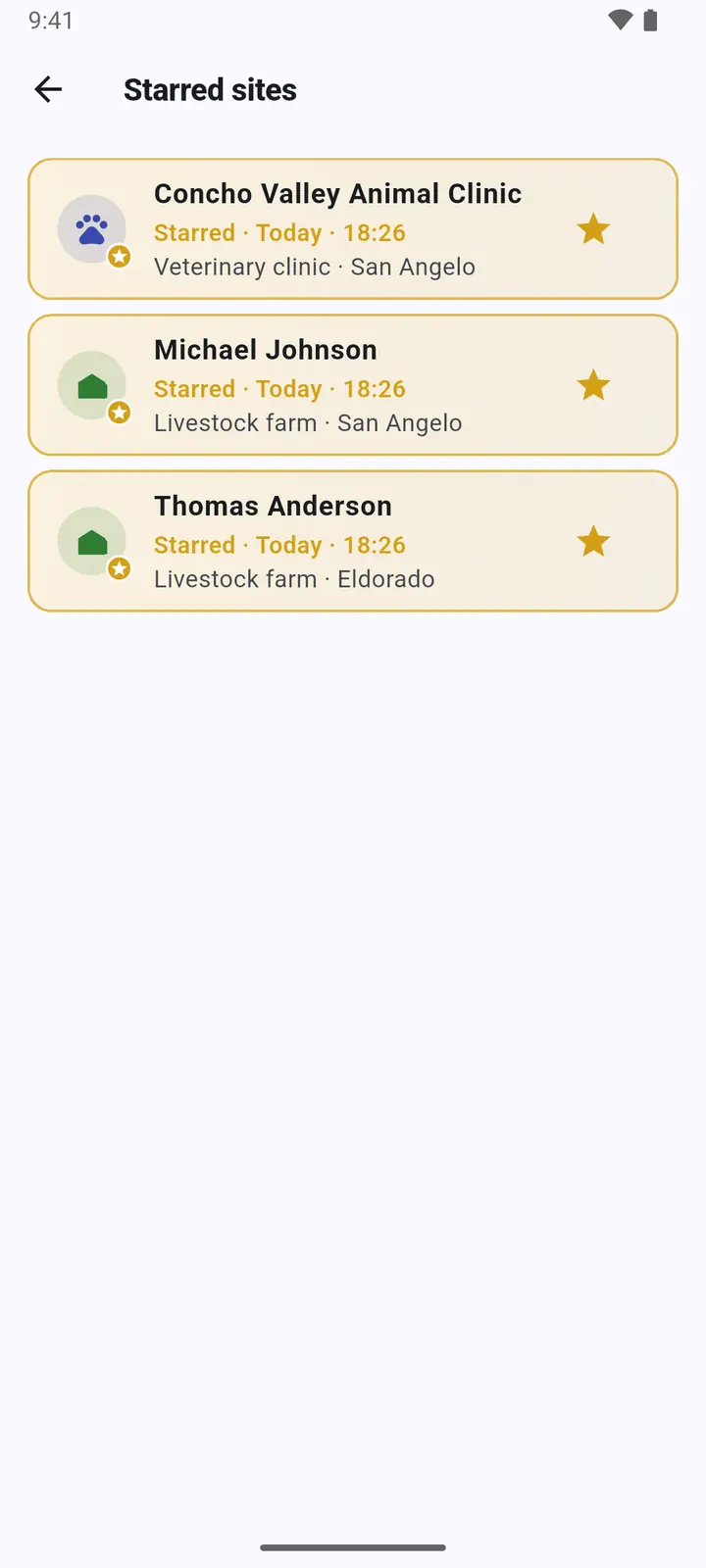
2Starred sites: the sites you starred. They are drawn in gold on the map too.
-
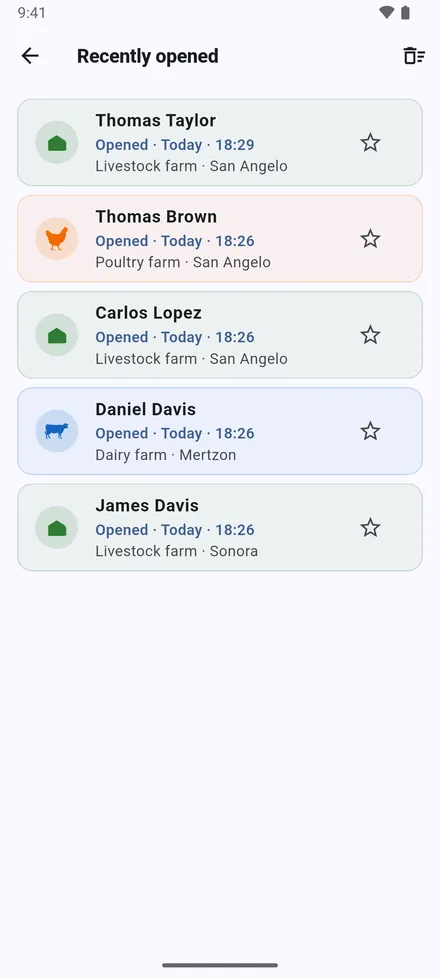
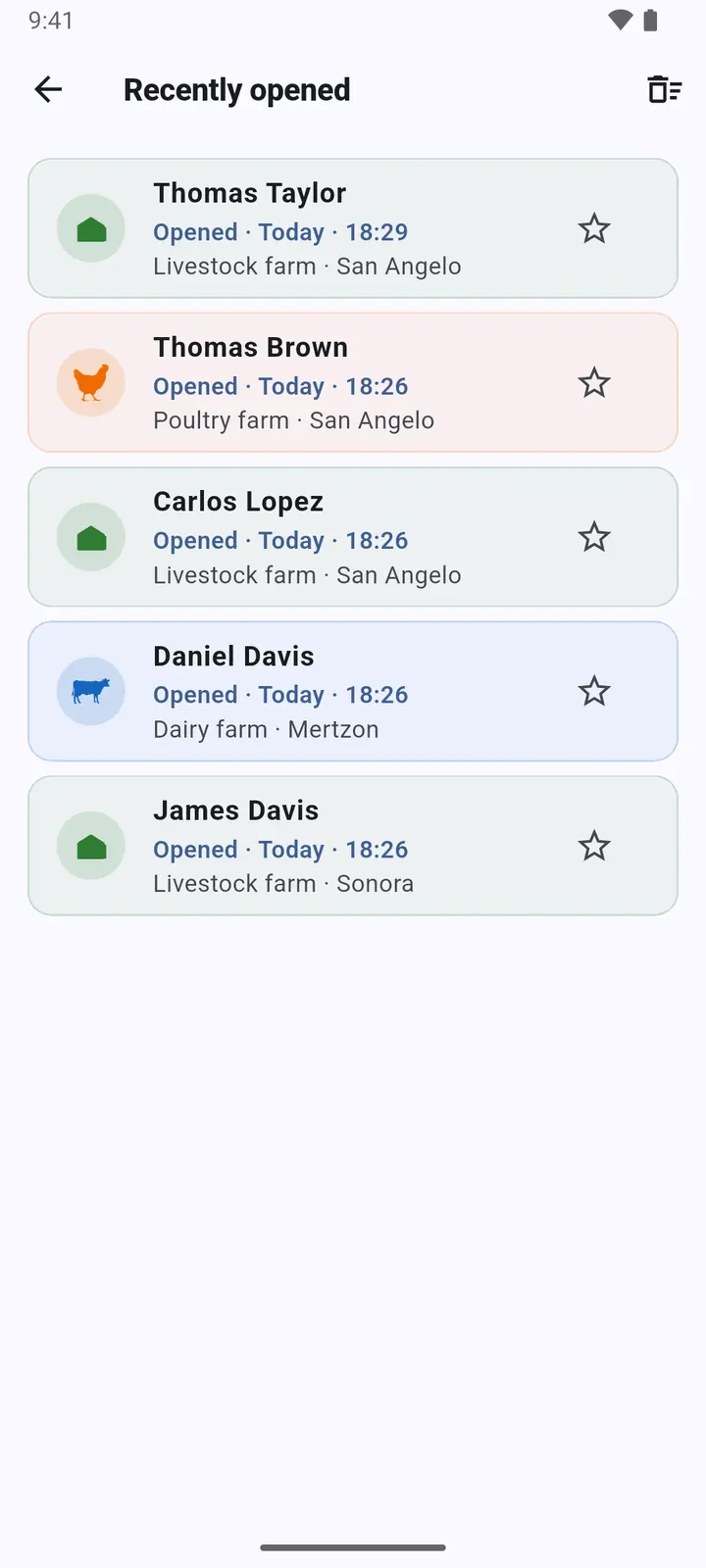
3Recently opened: the last 20 sites you opened, with the date and time.
Import from Excel
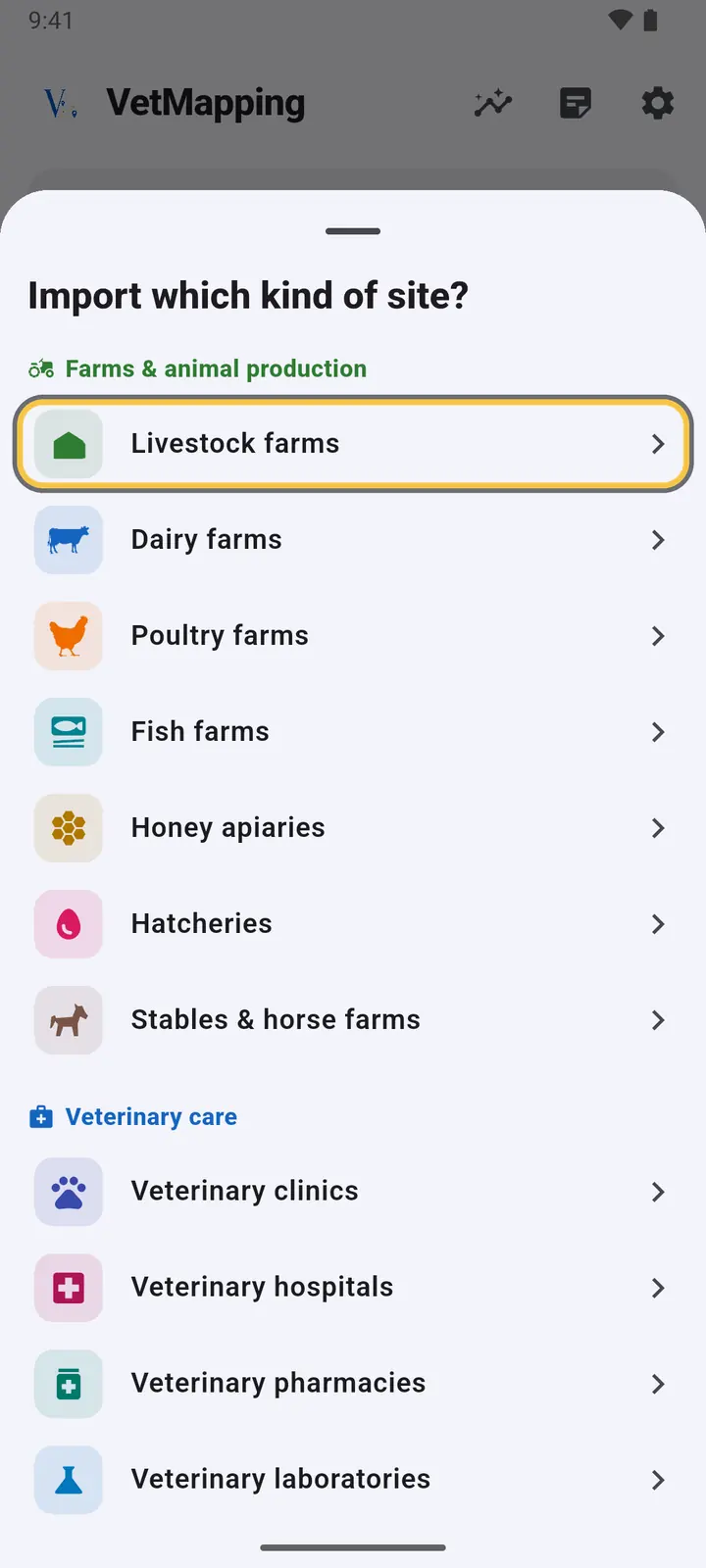
Start from the registry you already have: an .xlsx or .csv file with one site per row.
-
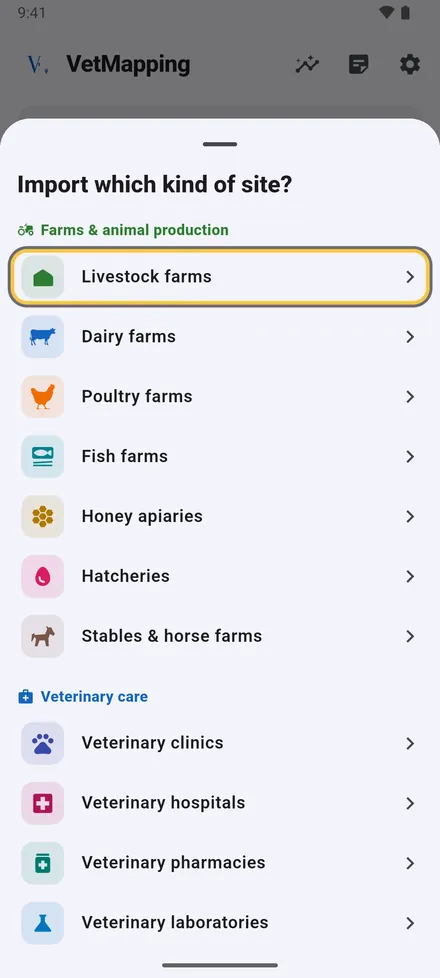
1Tap Import on the home screen, choose the kind of site in the file, then pick the file.
-
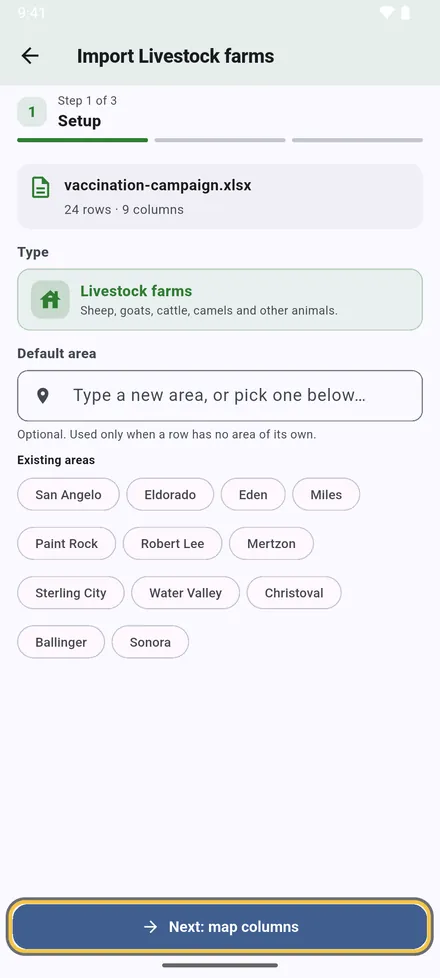
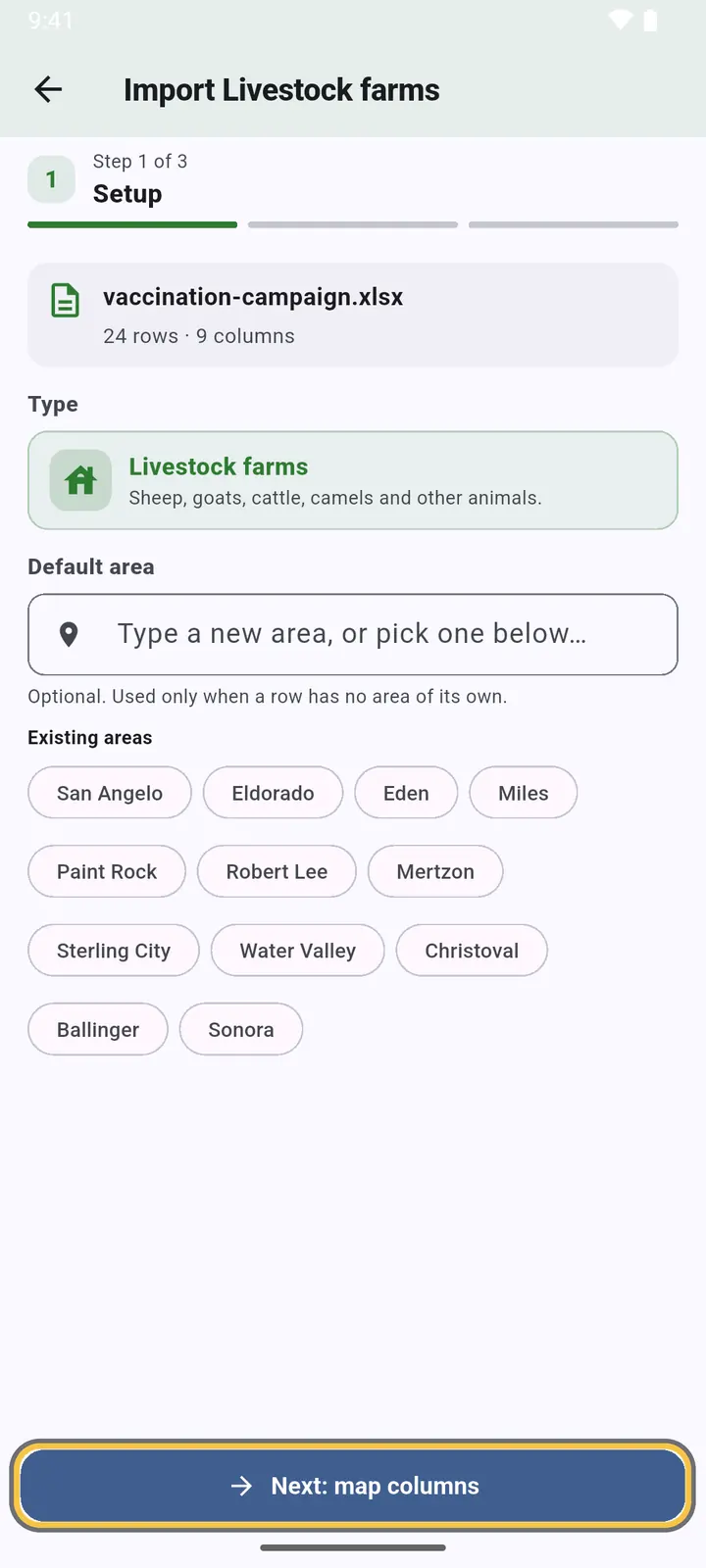
2Choose an area for rows that have none, or keep each row's own.
-
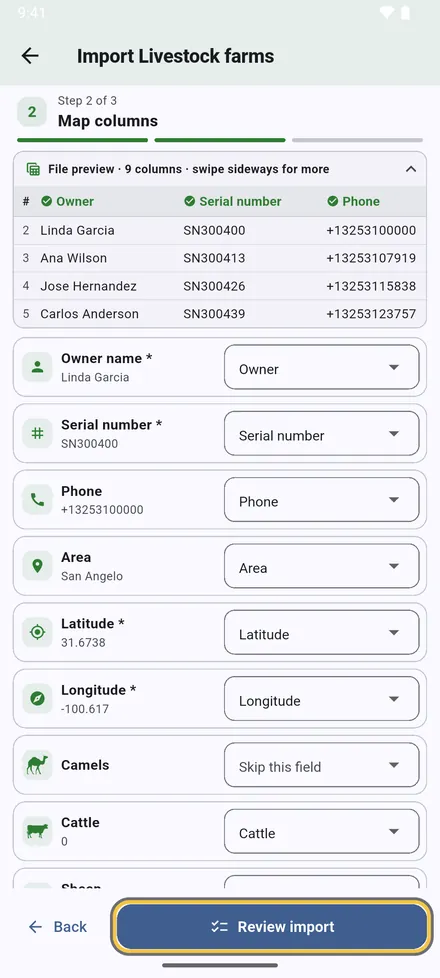
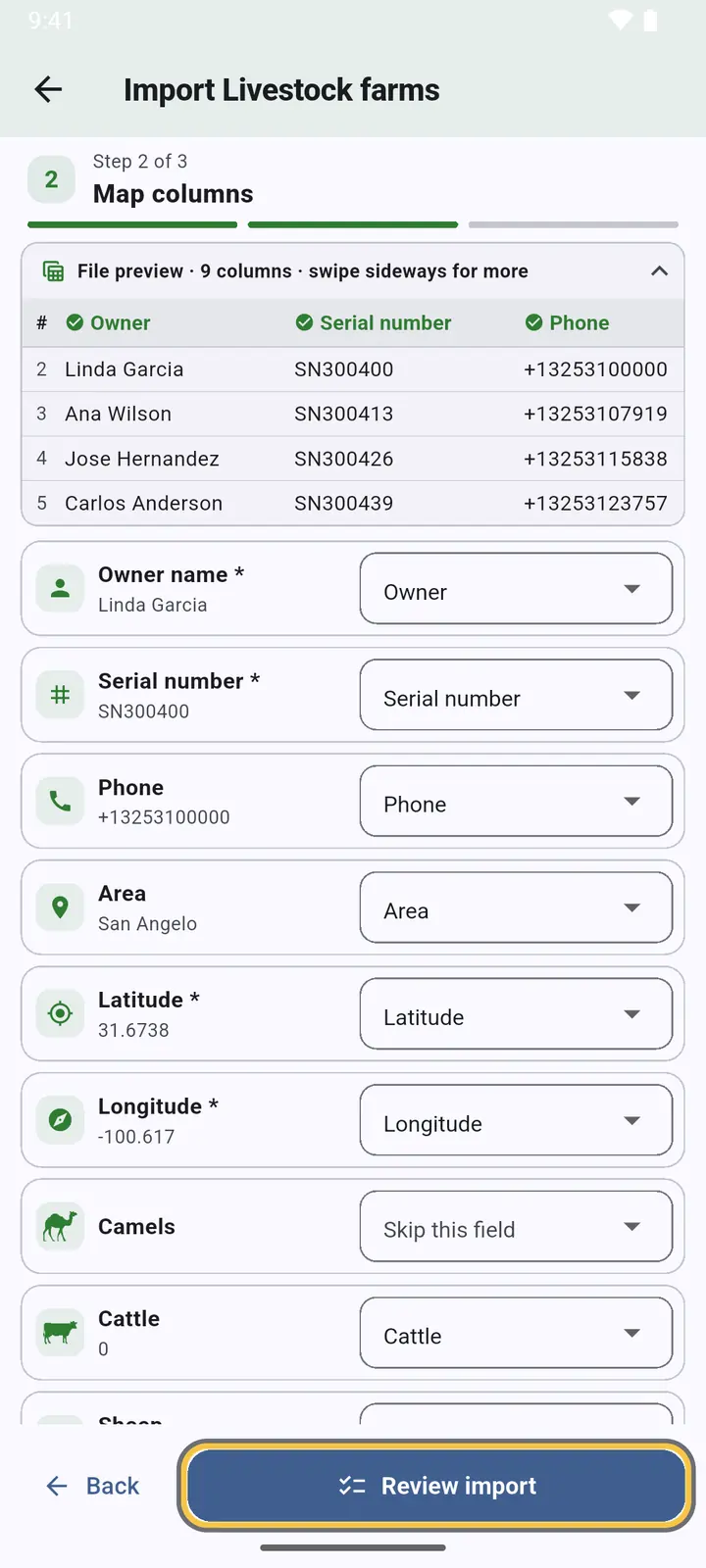
3Each field is matched to a column of your file. English and Arabic headers are matched automatically; change any match by hand. Fields marked * are required.
-
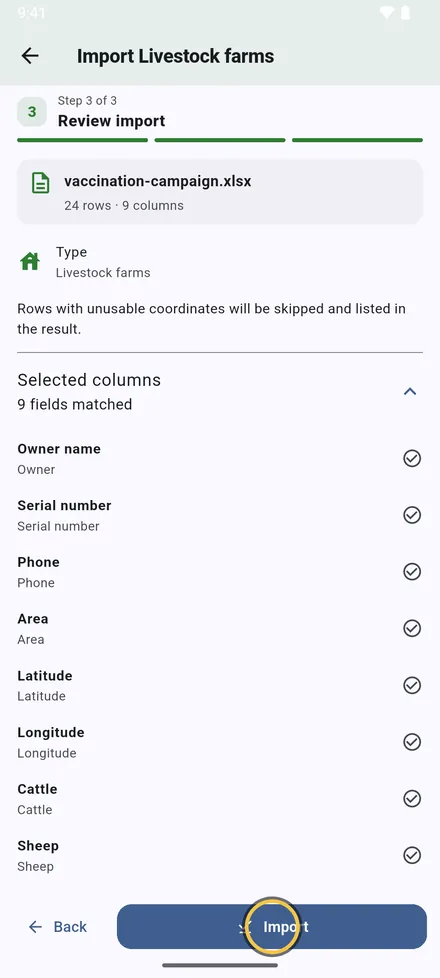
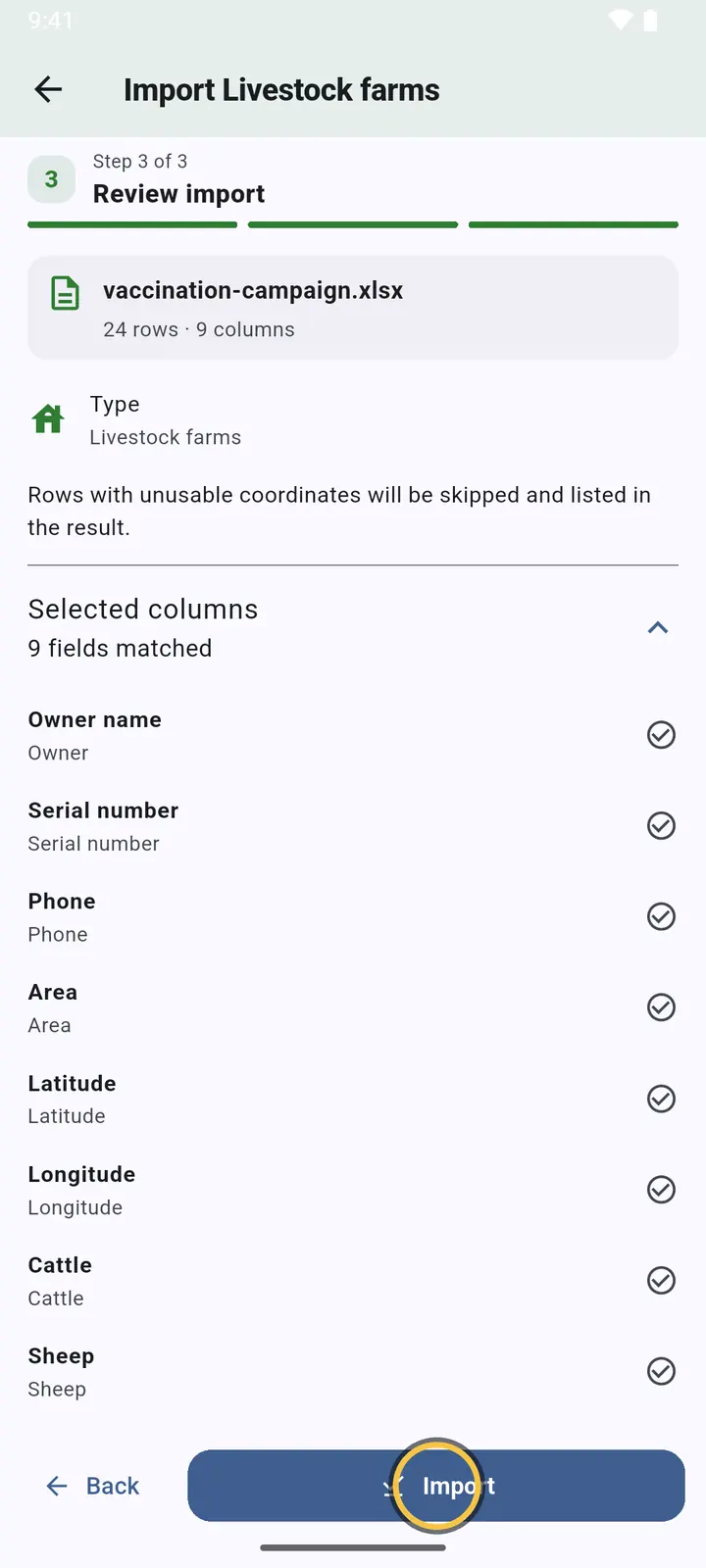
4Check the summary and tap Import.
-
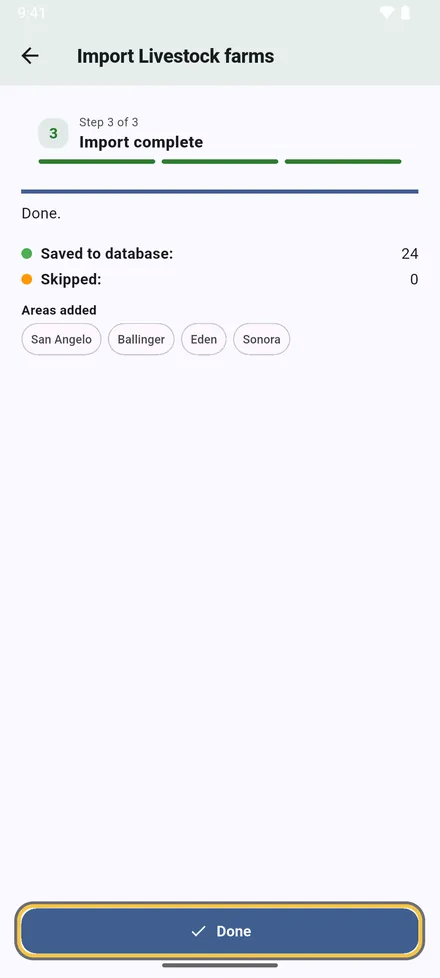
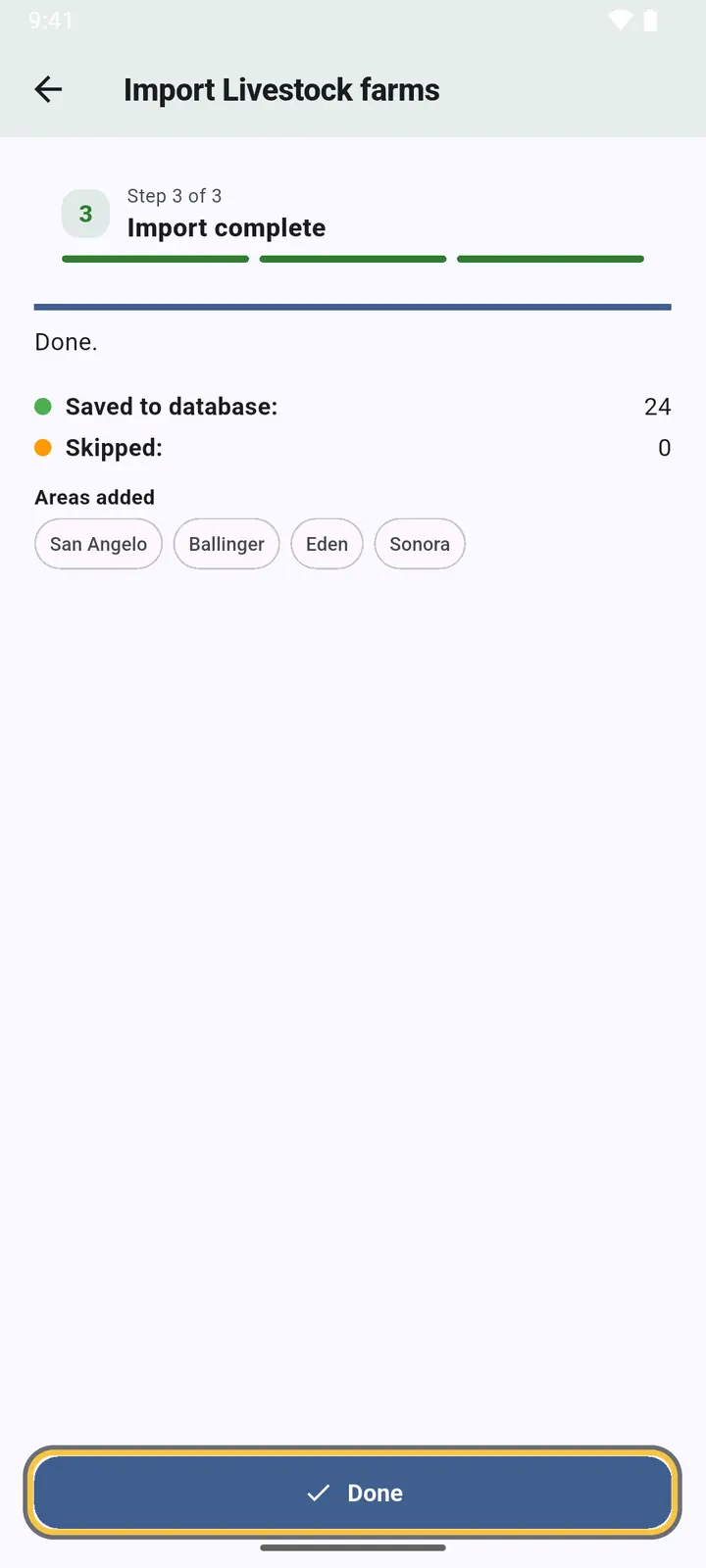
5The result: how many sites were saved, how many rows were skipped and why, and the areas added. Tap Done.
-
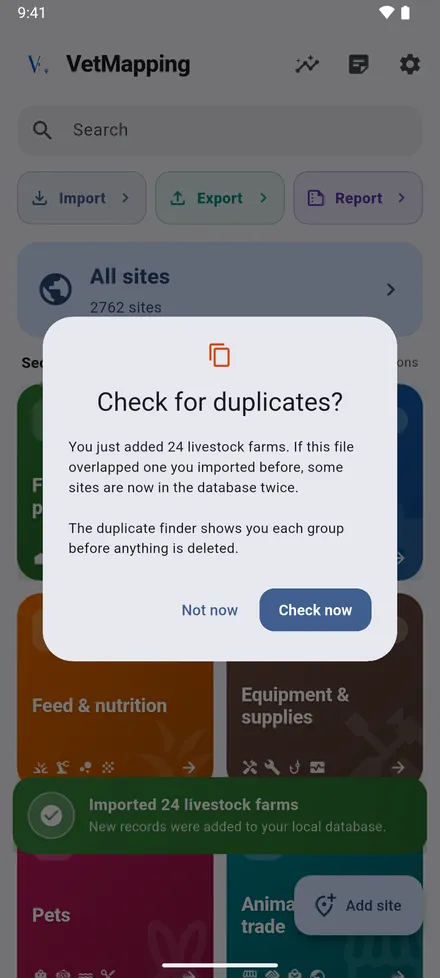
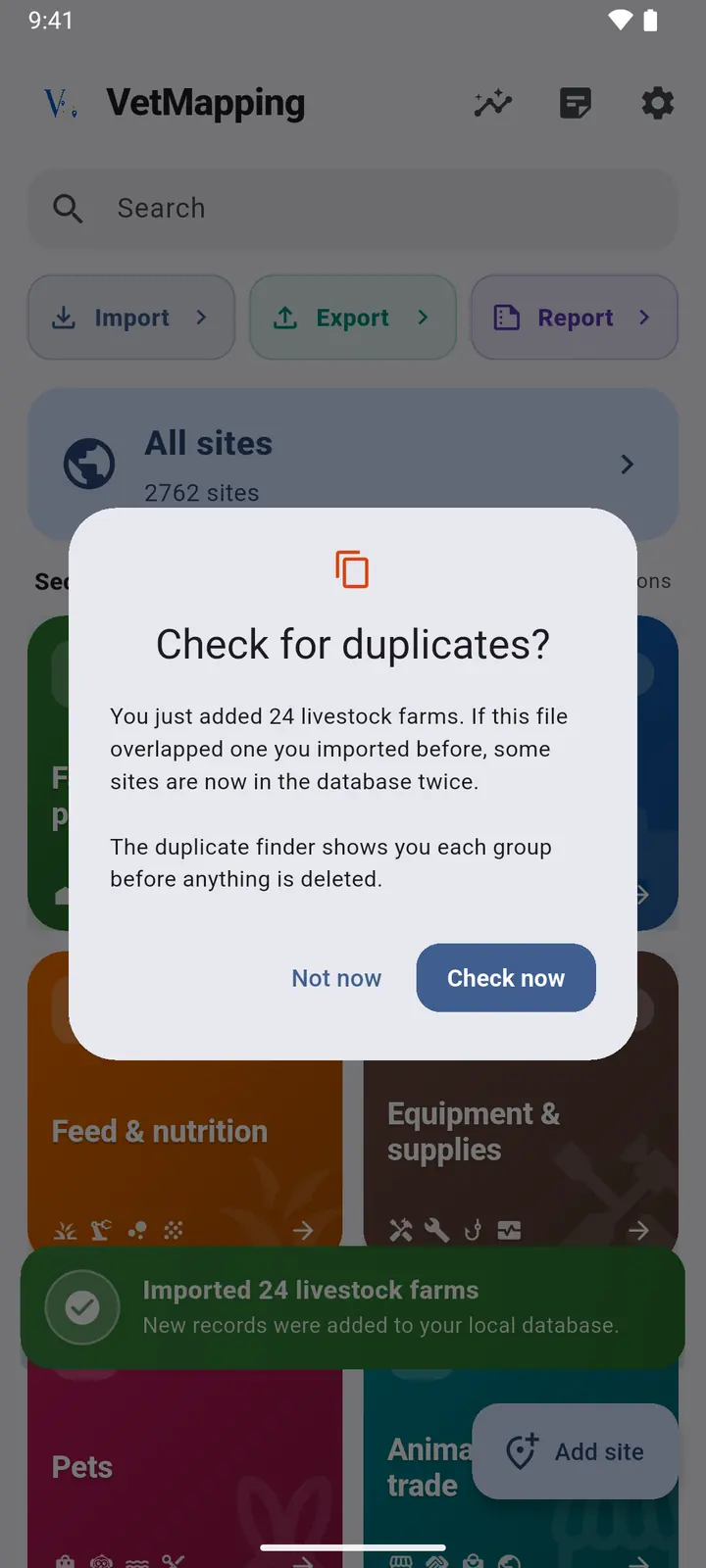
6If the file overlaps one you imported before, VetMapping offers to look for duplicates.
Duplicate finder
-
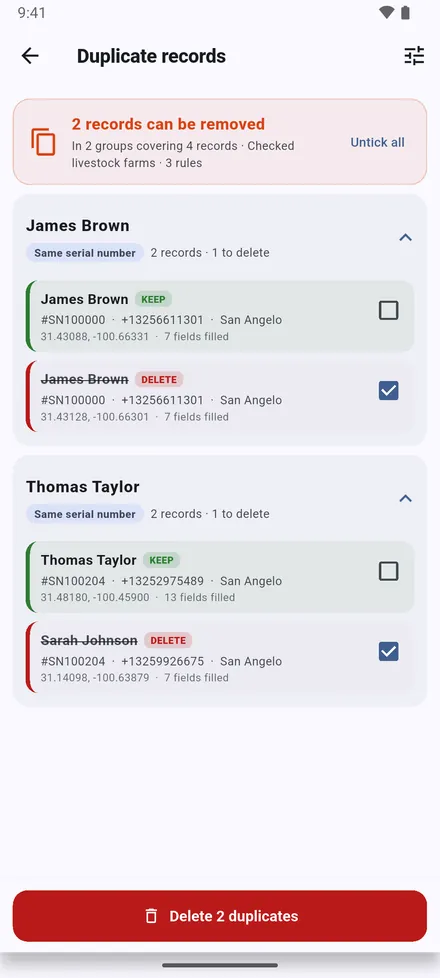
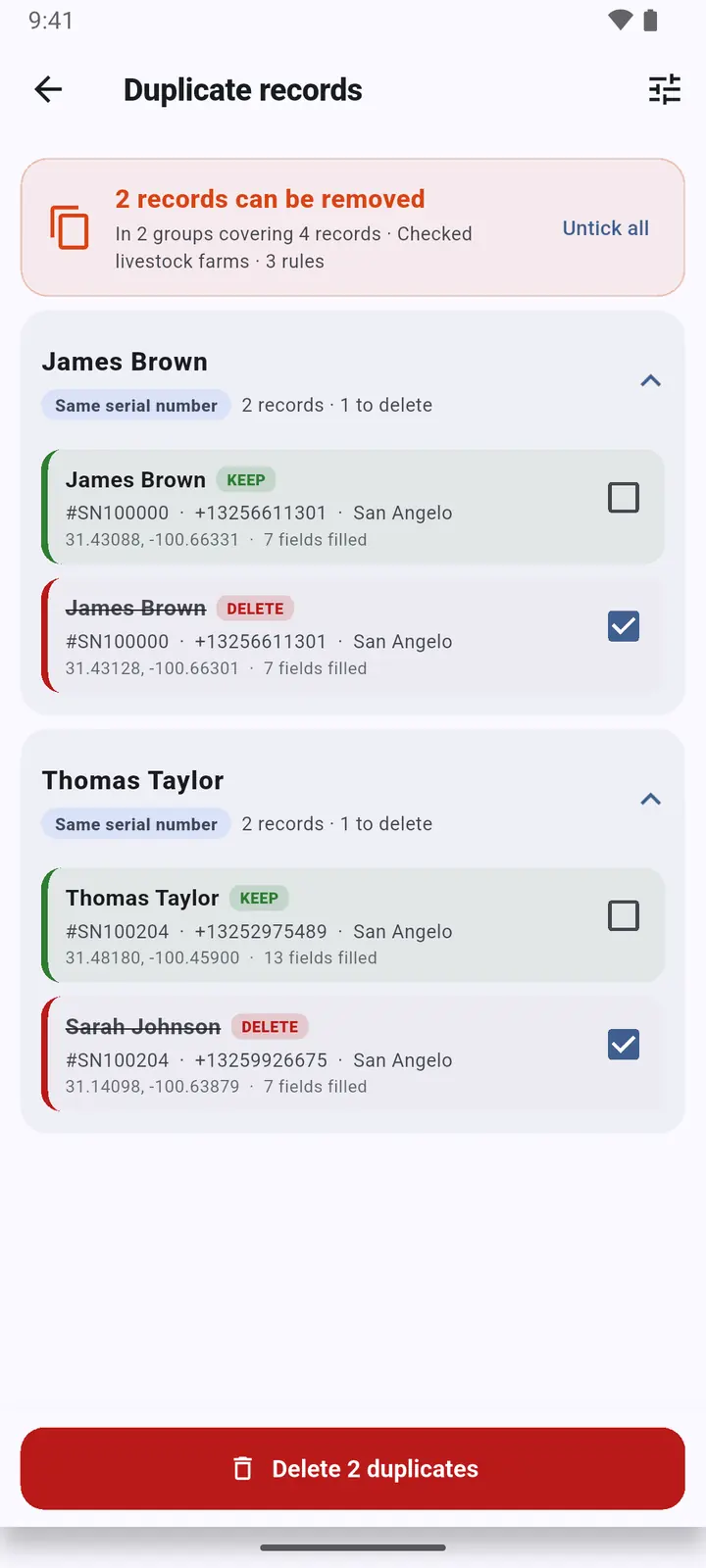
1Sites with the same serial number, the same phone, the same owner in the same area, or the same spot are grouped. Look at each group and keep the right one. Also in Settings › Find duplicate locations.
Export to Excel
-
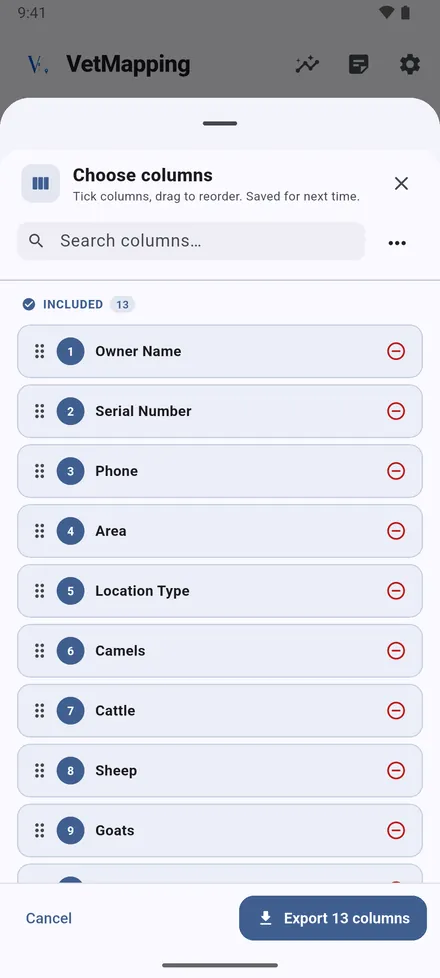
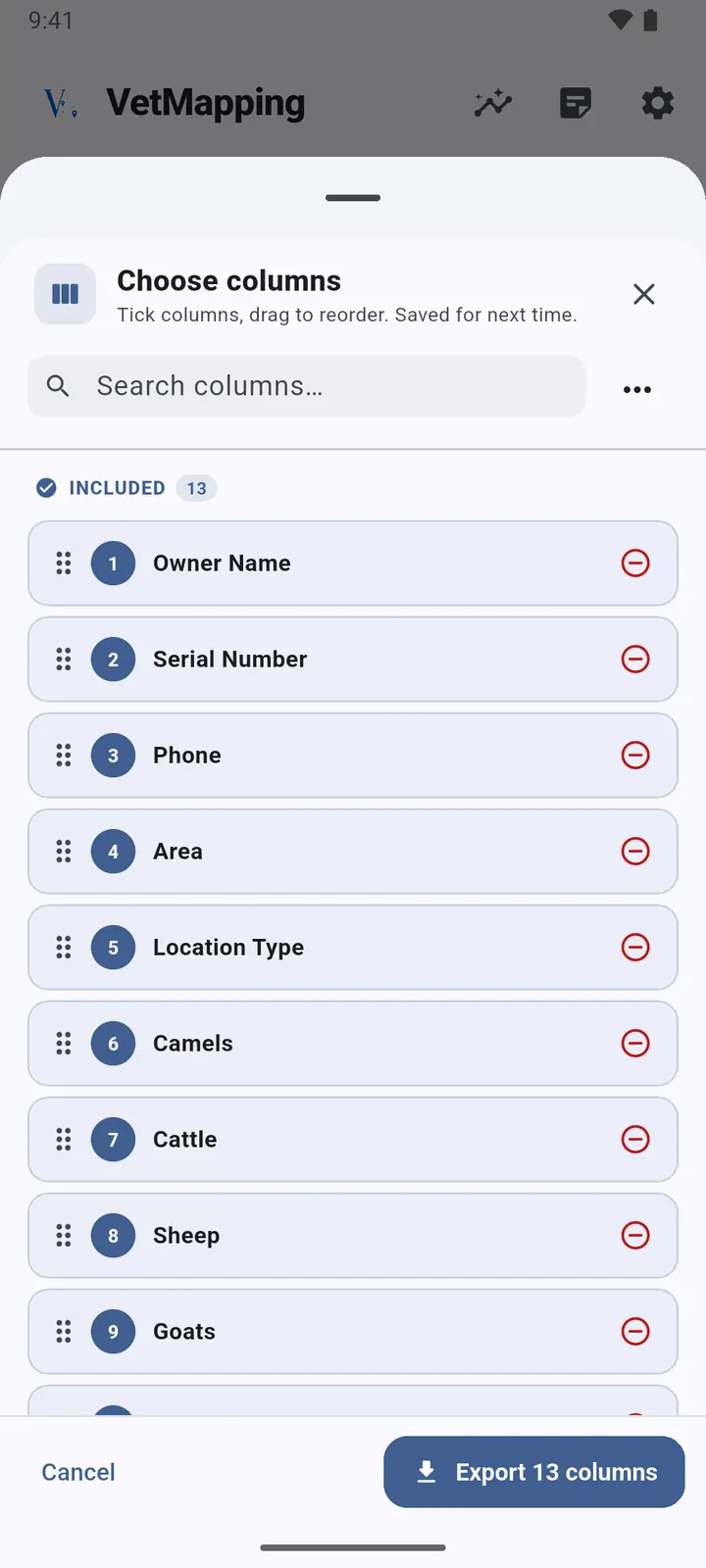
1Tap Export, choose the kind of site, then the columns. Drag them into the order you want; your choice is remembered.
-
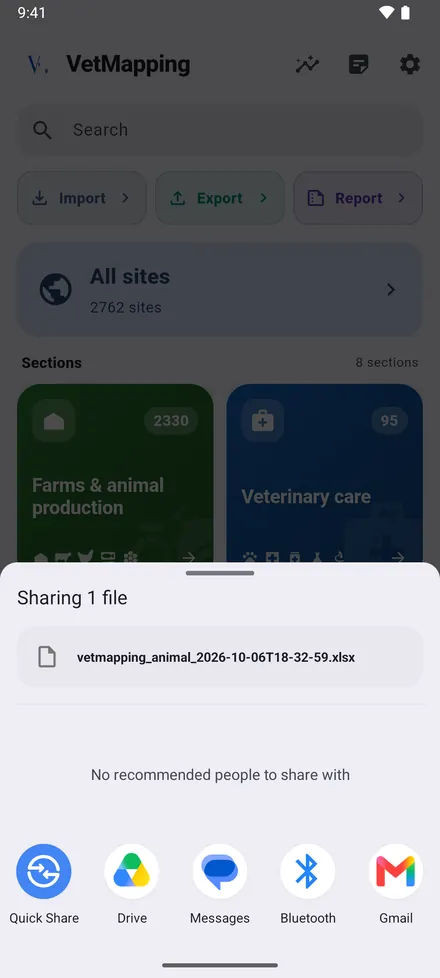
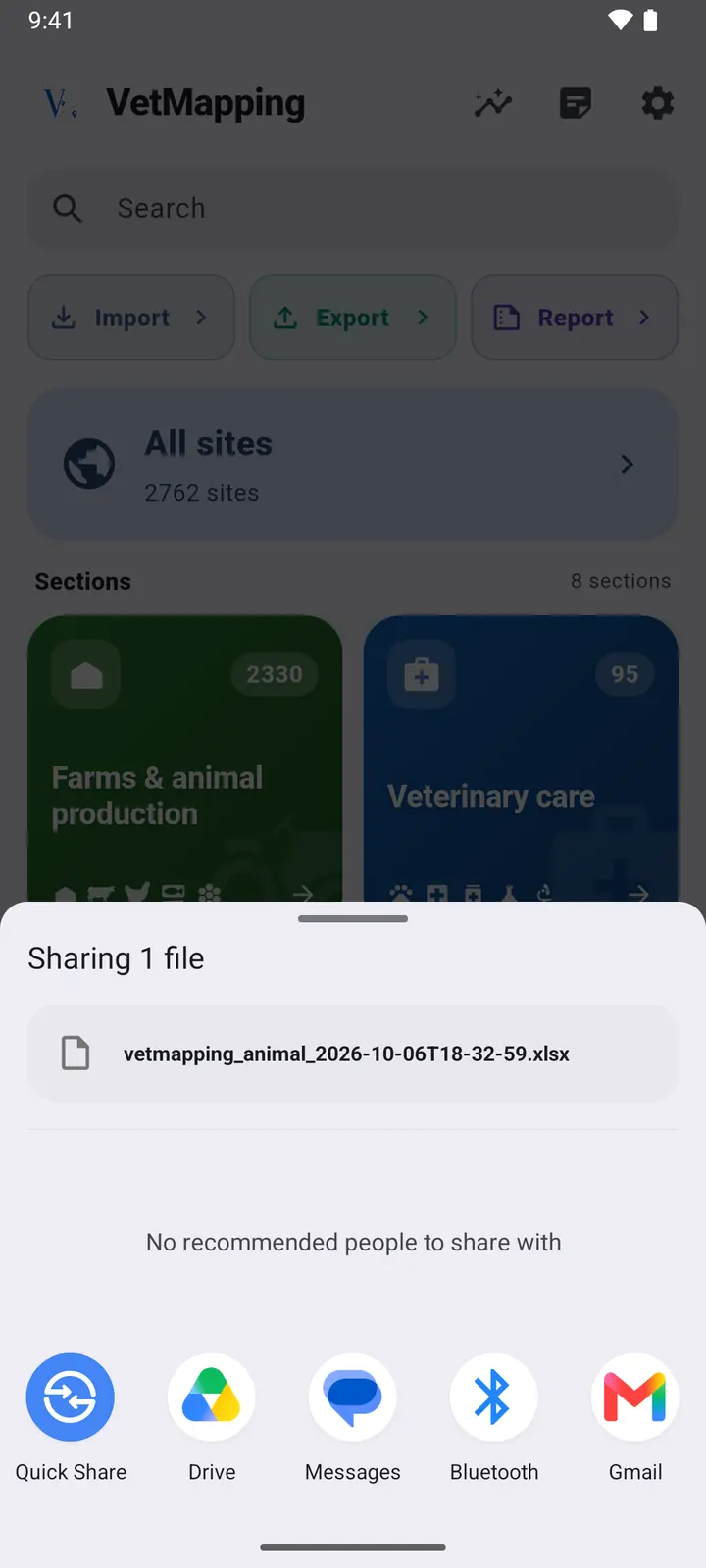
2Send the file to WhatsApp, email or Drive, or save it.
Activity reports in Excel or PDF
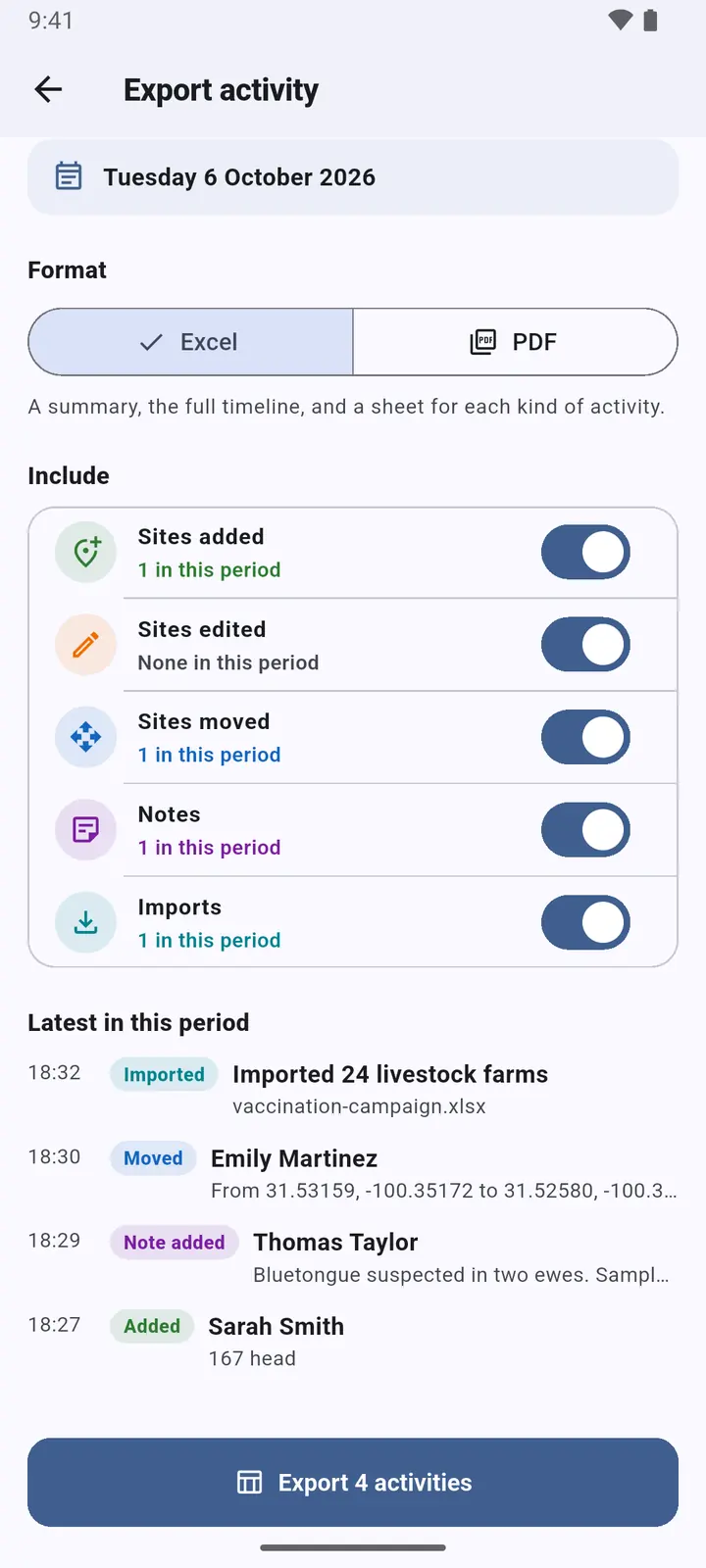
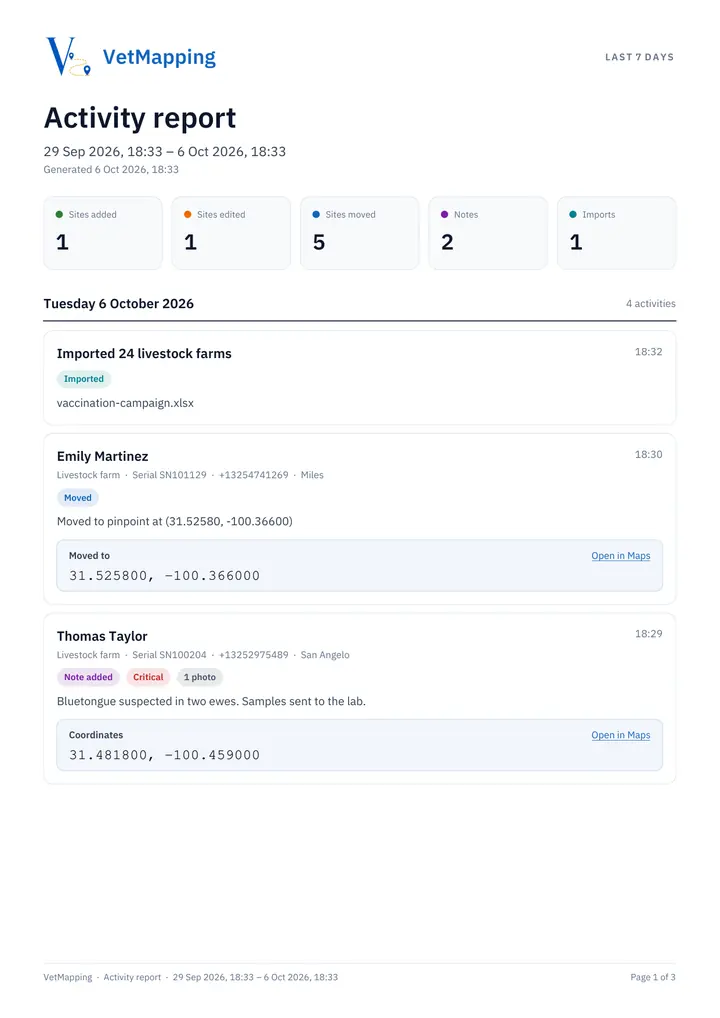
What was done in a period: sites added, edited and moved, notes and imports.
-
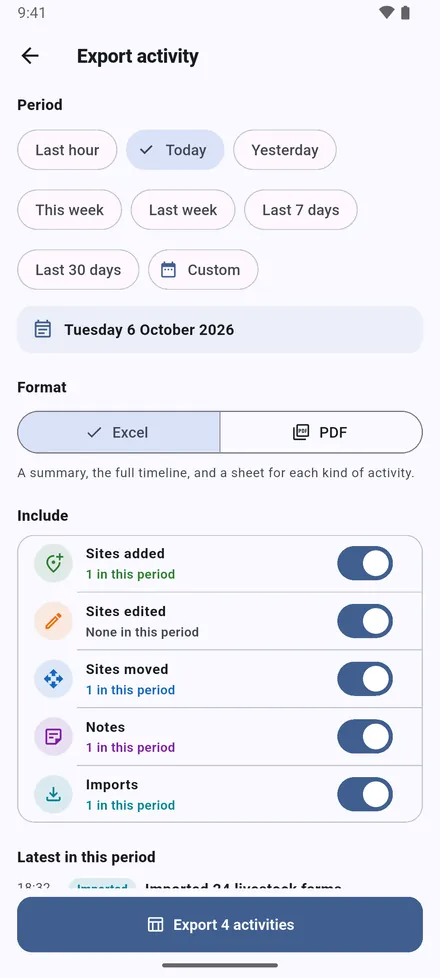
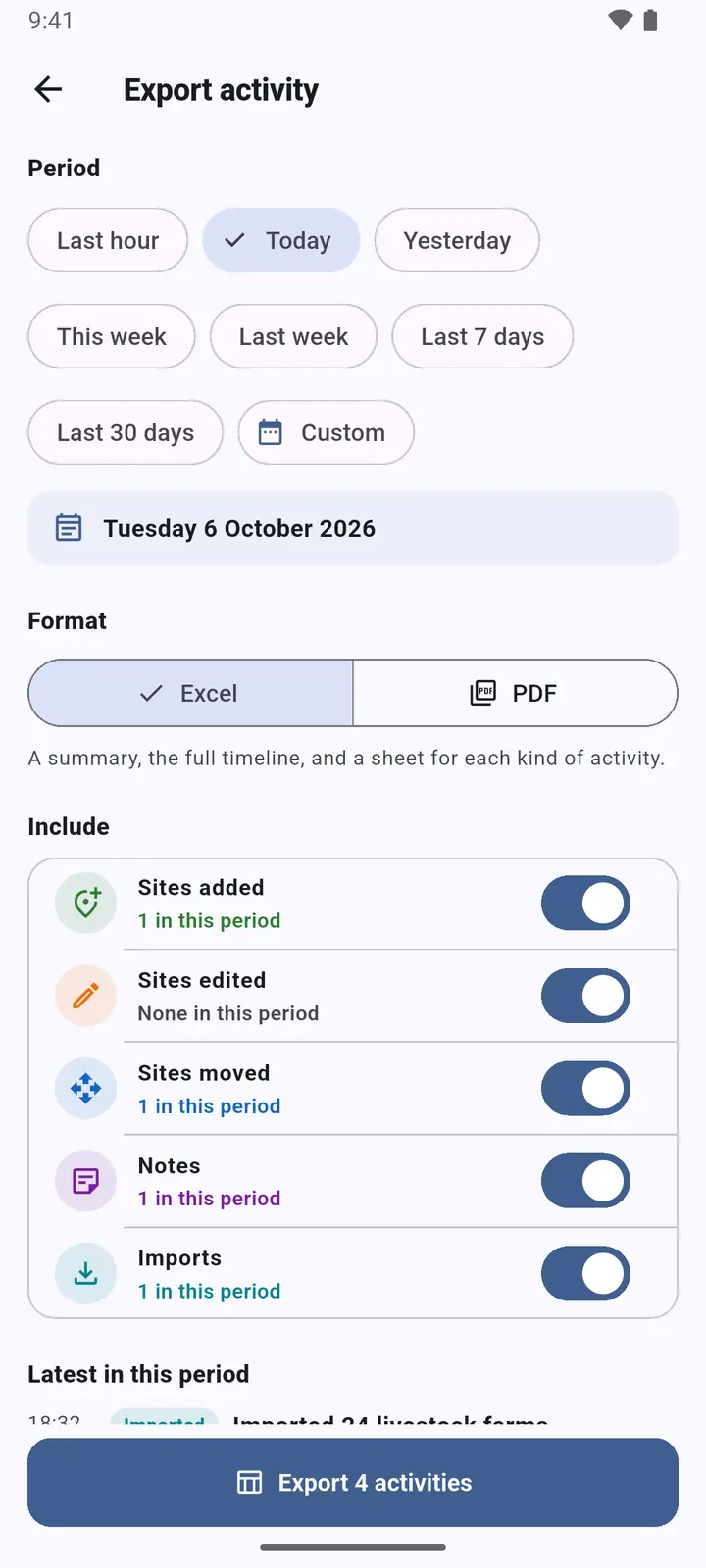
1Tap Report on the home screen. Choose the period, from the last hour to the last 30 days or your own dates, and Excel or PDF.
-
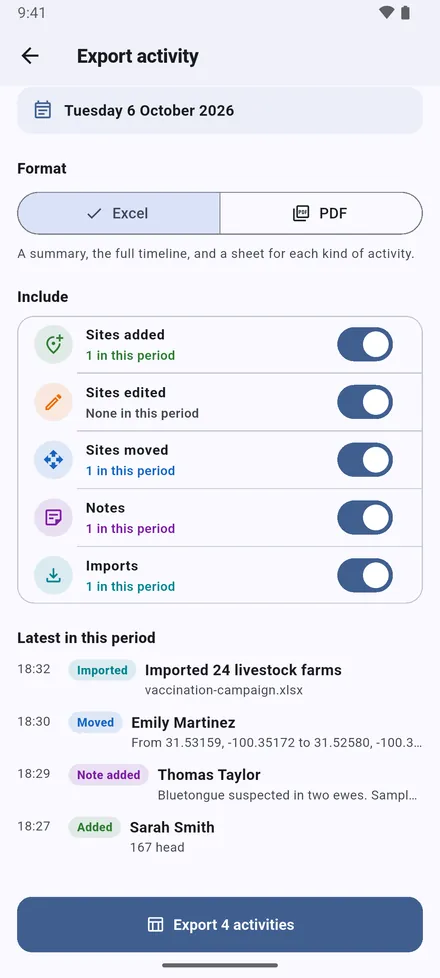
2Choose what to include. The latest entries are shown before you export.
-
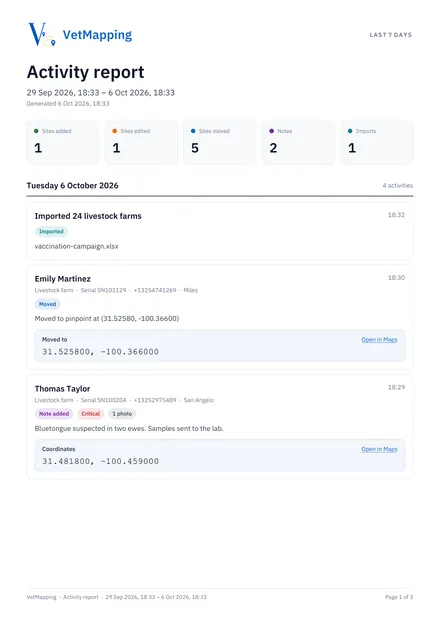
3The PDF: totals, then every activity by day, with the new coordinates of each move and a map link.
Statistics
-
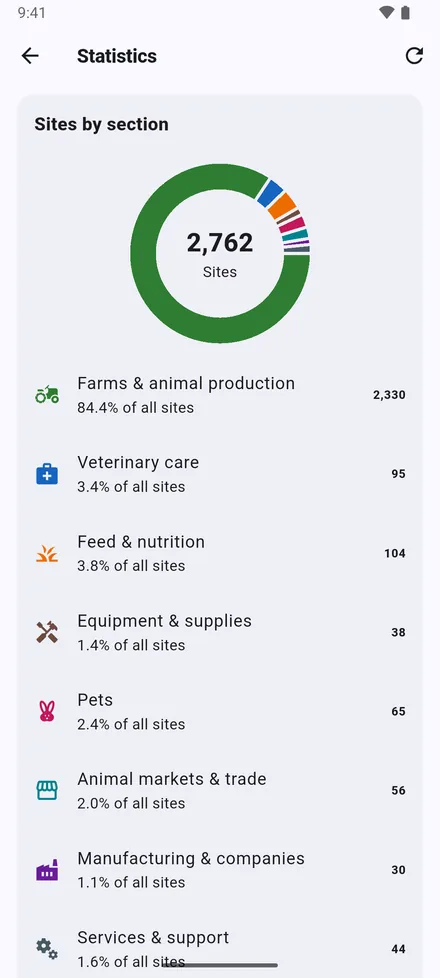
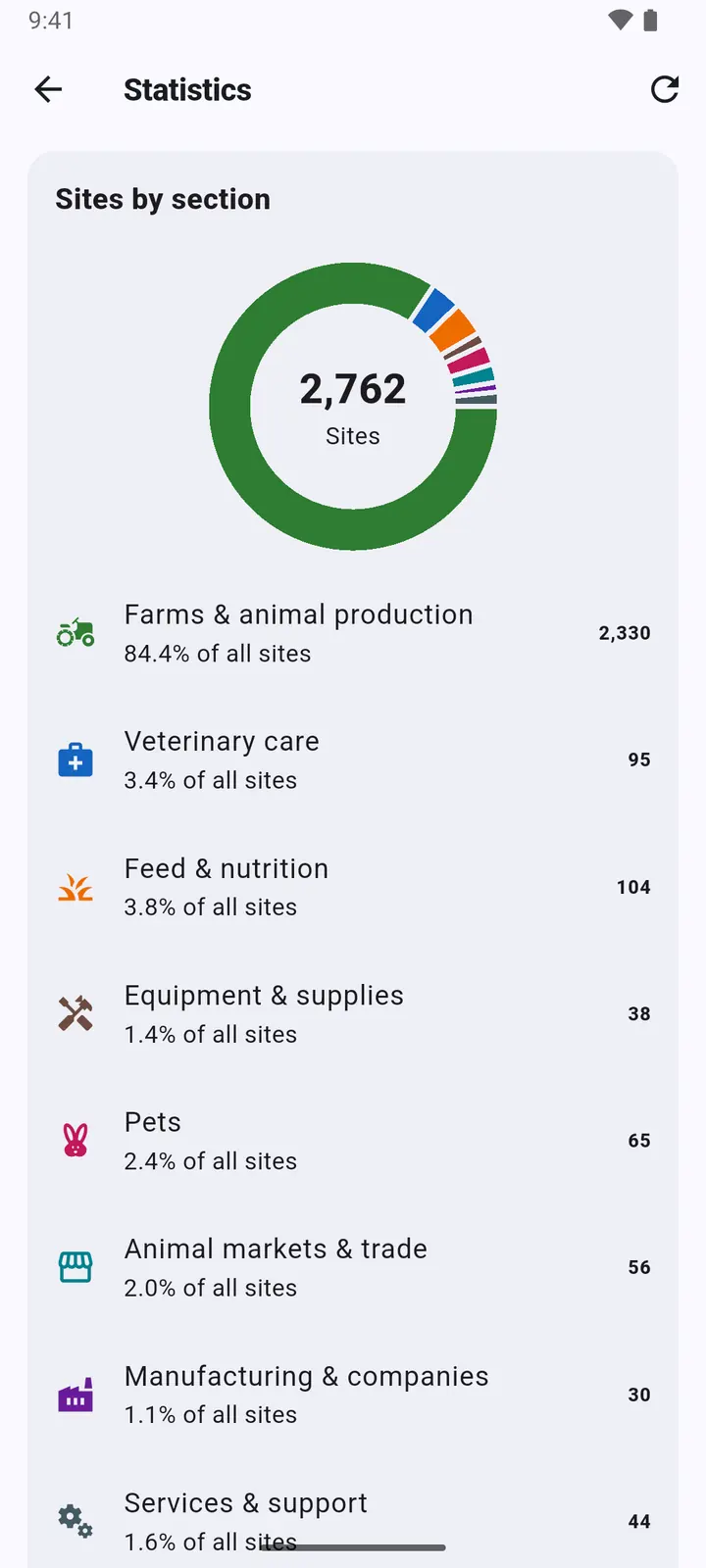
1Statistics, at the top of the home screen: how many sites you have, by section and by kind.
-
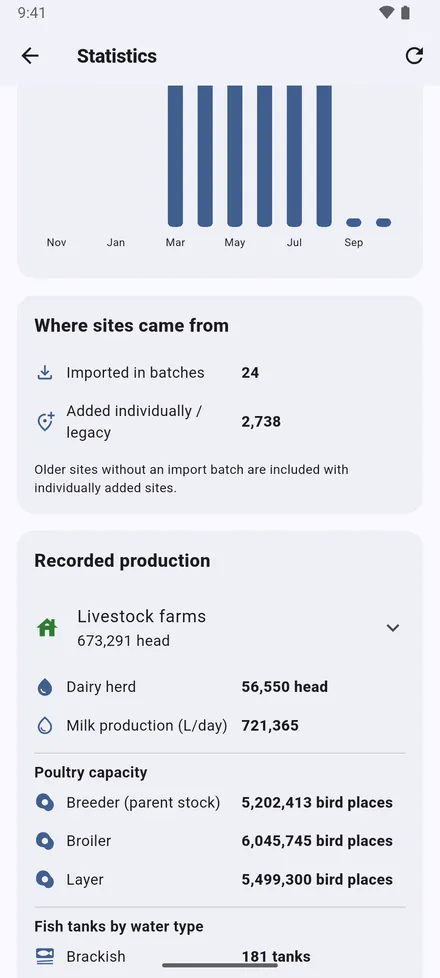
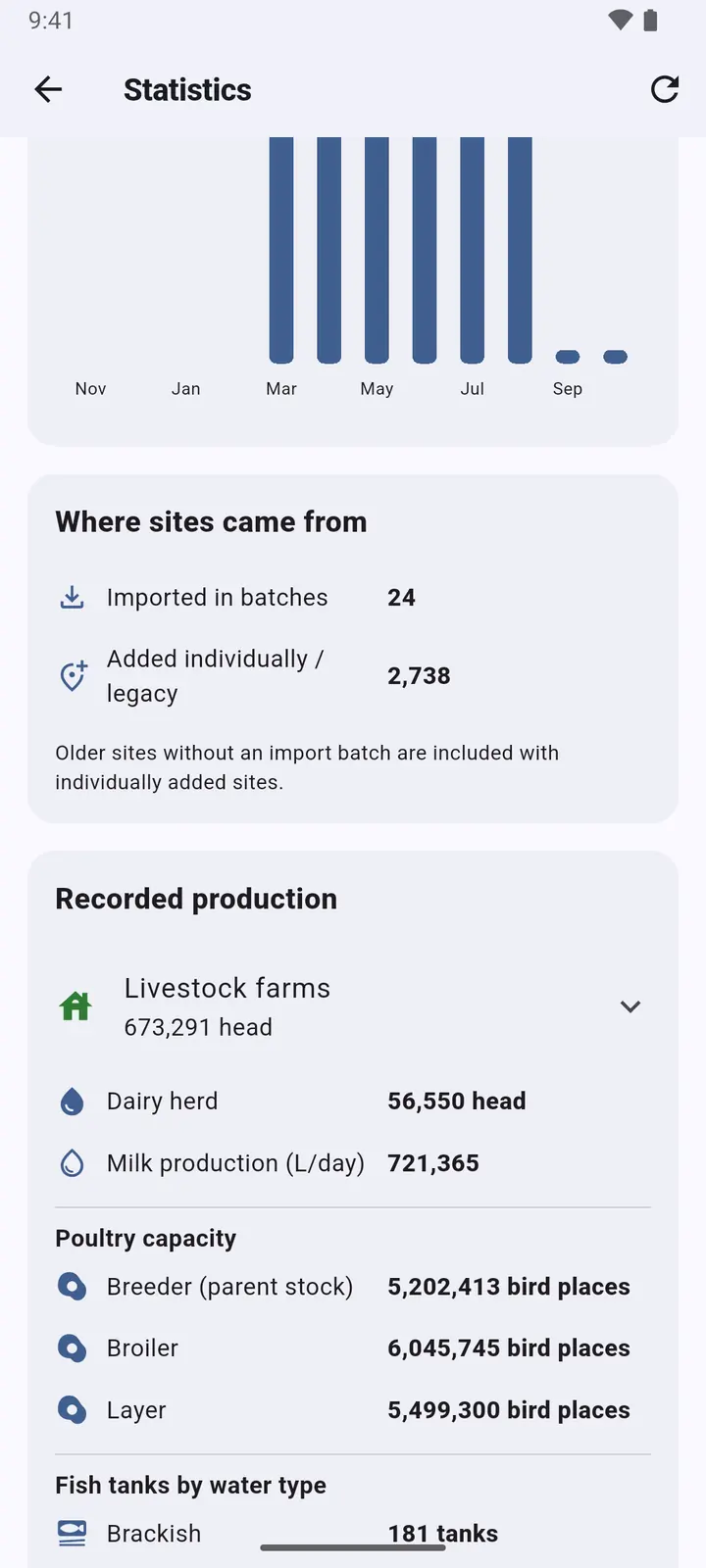
2Sites added month by month, where they came from, and the herds and production recorded: head counts, milk, poultry places and fish tanks.
Read numbers with the camera
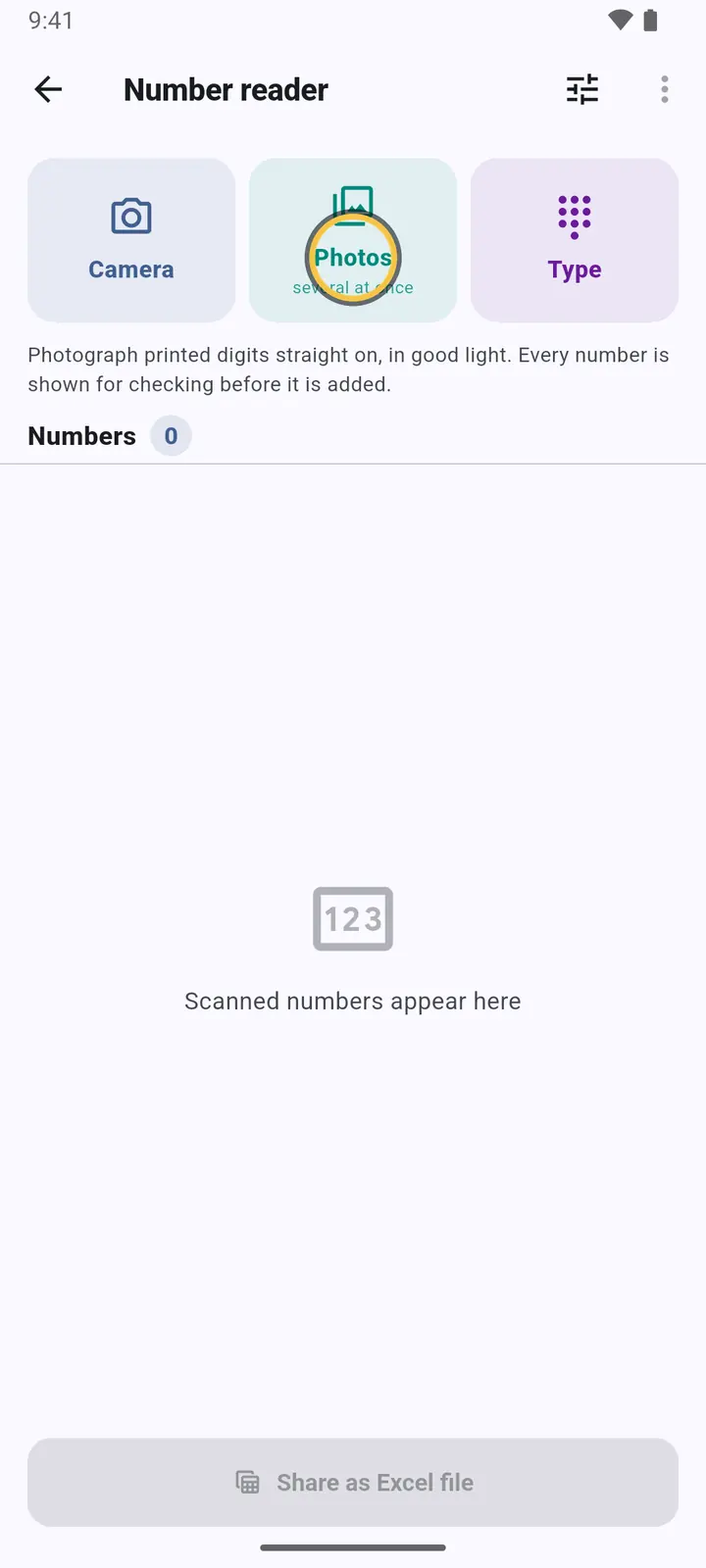
Ear tags, ID numbers and phone numbers from a printed list, without typing them.
-
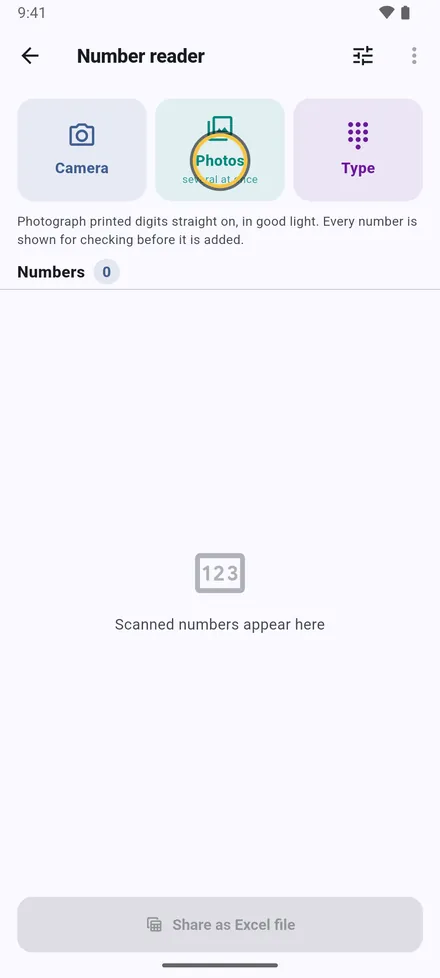
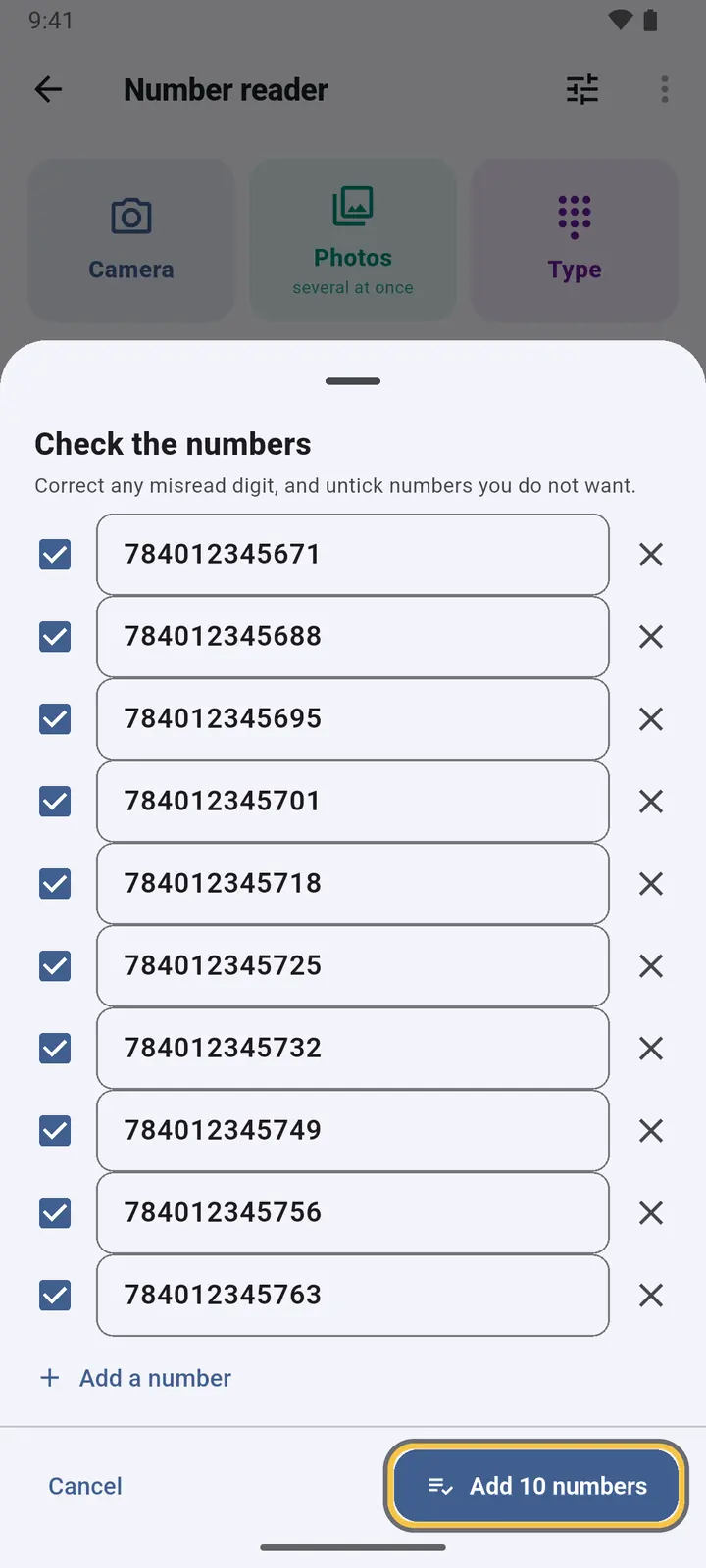
1Settings › Read numbers with camera. Take a photo, or pick several photos at once.
-
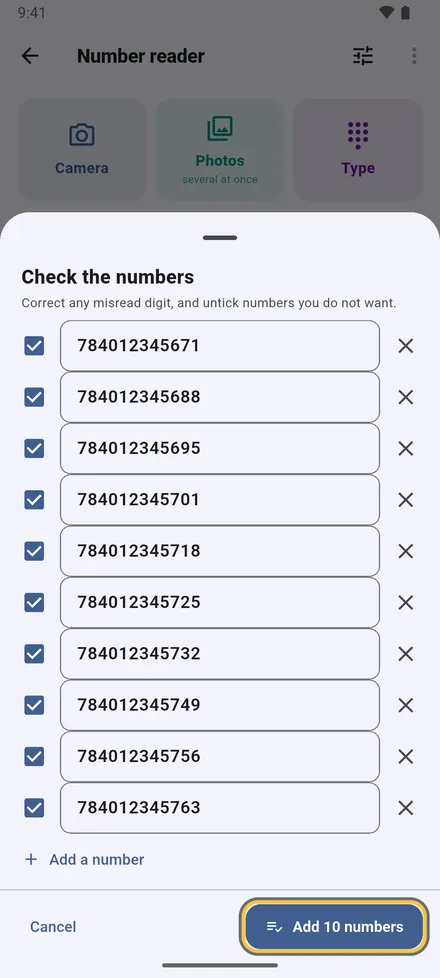
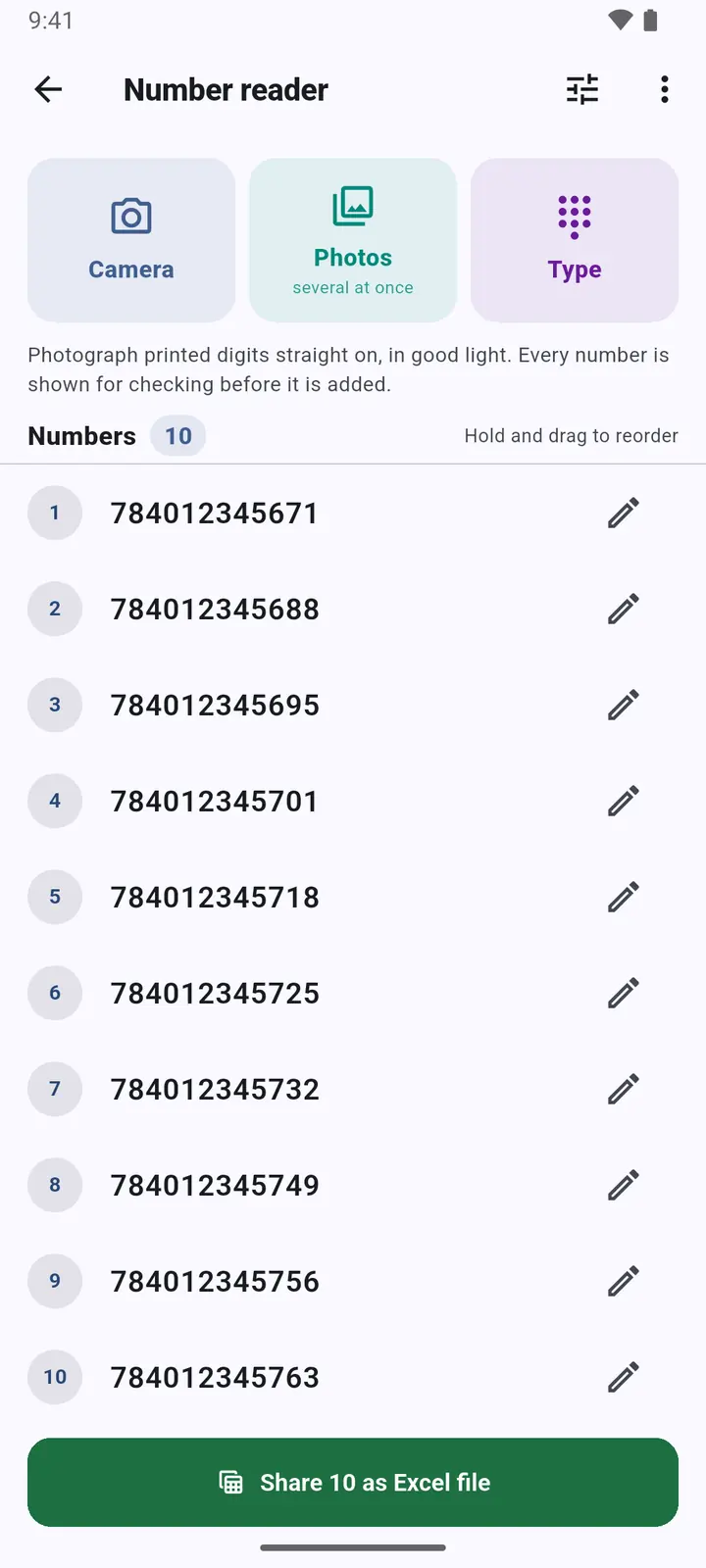
2Check every number: correct a digit, untick what you don't want, add a missing one. Doubtful readings and repeats are marked.
-
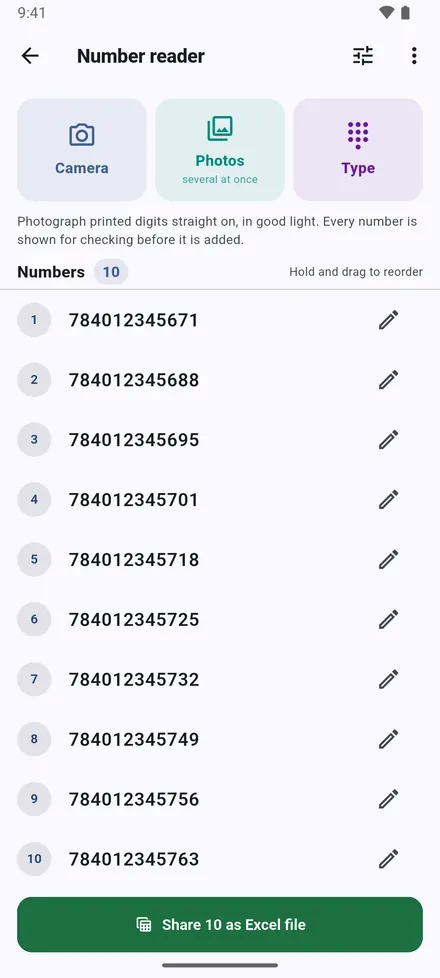
3The list can be reordered, copied, or shared as an Excel file.
Settings
-
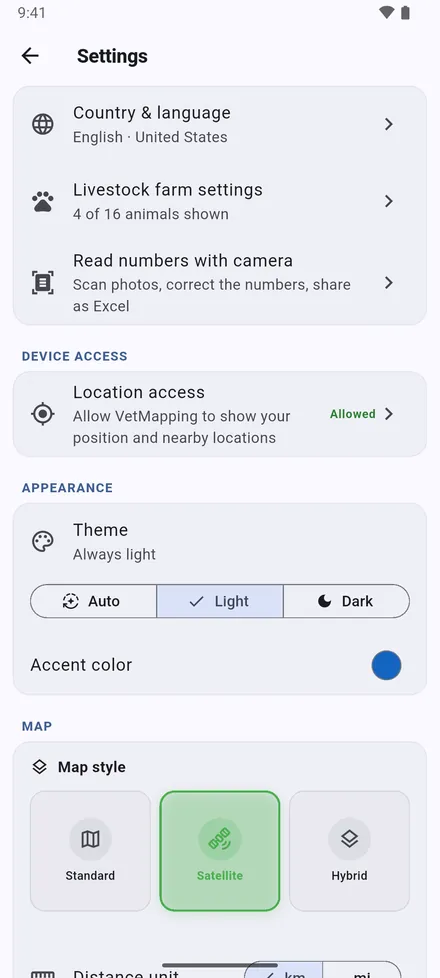
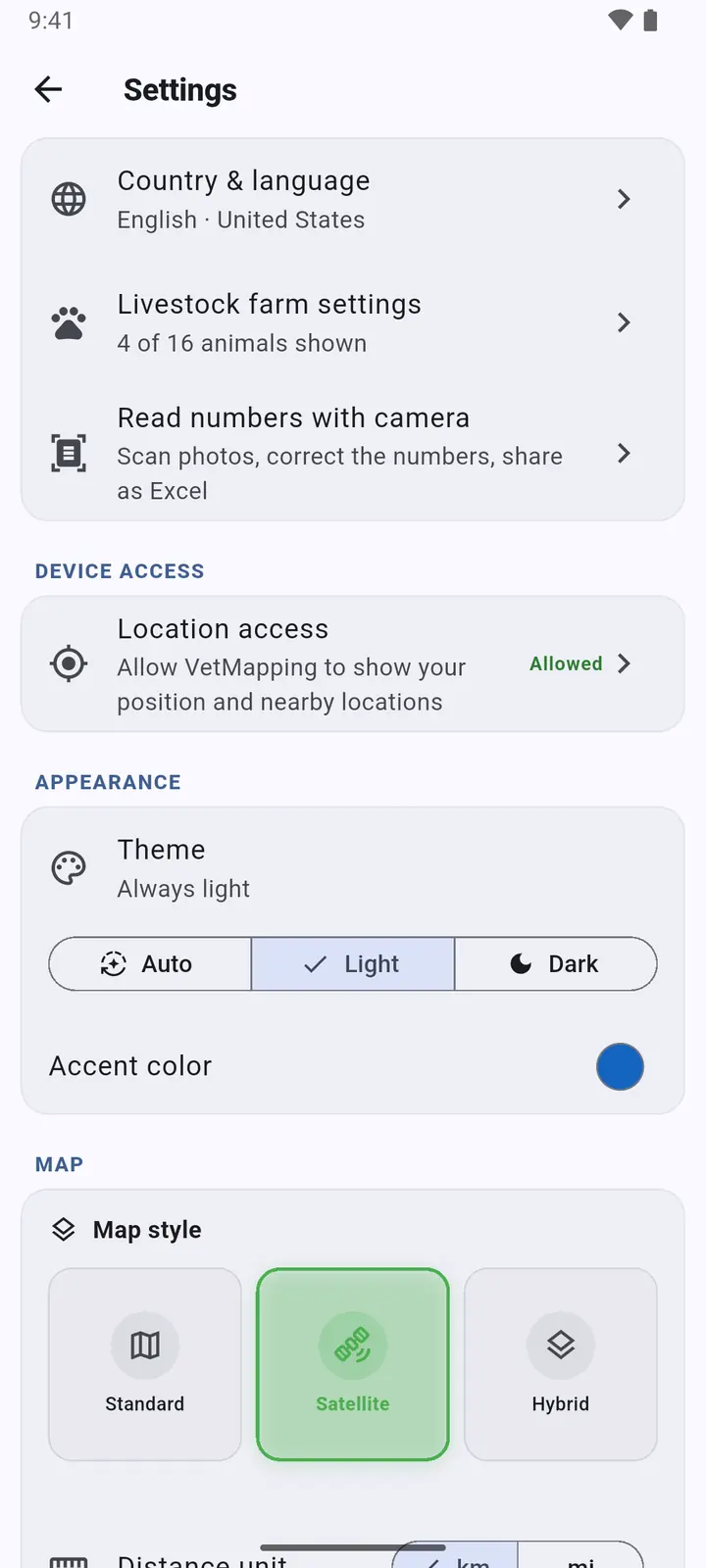
1Country & language, Livestock farm settings, Read numbers with camera and location access. Then the look: Theme and accent colour.
-
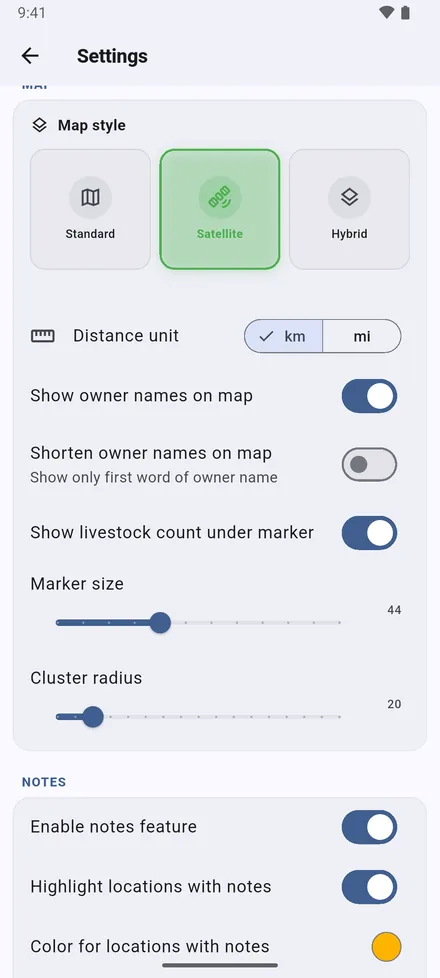
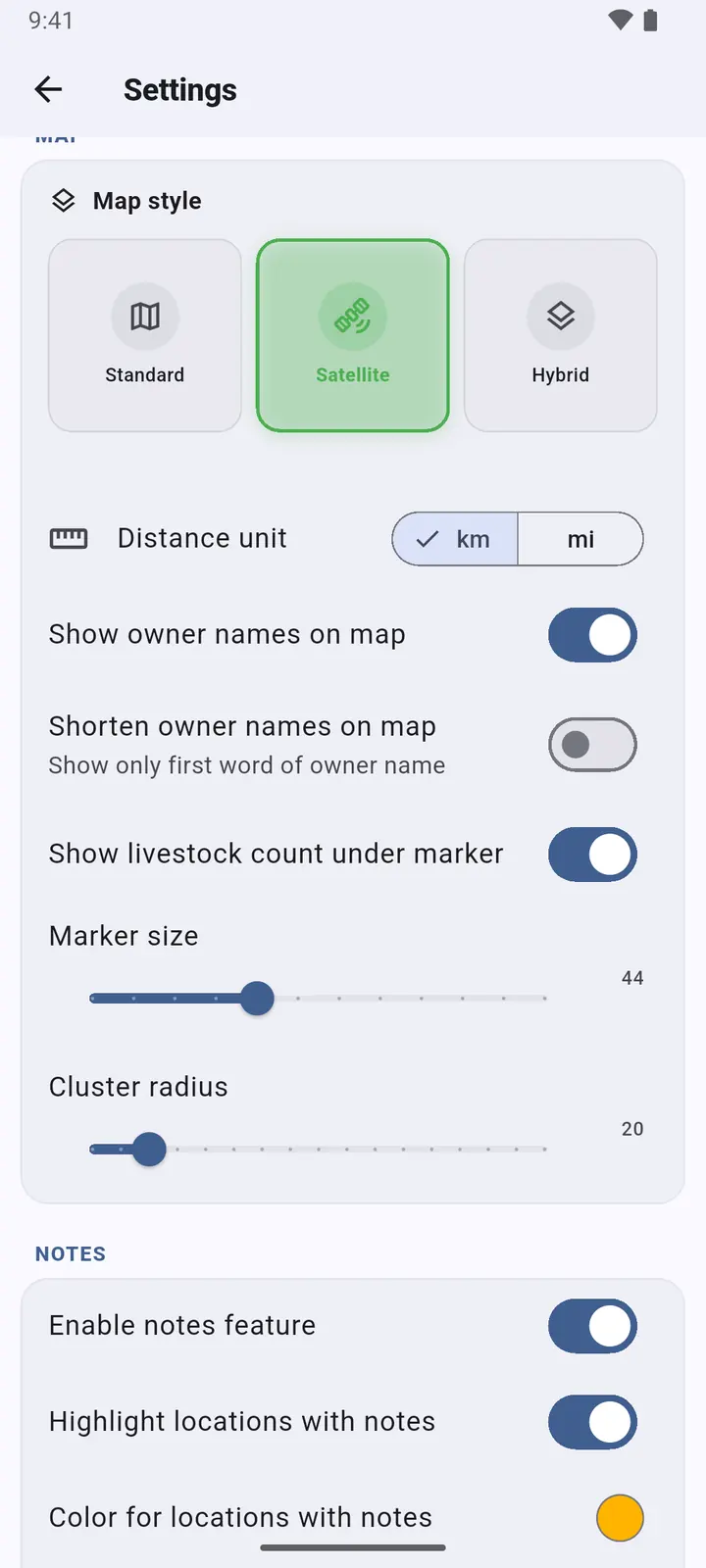
2The map: Map style, km or miles, owner names in full or first name only, head counts under the pins, pin size, and how readily nearby sites gather into one circle.
-
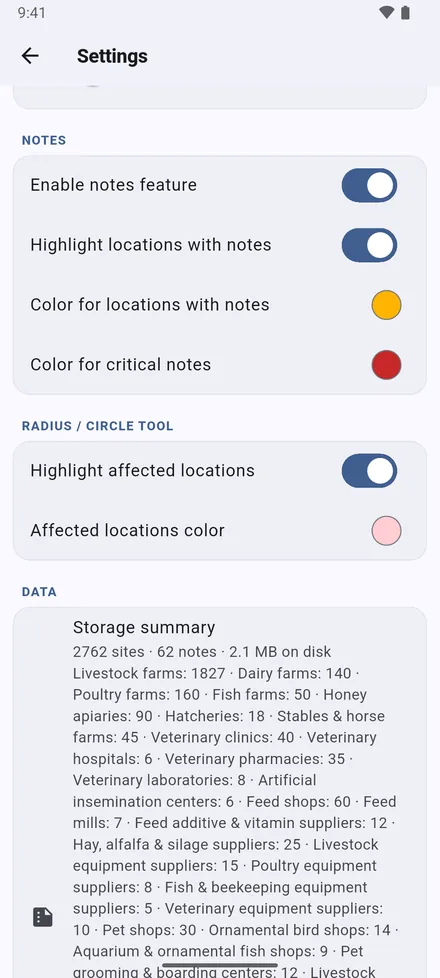
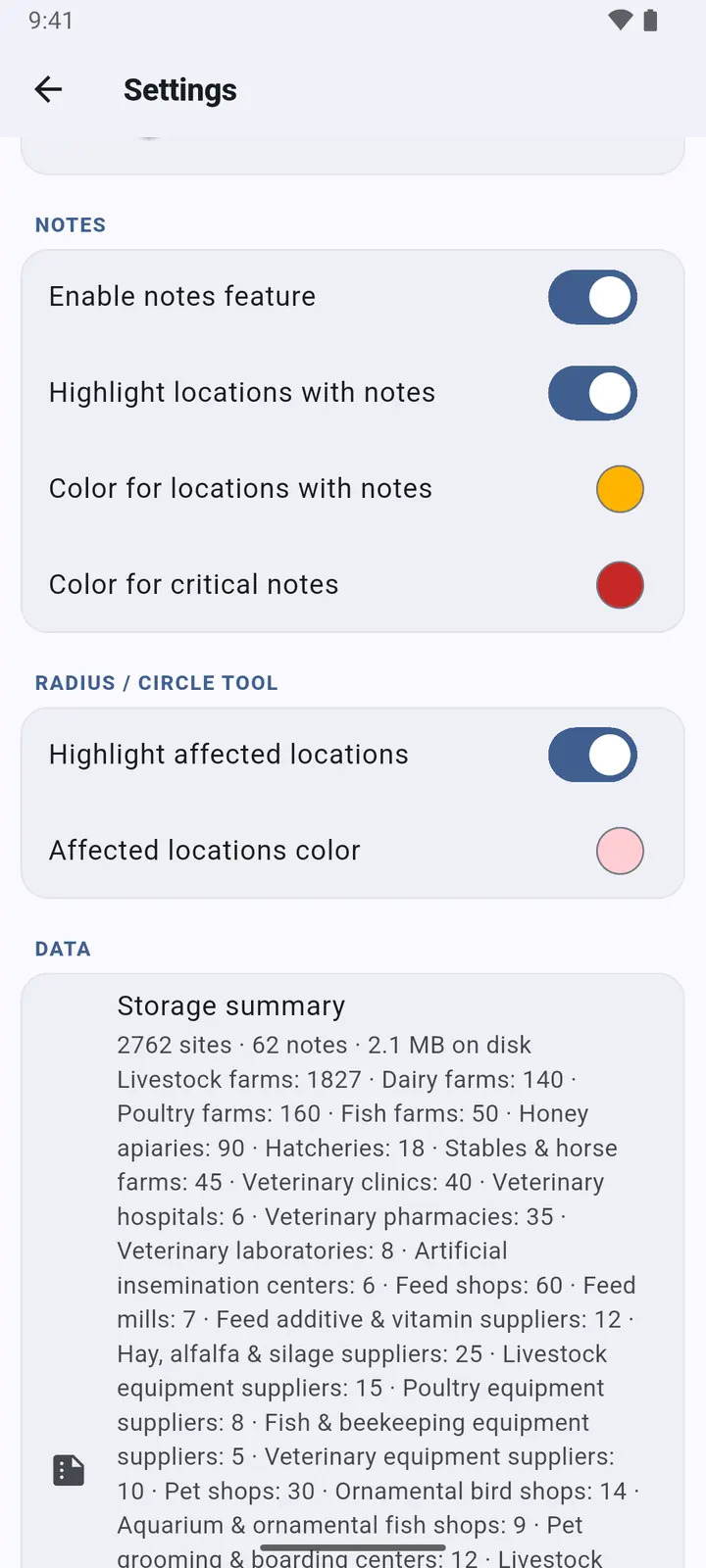
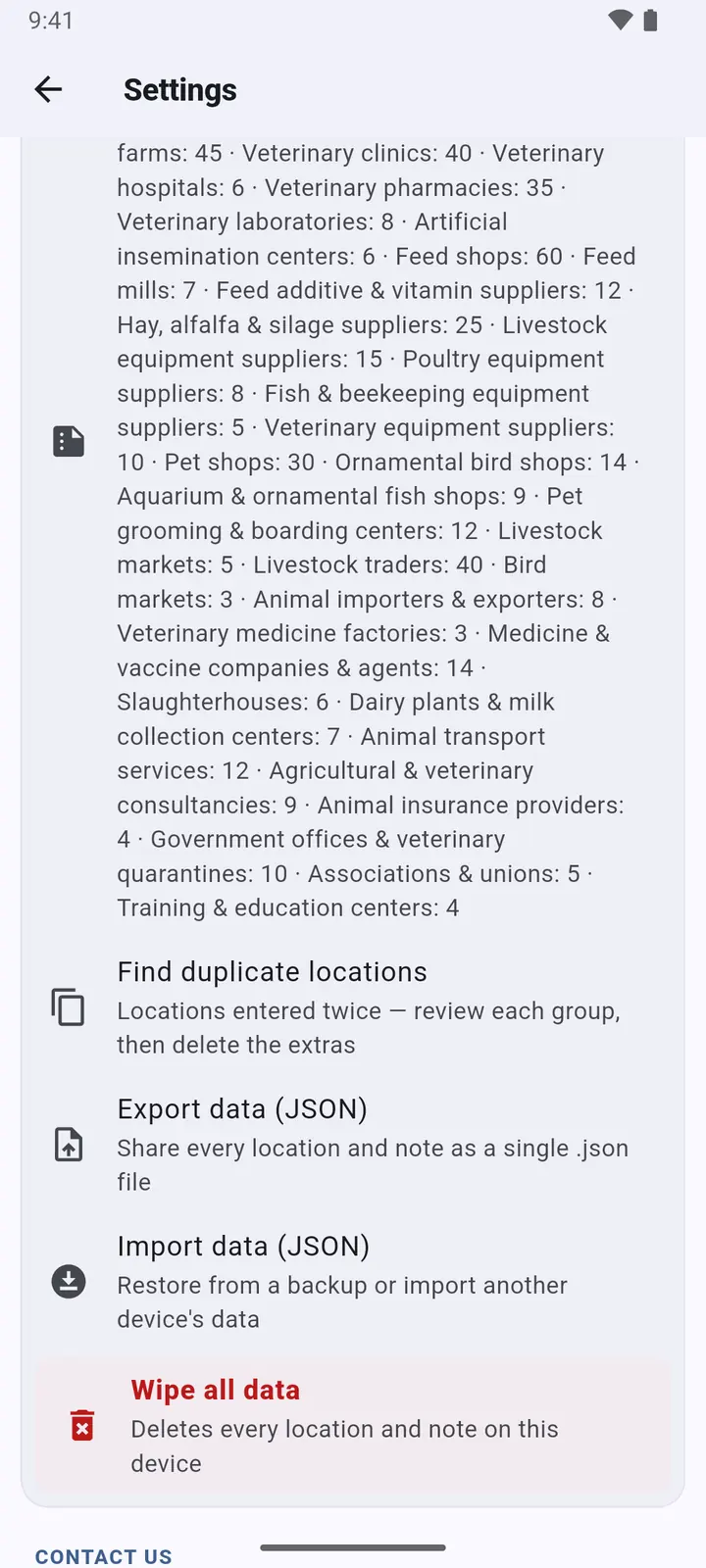
3Notes: tint sites that have notes, in colours you choose for ordinary and critical notes; the colour of sites inside a radius; and a count of everything stored.
-
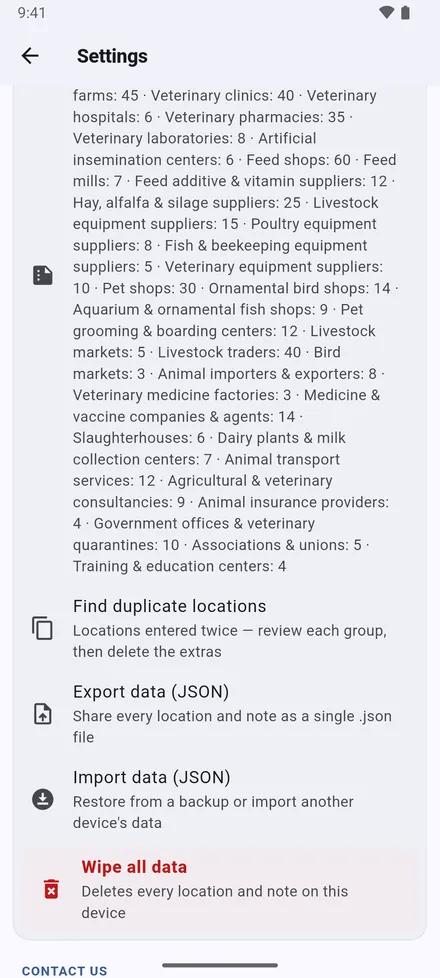
4Your data: Find duplicate locations, Export data (JSON), Import data (JSON) and Wipe all data.
-
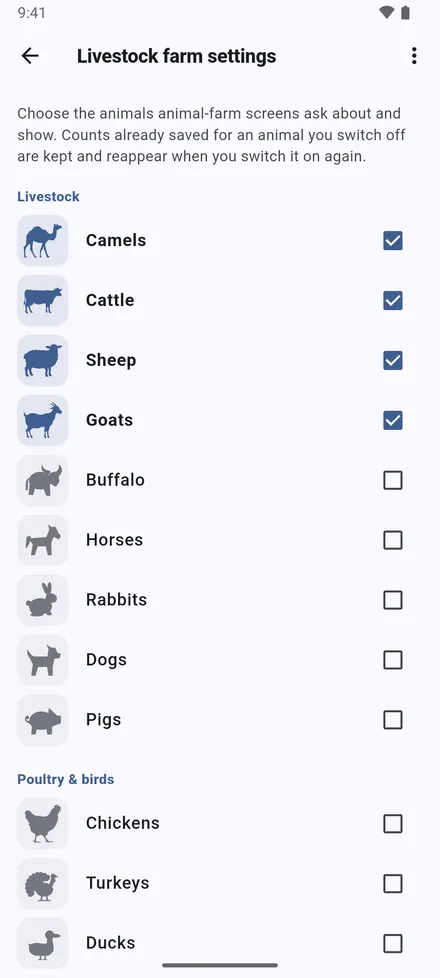
5Livestock farm settings: switch on the animals you work with. Only those appear in forms, records, statistics and Excel columns.
Backup and working as a team
There is no server, so a backup file is how data moves between phones.
-
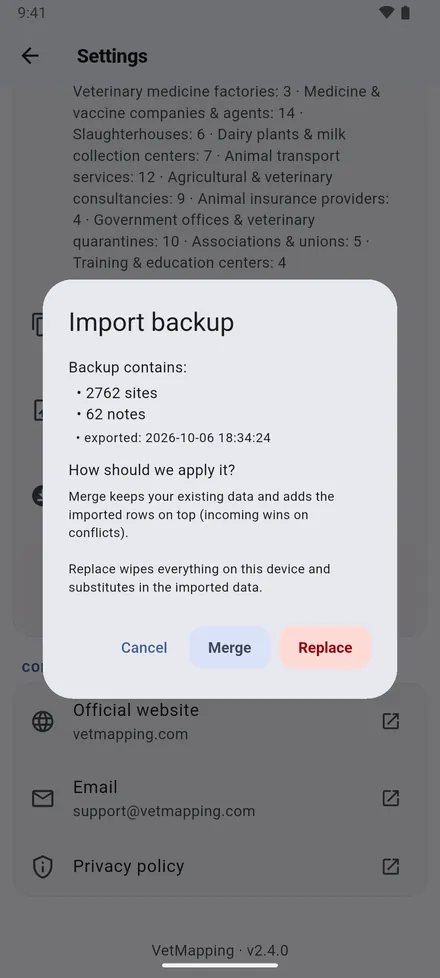
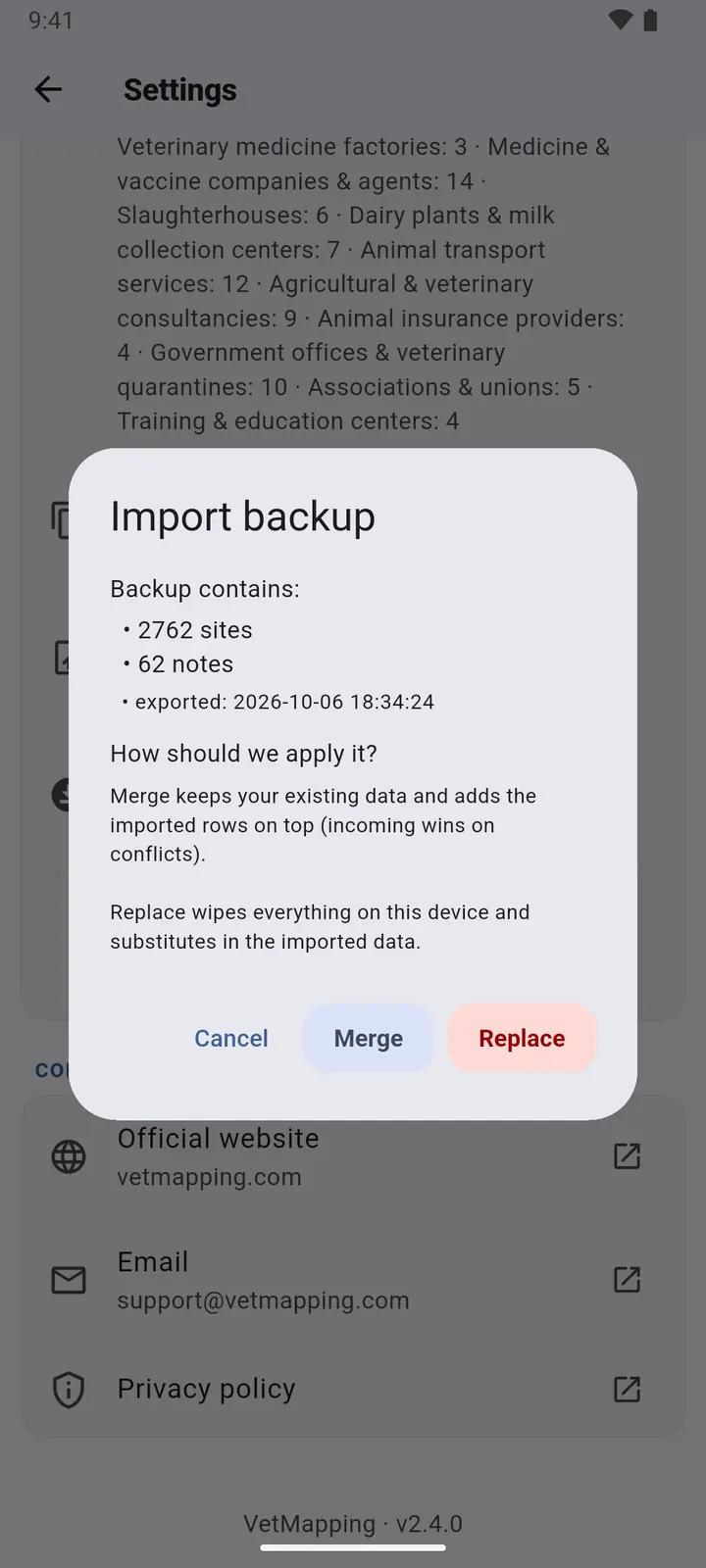
1Export data (JSON) saves everything in one file; send it to yourself or a colleague. Import data (JSON) then asks: Merge it with the data already there, or Replace it.
Export a backup before you change phones or uninstall the app. Uninstalling removes the data.
Dark mode
-
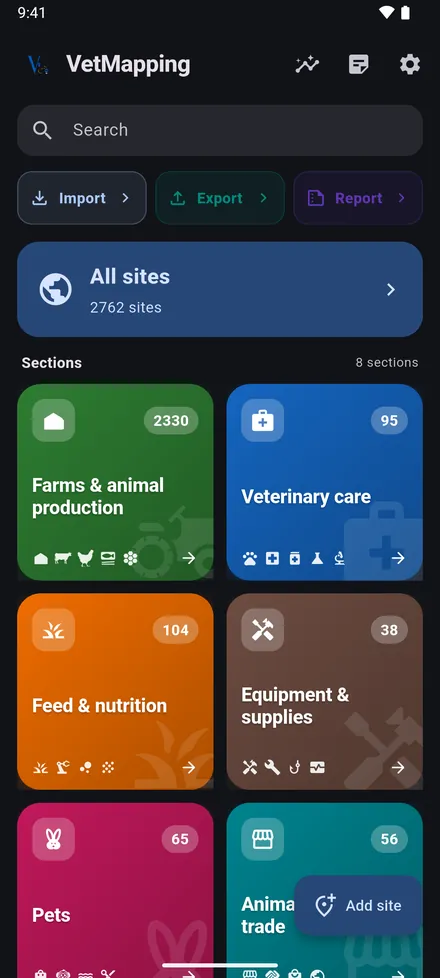
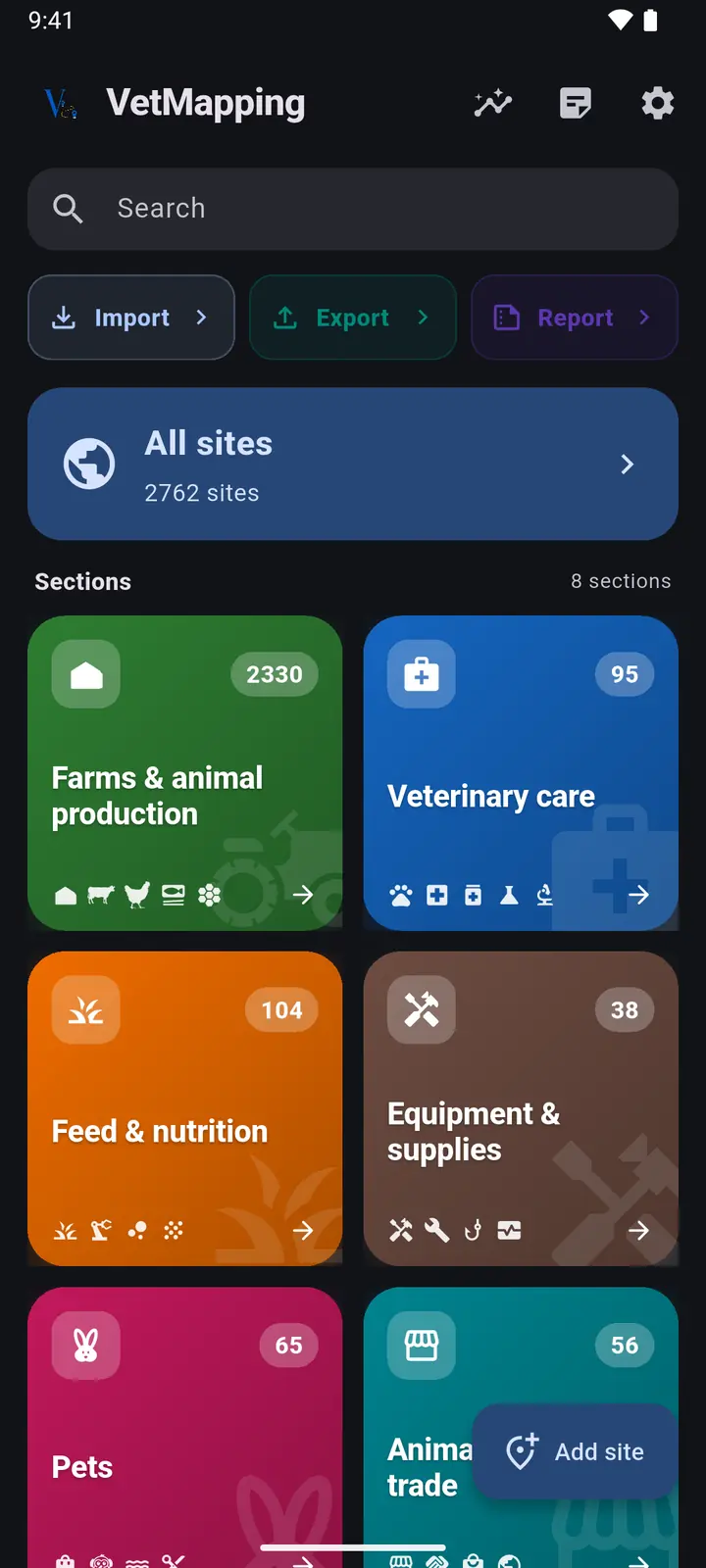
1Settings › Theme: Auto follows your phone, or choose Light or Dark.
-
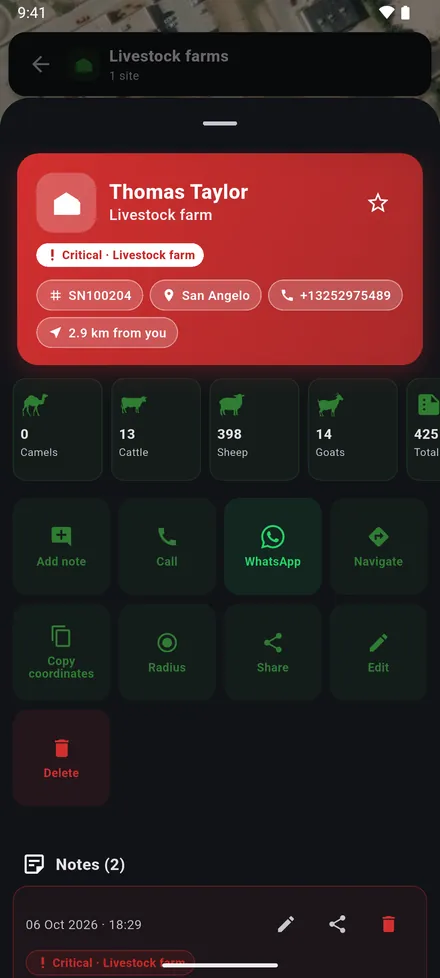
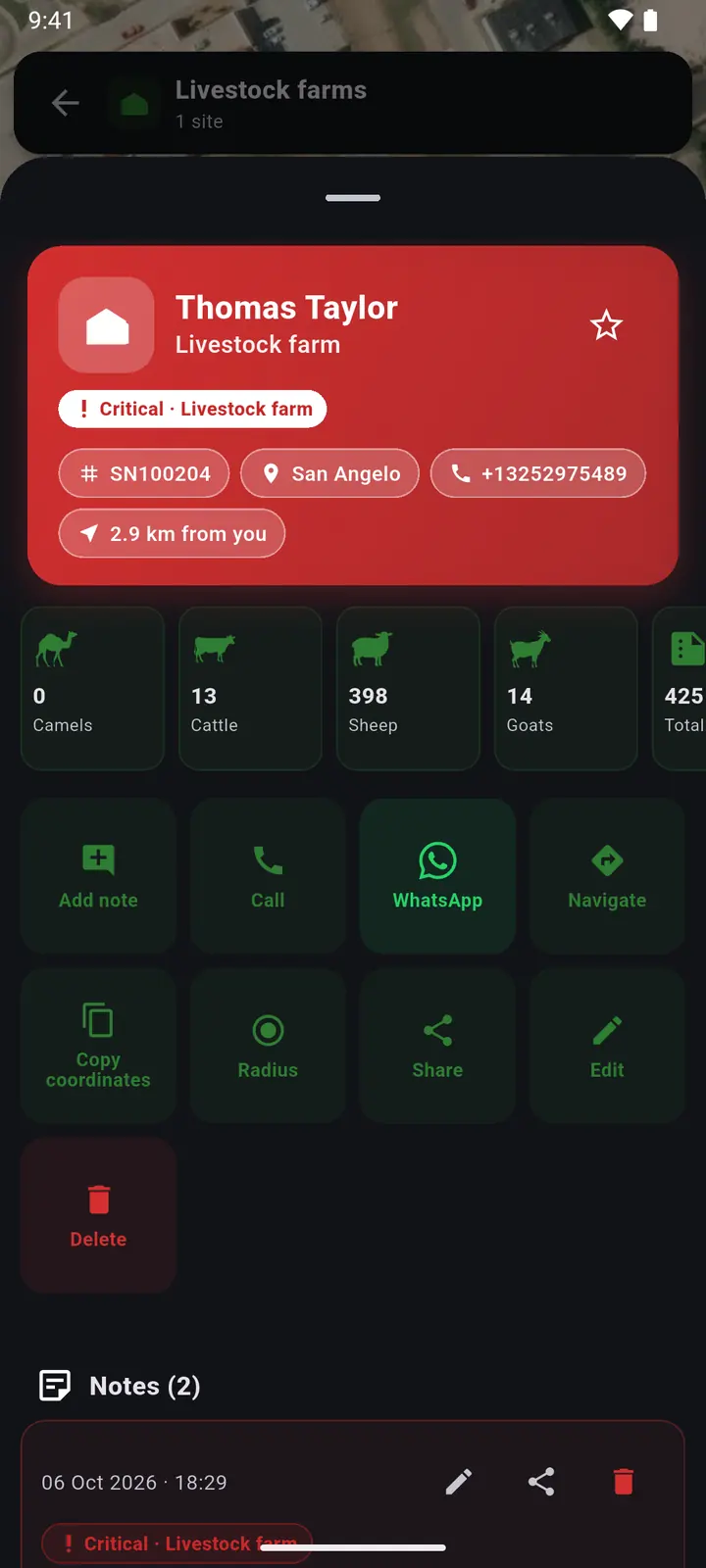
2Every screen follows, maps and records included.
Free trial and purchase
On iPhone and iPad, VetMapping is free to download and free to use for 7 days. After that, one purchase unlocks it for good. There is no subscription.
Deleting and reinstalling the app does not start the trial again. If the trial ends before you buy, your data stays on the phone and you can still export a backup.
Bought it before, on this or another iPhone with the same Apple ID? Tap Restore purchase on the unlock screen.
Still stuck?
Write to us and say what you were trying to do. A screenshot helps.